> ## Documentation Index
> Fetch the complete documentation index at: https://docs.denari.com/llms.txt
> Use this file to discover all available pages before exploring further.
# Automations
> Have Denari Answers run on a schedule and deliver the result without being asked.
An **automation** is a prompt that runs on a schedule. The monthly cover letters are drafted before you sit down on the fifth. The capacity report lands Monday morning. The timesheet reminder goes out at four on Friday.
It is the same agent, with the same connections and skills, running without a person present.
An automation belongs to **the person who created it**. You see your own on the Automations page, and a colleague cannot see or edit yours.
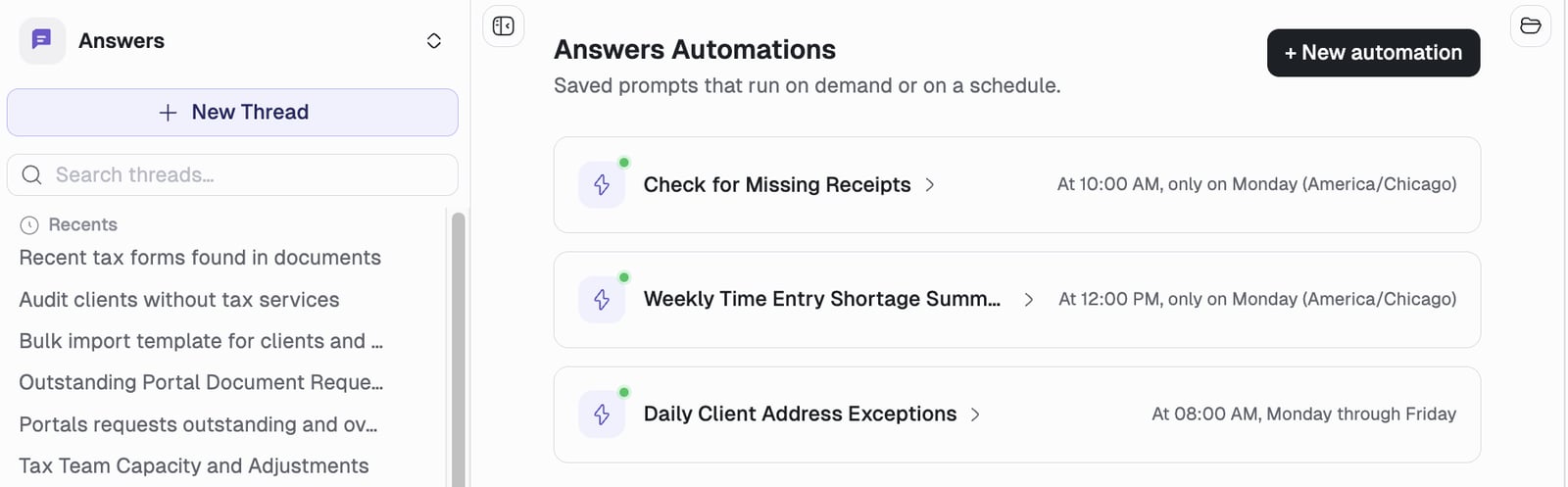 Each row shows its schedule in plain language, with the timezone it runs in, and a dot for whether it is enabled.
## The easy way: ask for it
Same as skills, the best moment is right after Answers has done the thing. Say so:
> Schedule this to run every Monday at 7am central and save the result to my files.
Answers sets up the automation from the conversation: the prompt, the connectors it just used, and the schedule. It tells you what it is about to create and waits for your confirmation, because a scheduled run acts on your behalf when you are not there.
**Name the timezone.** Answers has no way of knowing yours from a conversation, so a schedule created this way runs on **UTC** unless you say otherwise. "7am central" works; plain "7am" will not be the 7am you meant. You can also fix the timezone afterwards on the automation's edit page.
Note what the example asks for: *save the result*, not *email it to me*. Sending needs approval by default, and a scheduled run skips anything that would need approval rather than waiting for a person who is not there. See [unattended runs](#approvals-and-unattended-runs) below.
Ask about them later in the same way: "what automations do I have?", "why did the cover letter automation fail last week?", "stop the Monday capacity report".
## The manual way: the form
Go to **Answers → Automations → New automation**. These are the same settings Answers fills in when you ask it to schedule something, so this doubles as an explanation of what it set up.
`Monthly cover letters`. The description is a short summary of what it does, for whoever finds it later.
What you would have typed into the chat. Write it as if nobody is there to answer a follow-up question, because nobody is.
Instead of "generate the cover letter", write "generate the April financial statement cover letter for every client on the monthly package, and save each one to firm files". Name the clients, the period, the format and where the output goes.
If the work is a process you have already written down, just invoke it: `Use the monthly-close-checklist skill for every CAS client.`
Two habits are worth copying from automations that have been running for months. Say what **not** to do when the boundary matters:
> Create a draft email in my outlook that contains the following (do not send the email)
And close off the clarifying questions, since there is nobody to answer them:
> Do not ask me any questions in the chat, just fix any errors you find to the best of your ability and complete the request.
Without that second line, a run can stop halfway and wait for an answer that never comes.
Type it in plain English: `every Tuesday at 3pm`, `every weekday at 9am`, `every 15 minutes`. A cron expression works too, under **Advanced**.
The **timezone** sits next to the schedule field and defaults to your browser's. Check it. A schedule is the one setting where being quietly wrong by six hours costs you a month.
Leave the schedule **empty** if you want an automation you only ever trigger by hand. It saves fine and waits for **Run now**.
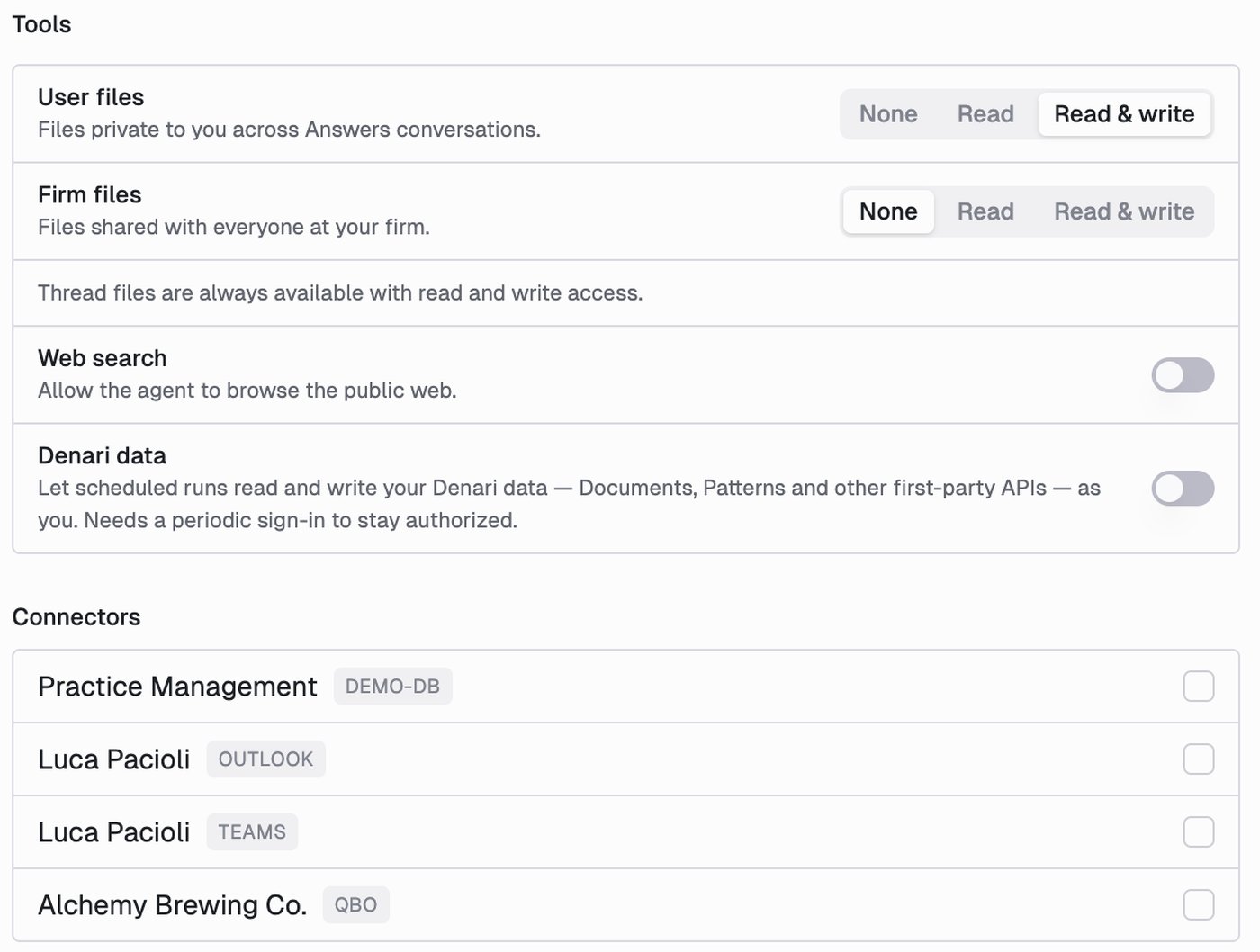
Two sections decide what the run can reach, and the defaults are deliberately narrow.
Under **Tools**:
| Setting | Control | Default |
| - | - | - |
| **User files** | None / Read / Read & write | Read & write |
| **Firm files** | None / Read / Read & write | None |
| **Web search** | on or off | off |
| **Denari data** | on or off | off |
**Denari data** lets the run read and write your Denari data (Documents, Patterns and the other first-party APIs) **as you**, so it is off until you decide otherwise.
Thread files are not in the table because they are not optional: a run always has read and write access to its own thread.
Under **Connectors**, pick the connected accounts this run may use. Each is listed by account name with the system it belongs to, so a firm with several QuickBooks companies picks the right one by name. Nothing is selected by default, so an automation that needs QuickBooks will do nothing useful until you select it.
Each row shows its schedule in plain language, with the timezone it runs in, and a dot for whether it is enabled.
## The easy way: ask for it
Same as skills, the best moment is right after Answers has done the thing. Say so:
> Schedule this to run every Monday at 7am central and save the result to my files.
Answers sets up the automation from the conversation: the prompt, the connectors it just used, and the schedule. It tells you what it is about to create and waits for your confirmation, because a scheduled run acts on your behalf when you are not there.
**Name the timezone.** Answers has no way of knowing yours from a conversation, so a schedule created this way runs on **UTC** unless you say otherwise. "7am central" works; plain "7am" will not be the 7am you meant. You can also fix the timezone afterwards on the automation's edit page.
Note what the example asks for: *save the result*, not *email it to me*. Sending needs approval by default, and a scheduled run skips anything that would need approval rather than waiting for a person who is not there. See [unattended runs](#approvals-and-unattended-runs) below.
Ask about them later in the same way: "what automations do I have?", "why did the cover letter automation fail last week?", "stop the Monday capacity report".
## The manual way: the form
Go to **Answers → Automations → New automation**. These are the same settings Answers fills in when you ask it to schedule something, so this doubles as an explanation of what it set up.
`Monthly cover letters`. The description is a short summary of what it does, for whoever finds it later.
What you would have typed into the chat. Write it as if nobody is there to answer a follow-up question, because nobody is.
Instead of "generate the cover letter", write "generate the April financial statement cover letter for every client on the monthly package, and save each one to firm files". Name the clients, the period, the format and where the output goes.
If the work is a process you have already written down, just invoke it: `Use the monthly-close-checklist skill for every CAS client.`
Two habits are worth copying from automations that have been running for months. Say what **not** to do when the boundary matters:
> Create a draft email in my outlook that contains the following (do not send the email)
And close off the clarifying questions, since there is nobody to answer them:
> Do not ask me any questions in the chat, just fix any errors you find to the best of your ability and complete the request.
Without that second line, a run can stop halfway and wait for an answer that never comes.
Type it in plain English: `every Tuesday at 3pm`, `every weekday at 9am`, `every 15 minutes`. A cron expression works too, under **Advanced**.
The **timezone** sits next to the schedule field and defaults to your browser's. Check it. A schedule is the one setting where being quietly wrong by six hours costs you a month.
Leave the schedule **empty** if you want an automation you only ever trigger by hand. It saves fine and waits for **Run now**.
Two sections decide what the run can reach, and the defaults are deliberately narrow.
Under **Tools**:
| Setting | Control | Default |
| - | - | - |
| **User files** | None / Read / Read & write | Read & write |
| **Firm files** | None / Read / Read & write | None |
| **Web search** | on or off | off |
| **Denari data** | on or off | off |
**Denari data** lets the run read and write your Denari data (Documents, Patterns and the other first-party APIs) **as you**, so it is off until you decide otherwise.
Thread files are not in the table because they are not optional: a run always has read and write access to its own thread.
Under **Connectors**, pick the connected accounts this run may use. Each is listed by account name with the system it belongs to, so a firm with several QuickBooks companies picks the right one by name. Nothing is selected by default, so an automation that needs QuickBooks will do nothing useful until you select it.
 **Effort** is the same Low through Max control as the chat. Scheduled runs are not waiting on your attention, so a higher effort is often worth it here.
**Enabled** controls whether the schedule fires. You can still trigger a disabled automation by hand with **Run now**.
**Denari data** needs a periodic sign-in to stay authorized. If an automation that reads your Denari data goes quiet, check whether its authorization lapsed.
## A worked example
This one has run every Monday since August. It is worth reading in full, because it is longer and more pedantic than anything you would type into the chat, and that is the point.
**Effort** is the same Low through Max control as the chat. Scheduled runs are not waiting on your attention, so a higher effort is often worth it here.
**Enabled** controls whether the schedule fires. You can still trigger a disabled automation by hand with **Run now**.
**Denari data** needs a periodic sign-in to stay authorized. If an automation that reads your Denari data goes quiet, check whether its authorization lapsed.
## A worked example
This one has run every Monday since August. It is worth reading in full, because it is longer and more pedantic than anything you would type into the chat, and that is the point.
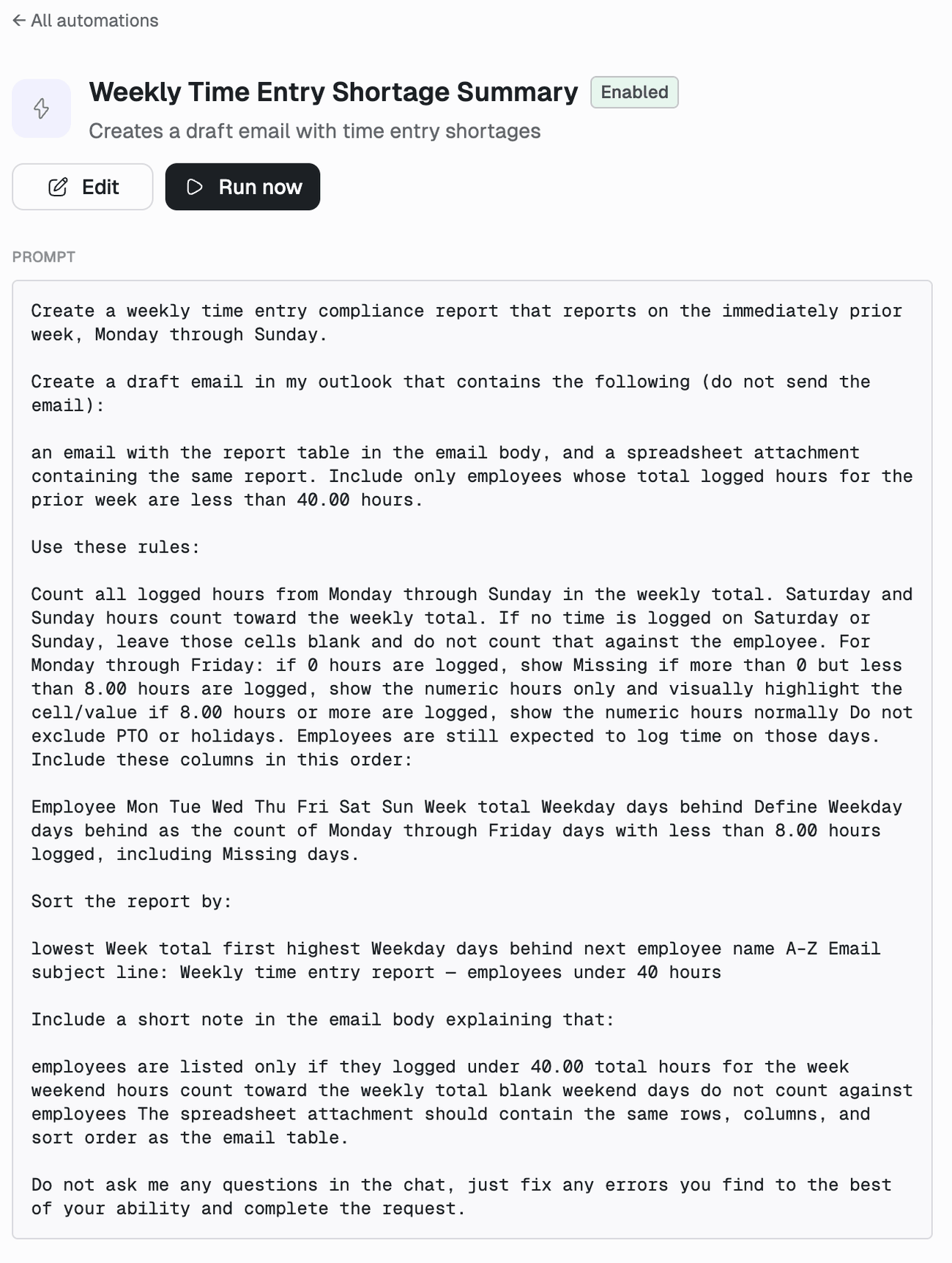 Every ambiguity you leave is one the agent resolves on its own, differently, every week. So it names the period, the columns, the sort order, how to treat weekends and PTO, and spells out its own terms.
## Watching it run
Expanding an automation shows how it is set up and what it has been doing: status, schedule, timezone, effort, how many connectors it uses, whether web search and Denari data are on, when it next runs, and when it was created. Underneath is the recent run history.
Every ambiguity you leave is one the agent resolves on its own, differently, every week. So it names the period, the columns, the sort order, how to treat weekends and PTO, and spells out its own terms.
## Watching it run
Expanding an automation shows how it is set up and what it has been doing: status, schedule, timezone, effort, how many connectors it uses, whether web search and Denari data are on, when it next runs, and when it was created. Underneath is the recent run history.
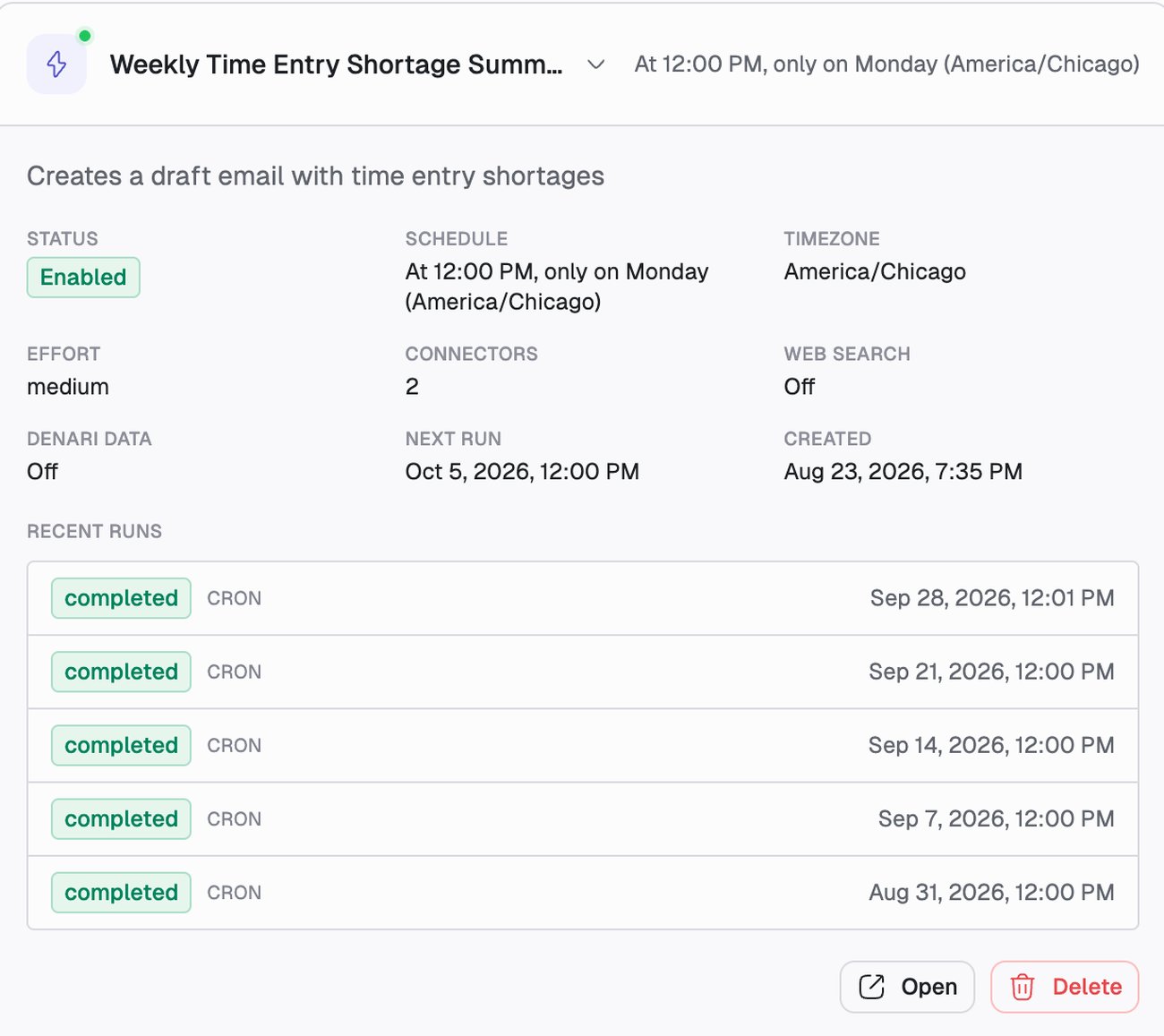 Each run row shows its status and what triggered it, `CRON` for the schedule or a manual trigger. Clicking a row opens that run's full conversation, so you can read exactly what the agent did and why. That is the first thing to do with a run that failed.
**Run now** triggers it immediately without waiting for the schedule. Use it to test a new automation before trusting it.
Automation runs do not clutter your sidebar. They live in the run history.
Note that it *drafts* an email rather than sending one. That is what lets it run every Monday without a person present.
## Approvals and unattended runs
This is the one place where an automation behaves differently from the chat.
When you are present, an action that needs approval pauses and asks you. A scheduled run has nobody to ask, so **it withholds those actions rather than parking the run on a prompt nobody will answer**.
The practical consequence: if your automation needs to send an email, and **Send messages** is set to **Wait**, the email will not go out. Set that capability to **Allow** for the connector involved, with the narrowness you are comfortable with, or design the automation to prepare a draft and let a person send it.
Drafting is usually the better pattern. "Draft the cover letters and save them to firm files" gives you the time savings with a human on the last step.
See [Tool Permissions](/answers/tool-permissions).
## Automations worth building
`On the 3rd of each month at 6am, generate the financial statement cover letter for every client on the monthly package and save each to firm files.`
You arrive to a folder of drafts instead of a morning of assembly.
`Every Monday at 7am, check forward-looking budgeted hours per staff member for the next 8 weeks. If anyone is over capacity, summarize who and by how much.`
`Every Friday at 4pm, list anyone who has not entered time for this week, grouped by department.`
`Every weekday at 7am during tax season, report returns received, returns at risk of extension, and total outstanding hours. Compare against the same day last year.`
If someone at your firm runs the same handful of reports every week by hand, that is an automation. Have Answers do it once, ask it to save the process as a [skill](/answers/skills), then schedule the skill.
## Troubleshooting
| Symptom | Likely cause |
| - | - |
| Ran at the wrong time | Timezone. Check it on the detail page. Bare abbreviations like `EST` are rejected on save because they never observe daylight saving. |
| Did nothing it was asked to | The connector it needed was not selected, or **Denari data** is off. |
| Produced a report but did not send it | Sending needs approval, and a scheduled run withholds those actions. See above. |
| Marked failed | Open the run to read the conversation. The reason is in there. |
| Finished but output is missing | Check **Firm files** access. It defaults to none. |
## Next
Have Answers save the process as a skill first, then schedule the skill.
What an unattended run is allowed to do.
This documentation is built and hosted on [Mintlify](https://mintlify.com), a developer documentation platform.
Each run row shows its status and what triggered it, `CRON` for the schedule or a manual trigger. Clicking a row opens that run's full conversation, so you can read exactly what the agent did and why. That is the first thing to do with a run that failed.
**Run now** triggers it immediately without waiting for the schedule. Use it to test a new automation before trusting it.
Automation runs do not clutter your sidebar. They live in the run history.
Note that it *drafts* an email rather than sending one. That is what lets it run every Monday without a person present.
## Approvals and unattended runs
This is the one place where an automation behaves differently from the chat.
When you are present, an action that needs approval pauses and asks you. A scheduled run has nobody to ask, so **it withholds those actions rather than parking the run on a prompt nobody will answer**.
The practical consequence: if your automation needs to send an email, and **Send messages** is set to **Wait**, the email will not go out. Set that capability to **Allow** for the connector involved, with the narrowness you are comfortable with, or design the automation to prepare a draft and let a person send it.
Drafting is usually the better pattern. "Draft the cover letters and save them to firm files" gives you the time savings with a human on the last step.
See [Tool Permissions](/answers/tool-permissions).
## Automations worth building
`On the 3rd of each month at 6am, generate the financial statement cover letter for every client on the monthly package and save each to firm files.`
You arrive to a folder of drafts instead of a morning of assembly.
`Every Monday at 7am, check forward-looking budgeted hours per staff member for the next 8 weeks. If anyone is over capacity, summarize who and by how much.`
`Every Friday at 4pm, list anyone who has not entered time for this week, grouped by department.`
`Every weekday at 7am during tax season, report returns received, returns at risk of extension, and total outstanding hours. Compare against the same day last year.`
If someone at your firm runs the same handful of reports every week by hand, that is an automation. Have Answers do it once, ask it to save the process as a [skill](/answers/skills), then schedule the skill.
## Troubleshooting
| Symptom | Likely cause |
| - | - |
| Ran at the wrong time | Timezone. Check it on the detail page. Bare abbreviations like `EST` are rejected on save because they never observe daylight saving. |
| Did nothing it was asked to | The connector it needed was not selected, or **Denari data** is off. |
| Produced a report but did not send it | Sending needs approval, and a scheduled run withholds those actions. See above. |
| Marked failed | Open the run to read the conversation. The reason is in there. |
| Finished but output is missing | Check **Firm files** access. It defaults to none. |
## Next
Have Answers save the process as a skill first, then schedule the skill.
What an unattended run is allowed to do.
This documentation is built and hosted on [Mintlify](https://mintlify.com), a developer documentation platform.