> ## Documentation Index
> Fetch the complete documentation index at: https://docs.denari.com/llms.txt
> Use this file to discover all available pages before exploring further.
# Files & Threads
> Give Denari Answers files to work from, get finished documents back, and share a conversation with a colleague.
Answers works with real files in both directions. You hand it a spreadsheet and it reads it. You ask for a report and it builds one you can download.
## Giving Answers a file
Three ways in, all landing in the same place:
* **Drag and drop** onto the message box.
* **`+` menu → Upload files**.
* The **Files** panel's **Thread** tab.
On a brand new conversation, files stage against your draft and upload when the thread is created. In an open thread they upload straight away. Either way the Files panel opens afterwards so you can see where they went.
Answers reads what you give it. Hand it a trial balance export and ask for the variance analysis. Hand it a 200 page scanned PDF and ask it to drop the blank pages. Hand it a client's spreadsheet in whatever shape they sent it and ask for it in yours.
## Getting files back
When Answers produces a deliverable, a `.docx` letter, an `.xlsx` workbook, a cleaned PDF, it writes a real file into the conversation and gives you a link to download it. Not a code block you have to reassemble: an actual file with formulas and formatting intact.
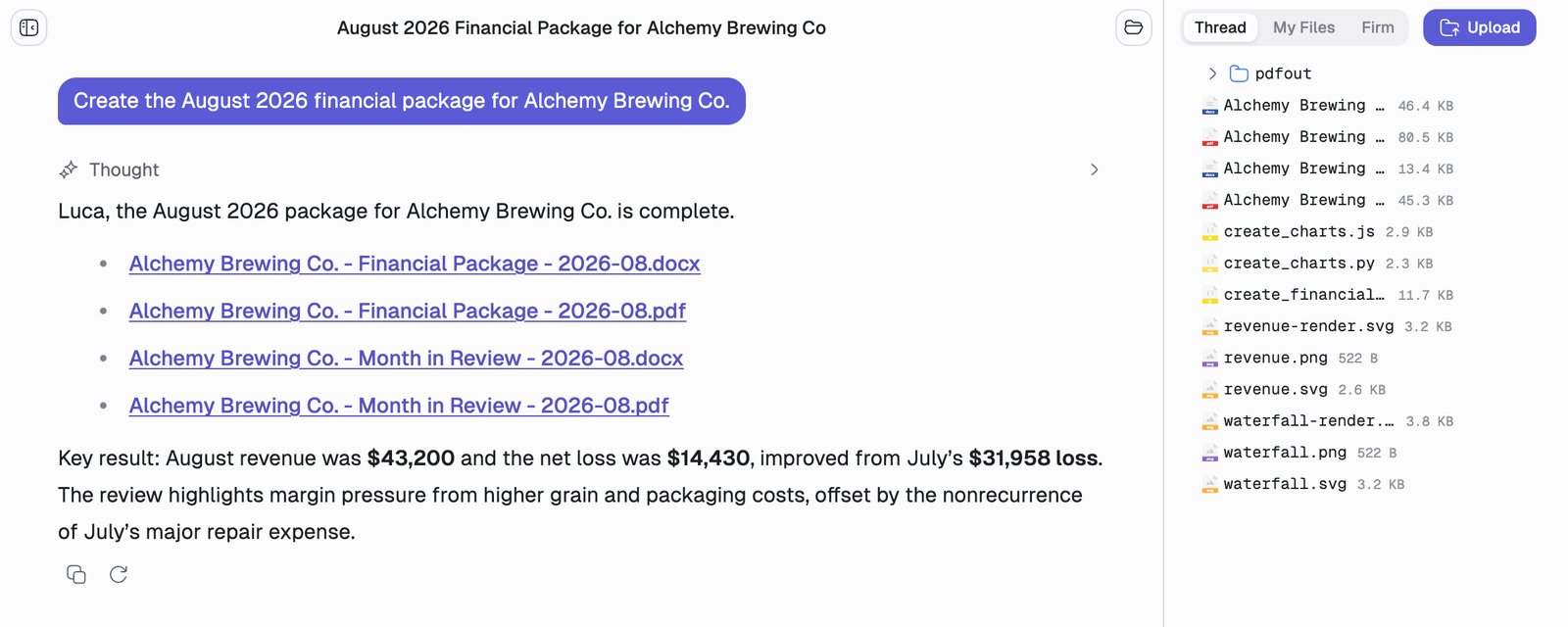 One sentence produced four finished documents, a Word and a PDF of each, and the answer still led with the number that matters rather than just handing over the files.
Look at the files panel on the right, because it is the clearest view of how Answers works that you will find anywhere in these docs. Alongside the four deliverables are `create_charts.py`, `create_financial…`, `revenue.svg` and `waterfall.png`: the scripts it wrote and the charts it rendered on the way. The documents were not described into existence, they were **built**, and the workings are still sitting there for you to inspect.
Charts can be downloaded as **PNG** images. Tables can be downloaded as **CSV**, or put on the clipboard with their own **Copy as CSV** button and pasted straight into Excel or Google Sheets with rows and columns intact. See [Charts & Tables](/answers/charts-and-tables).
## The three file scopes
The Files panel has three tabs, and the difference between them matters.
| Scope | Who can see it | Use it for |
| - | - | - |
| **Thread** | This conversation only | Inputs and outputs for the task at hand. |
| **My Files** | Only you, across every conversation | Templates, reference data, anything you reuse. |
| **Firm** | Everyone at your firm | Shared templates, firm-wide reference, automation output. |
Dropping a file onto any tab uploads it to that scope. Asking Answers to "save this to firm files" does the same thing from the conversation.
**My Files** is the quietly useful one. Put your rate card, your standard engagement scoping worksheet, or last year's reconciliation template there once, and every future conversation can reach it without you re-uploading.
## Sharing a thread
Hover a thread in the sidebar, open its **...** menu, and choose **Share**. Then pick a colleague at your firm.
One sentence produced four finished documents, a Word and a PDF of each, and the answer still led with the number that matters rather than just handing over the files.
Look at the files panel on the right, because it is the clearest view of how Answers works that you will find anywhere in these docs. Alongside the four deliverables are `create_charts.py`, `create_financial…`, `revenue.svg` and `waterfall.png`: the scripts it wrote and the charts it rendered on the way. The documents were not described into existence, they were **built**, and the workings are still sitting there for you to inspect.
Charts can be downloaded as **PNG** images. Tables can be downloaded as **CSV**, or put on the clipboard with their own **Copy as CSV** button and pasted straight into Excel or Google Sheets with rows and columns intact. See [Charts & Tables](/answers/charts-and-tables).
## The three file scopes
The Files panel has three tabs, and the difference between them matters.
| Scope | Who can see it | Use it for |
| - | - | - |
| **Thread** | This conversation only | Inputs and outputs for the task at hand. |
| **My Files** | Only you, across every conversation | Templates, reference data, anything you reuse. |
| **Firm** | Everyone at your firm | Shared templates, firm-wide reference, automation output. |
Dropping a file onto any tab uploads it to that scope. Asking Answers to "save this to firm files" does the same thing from the conversation.
**My Files** is the quietly useful one. Put your rate card, your standard engagement scoping worksheet, or last year's reconciliation template there once, and every future conversation can reach it without you re-uploading.
## Sharing a thread
Hover a thread in the sidebar, open its **...** menu, and choose **Share**. Then pick a colleague at your firm.
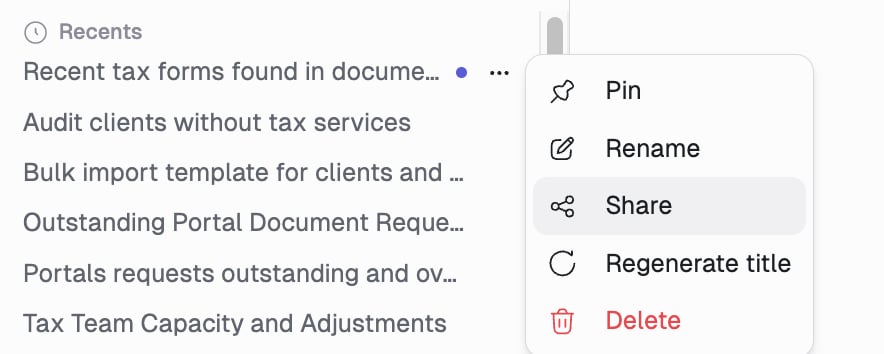 They can read the whole conversation, watch a live run as it happens, and list and download its files. It is a complete record of how a number was arrived at, which makes it a good way to hand off a question or show your work in a review.
Sharing is **read-only** for the recipient. They cannot send messages, approve tool calls, stop the run, or upload or delete files. Those actions would run in your sandbox, with your files and your credentials, which is not what sharing a conversation should mean.
## Managing threads
Each conversation is a thread in the sidebar, titled automatically from your first message.
Everything except search lives in the **...** menu shown above.
| Action | What it does |
| - | - |
| **Pin** | Keeps a thread at the top of the sidebar. |
| **Rename** | Set the title yourself. **Regenerate title** has Answers write a new one. |
| **Share** | Give a colleague read-only access. |
| **Delete** | Permanent. The app confirms first, and there is no way to restore it afterwards. |
| **Search** | The sidebar search box, across every thread title. |
A status dot on each thread shows what is happening without opening it: working, finished since you last looked, or errored. Unread markers follow you across browsers and devices.
The active thread's title appears in the chat header and in your browser tab, so a window full of Answers tabs is still navigable.
## On your phone
Answers works on phones and tablets. The layout adapts: the sidebar hides behind the menu button in the top-left, the conversation takes the full width, and the message box stays fixed at the bottom with all the same controls.
Everything works: asking questions, toggling connectors and web search, viewing charts and tables, starting and continuing threads, copying responses, downloading files.
Turn the phone sideways for a wider view of a chart or a wide table.
This documentation is built and hosted on [Mintlify](https://mintlify.com), a developer documentation platform.
They can read the whole conversation, watch a live run as it happens, and list and download its files. It is a complete record of how a number was arrived at, which makes it a good way to hand off a question or show your work in a review.
Sharing is **read-only** for the recipient. They cannot send messages, approve tool calls, stop the run, or upload or delete files. Those actions would run in your sandbox, with your files and your credentials, which is not what sharing a conversation should mean.
## Managing threads
Each conversation is a thread in the sidebar, titled automatically from your first message.
Everything except search lives in the **...** menu shown above.
| Action | What it does |
| - | - |
| **Pin** | Keeps a thread at the top of the sidebar. |
| **Rename** | Set the title yourself. **Regenerate title** has Answers write a new one. |
| **Share** | Give a colleague read-only access. |
| **Delete** | Permanent. The app confirms first, and there is no way to restore it afterwards. |
| **Search** | The sidebar search box, across every thread title. |
A status dot on each thread shows what is happening without opening it: working, finished since you last looked, or errored. Unread markers follow you across browsers and devices.
The active thread's title appears in the chat header and in your browser tab, so a window full of Answers tabs is still navigable.
## On your phone
Answers works on phones and tablets. The layout adapts: the sidebar hides behind the menu button in the top-left, the conversation takes the full width, and the message box stays fixed at the bottom with all the same controls.
Everything works: asking questions, toggling connectors and web search, viewing charts and tables, starting and continuing threads, copying responses, downloading files.
Turn the phone sideways for a wider view of a chart or a wide table.
This documentation is built and hosted on [Mintlify](https://mintlify.com), a developer documentation platform.