> ## Documentation Index
> Fetch the complete documentation index at: https://docs.denari.com/llms.txt
> Use this file to discover all available pages before exploring further.
# Search
> Which of the three ways to find a document to reach for, and when.
There are three ways to find a document, and the right one depends on what you already know. Reaching for the wrong one is what makes finding a document feel slow.
| What you already know | Reach for |
| - | - |
| The client | `⌘K` |
| The client, but you want a subset of their documents (year, service line, type) | `F` |
| Only roughly what the document is about | The search box |
**Narrow with `⌘K` and `F` first. Only type into the search box when you still don't know where the document lives.** Two keystrokes cut the library to a handful of rows; searching across everything is the slower, noisier path.
The two combine, so the fastest route to an awkward document is usually to filter to the client with `⌘K`, then search inside what's left.
## `⌘K`: you know the client
This is the shortcut to learn first. It is how you should start almost every search.
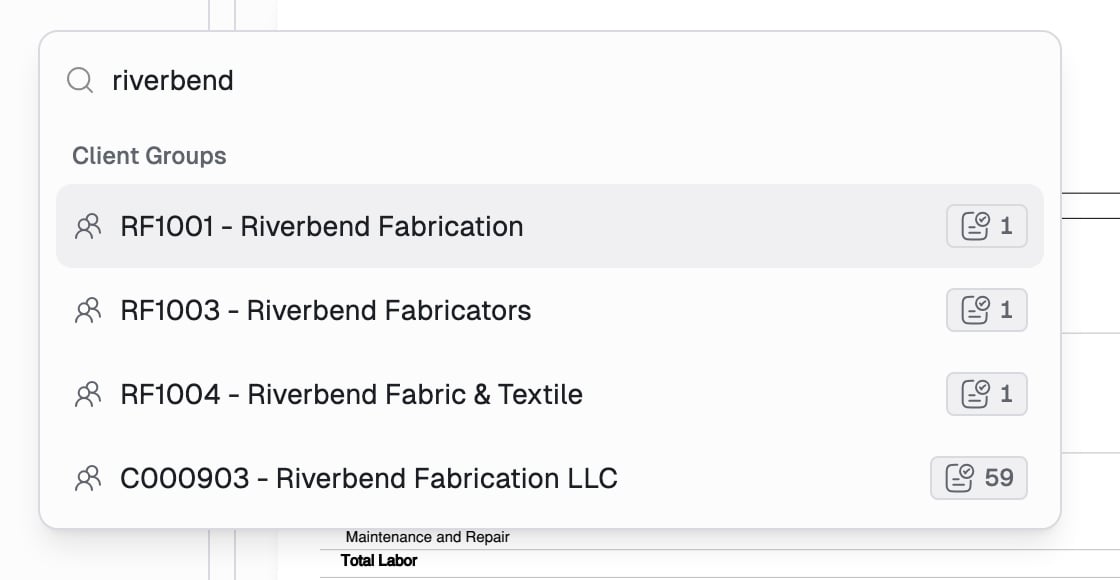
The menu opens over the list.
Matching client groups appear at the top, each with a document count.
The top result is applied as a filter and the menu closes. The list is now
just that client.
 You never have to leave the keyboard, and you never have to know how the tree is grouped.
`⌘⌫` (`Ctrl+Backspace`) clears every active filter, so you can start the next
lookup from a clean list without reaching for the mouse.
## `F`: you know the attributes
Once you are on the right client (or when the client is not what you are filtering by), press **F** to narrow by attribute. Works anywhere in the list, as long as you are not typing in a field.
You never have to leave the keyboard, and you never have to know how the tree is grouped.
`⌘⌫` (`Ctrl+Backspace`) clears every active filter, so you can start the next
lookup from a clean list without reaching for the mouse.
## `F`: you know the attributes
Once you are on the right client (or when the client is not what you are filtering by), press **F** to narrow by attribute. Works anywhere in the list, as long as you are not typing in a field.
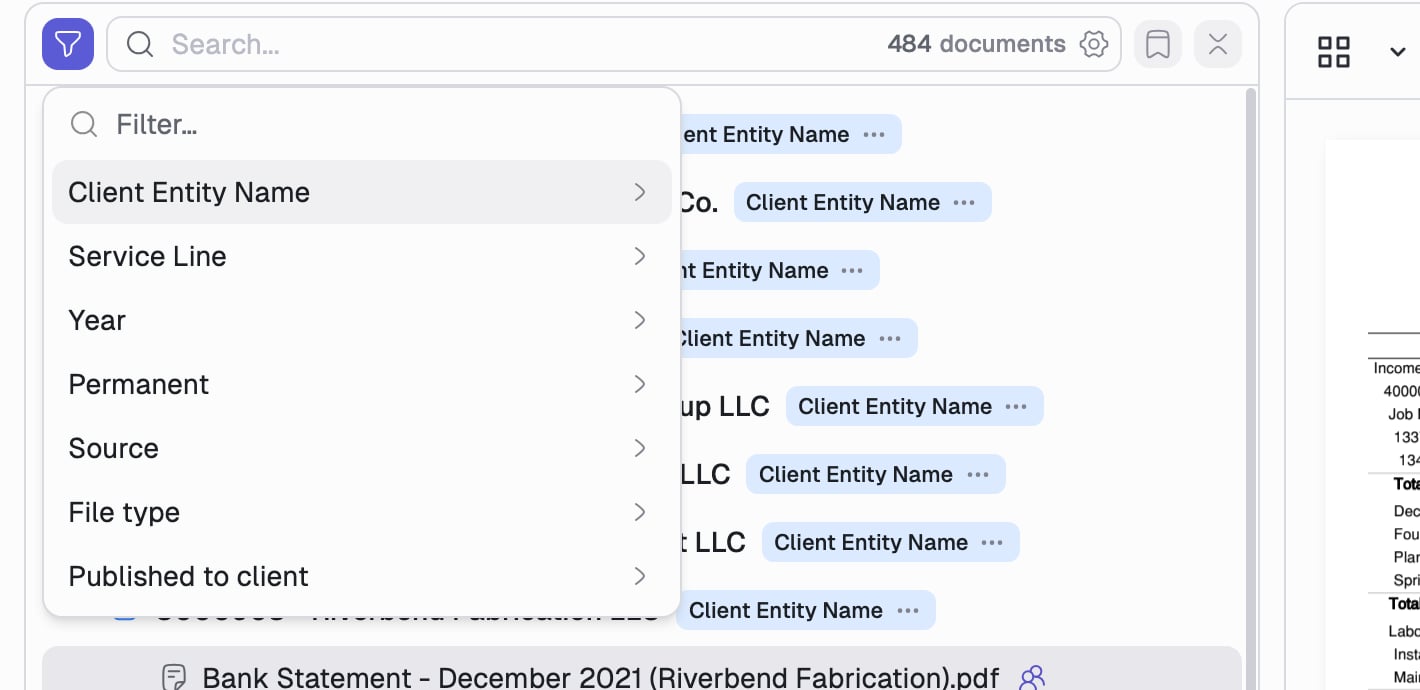 Pick an attribute, then pick values: **Year 2024**, **Service Line: Tax**, **File type: PDF**. Filters stack, and the active ones show as chips under the search box.
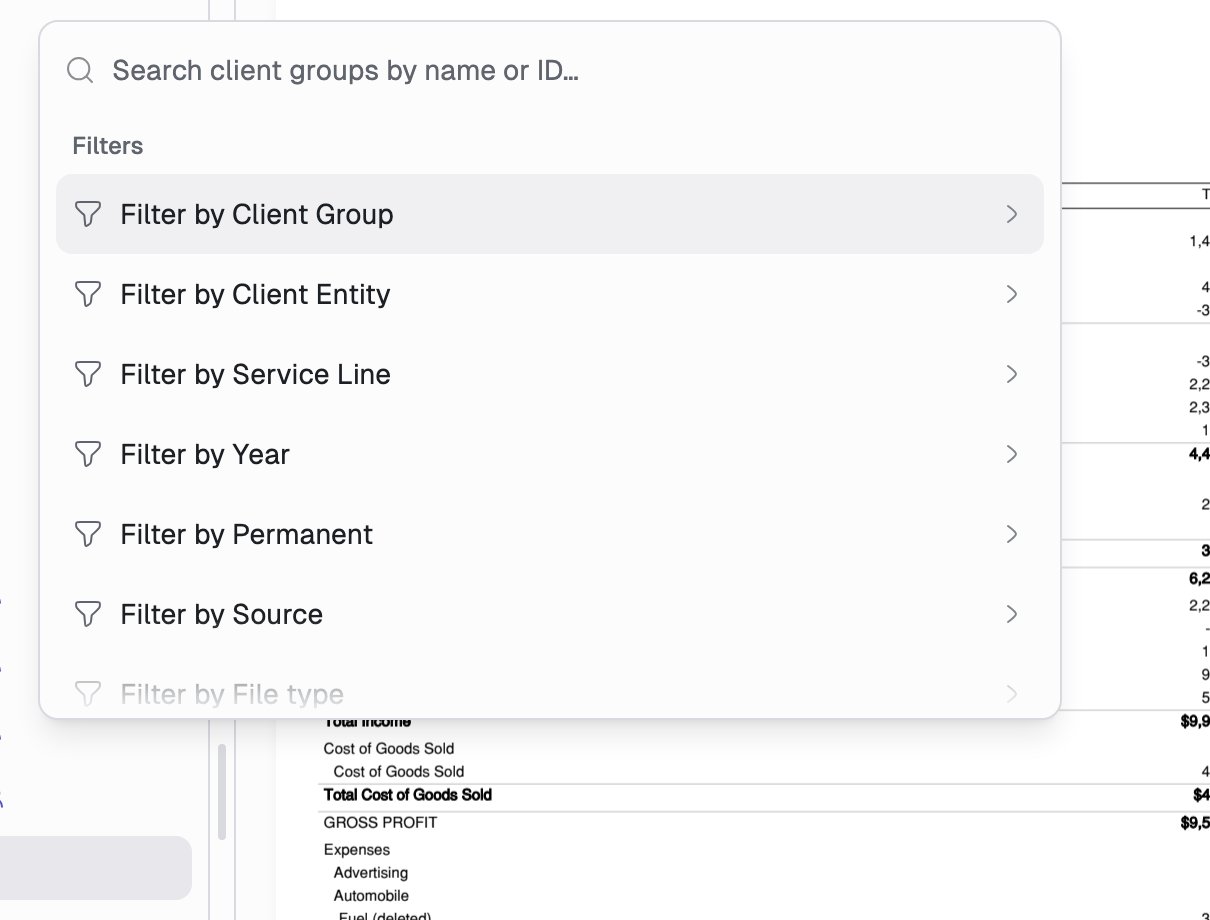
`⌘K` can drill into these same filters from its **Filters** list, so once the shortcut is muscle memory you can stay there for everything.
Pick an attribute, then pick values: **Year 2024**, **Service Line: Tax**, **File type: PDF**. Filters stack, and the active ones show as chips under the search box.
`⌘K` can drill into these same filters from its **Filters** list, so once the shortcut is muscle memory you can stay there for everything.
 `⌘F` is left alone on purpose, so your browser's find-on-page still works.
## The search box: you know none of that
Use the search box for the **generalized** case: you can't name the client, you don't know which attributes were set, you just know roughly what you are after.
`⌘F` is left alone on purpose, so your browser's find-on-page still works.
## The search box: you know none of that
Use the search box for the **generalized** case: you can't name the client, you don't know which attributes were set, you just know roughly what you are after.
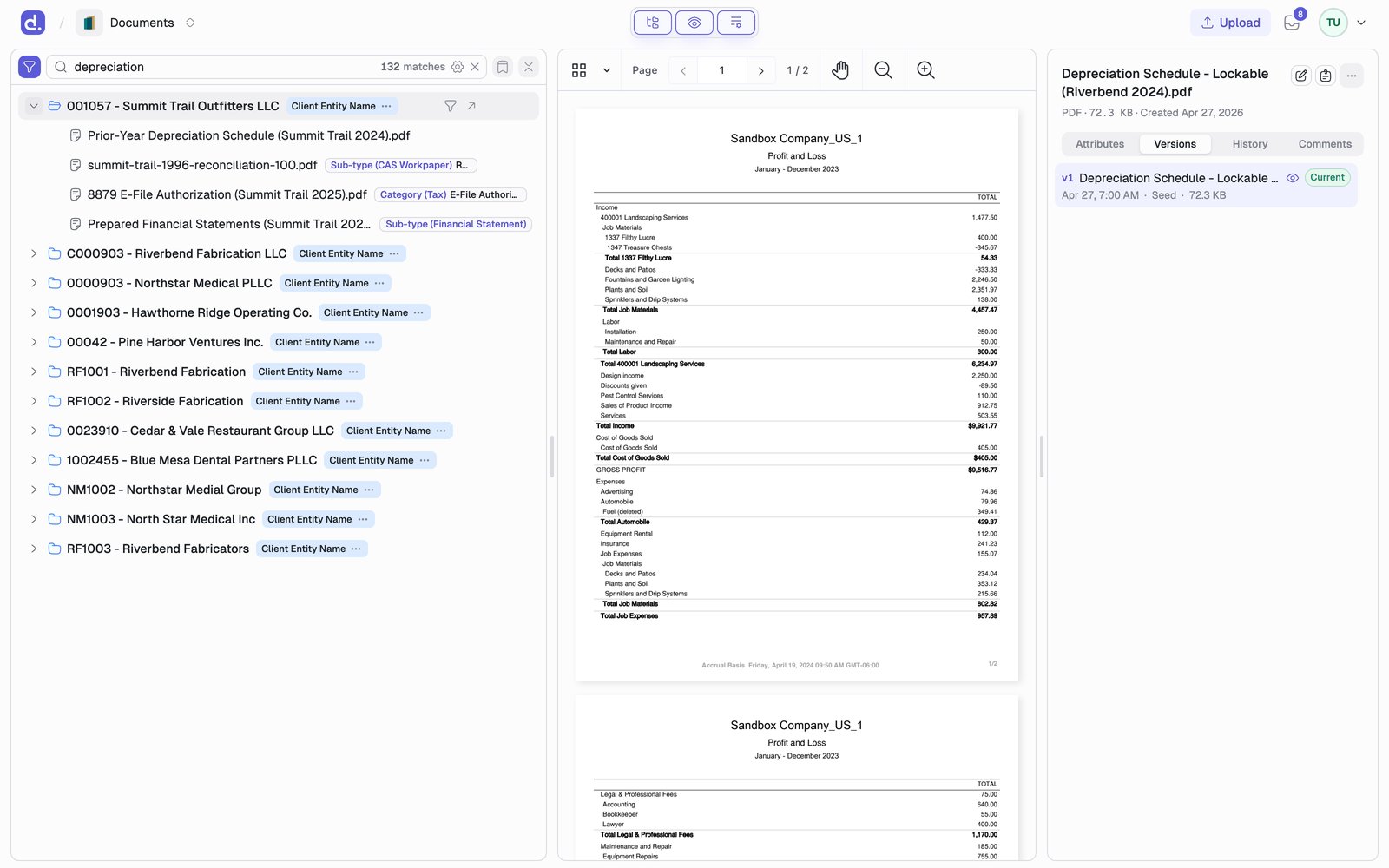 Results rank by relevance, groups reorder so the best match is first, and each row carries **pills** showing what matched, so you can see why a document came back. Filename matches always rank above fuzzy ones.
### When attribute search isn't enough
By default the search box only reads **attributes**: filenames, client, year, service line, type, and your custom fields. That is fast and precise, and it is the right default.
When it comes back empty, the words you remember are not in those fields. Widen it from the cog inside the search box.
Results rank by relevance, groups reorder so the best match is first, and each row carries **pills** showing what matched, so you can see why a document came back. Filename matches always rank above fuzzy ones.
### When attribute search isn't enough
By default the search box only reads **attributes**: filenames, client, year, service line, type, and your custom fields. That is fast and precise, and it is the right default.
When it comes back empty, the words you remember are not in those fields. Widen it from the cog inside the search box.
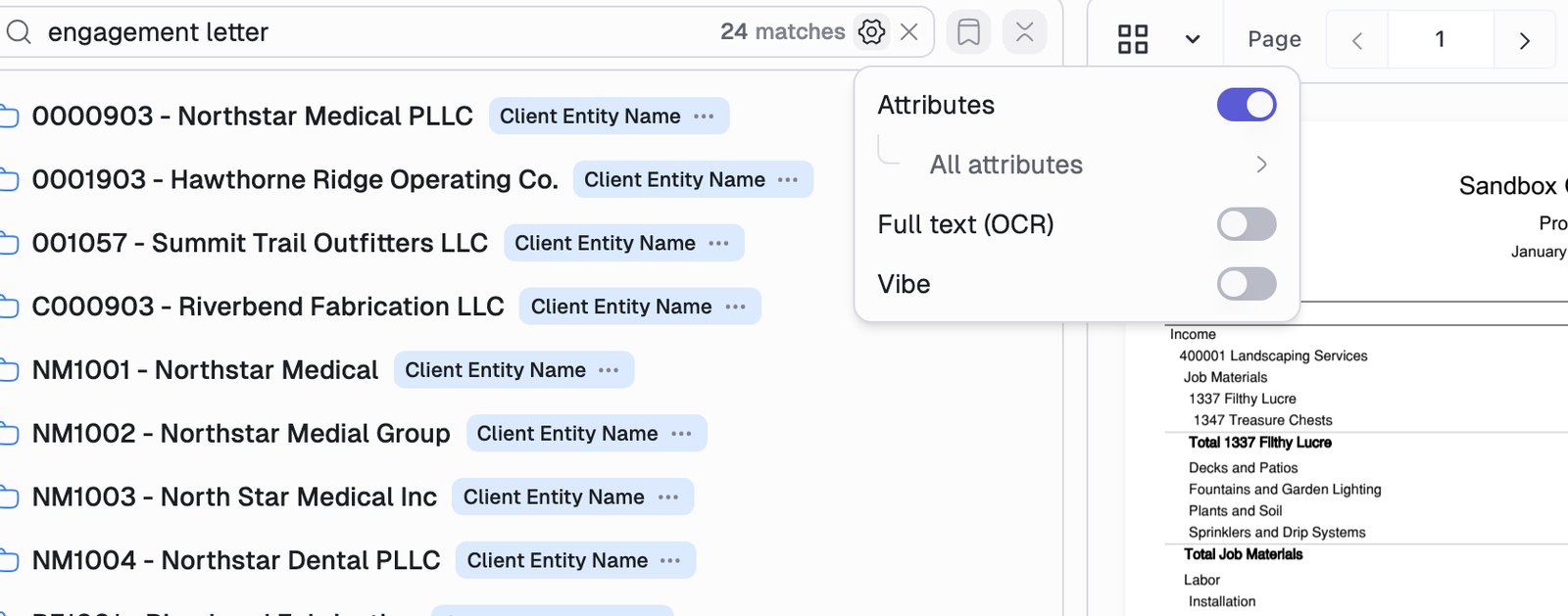 | Turn on | When | Example |
| - | - | - |
| **Full text (OCR)** | You remember a phrase that appears *inside* the document, not in its name or fields | An account number, a form line, a client's address |
| **Vibe** | You remember what the document was about, but not what it was called or what it says | "the letter about the state notice" |
Both search far more than attributes do, so they are slower and return more noise. Reach for them **after** attribute search comes up short, not before, and turn them back off once you have found what you needed.
Narrow before you widen. Filtering to one client with `⌘K` and then turning on
Full text searches that client's documents instead of the whole firm's, which
is both faster and far easier to read.
## Share what you found
Your search, filters, sorting, and grouping all live in the page URL, so copying the address bar sends a teammate the exact view you are looking at. To link one document instead, use **Share** in its `...` actions menu. Save the searches you run weekly as a [view](/documents/library).
This documentation is built and hosted on [Mintlify](https://mintlify.com), a developer documentation platform.
| Turn on | When | Example |
| - | - | - |
| **Full text (OCR)** | You remember a phrase that appears *inside* the document, not in its name or fields | An account number, a form line, a client's address |
| **Vibe** | You remember what the document was about, but not what it was called or what it says | "the letter about the state notice" |
Both search far more than attributes do, so they are slower and return more noise. Reach for them **after** attribute search comes up short, not before, and turn them back off once you have found what you needed.
Narrow before you widen. Filtering to one client with `⌘K` and then turning on
Full text searches that client's documents instead of the whole firm's, which
is both faster and far easier to read.
## Share what you found
Your search, filters, sorting, and grouping all live in the page URL, so copying the address bar sends a teammate the exact view you are looking at. To link one document instead, use **Share** in its `...` actions menu. Save the searches you run weekly as a [view](/documents/library).
This documentation is built and hosted on [Mintlify](https://mintlify.com), a developer documentation platform.