> ## Documentation Index
> Fetch the complete documentation index at: https://docs.denari.com/llms.txt
> Use this file to discover all available pages before exploring further.
# Upload vs Intake
> Which holding area a document lands in, why, and who can see it.
A document is not in the library the moment it arrives. It waits in one of two holding areas until someone files it. Which one depends on **how it got to Denari**, not on what it is.
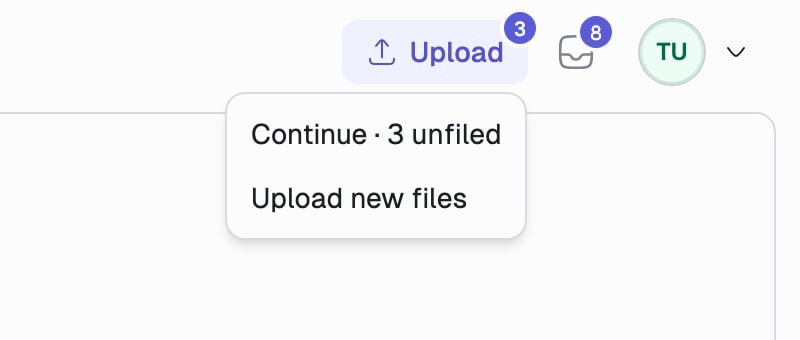 Both counters sit in the top right. **Upload** is yours. The **inbox** is Intake.
## The rule
| How the document arrived | Lands in | Visible to |
| - | - | - |
| You clicked **Upload** in Documents | Upload (staged) | Only you |
| You dragged files onto the library | Upload (staged) | Only you |
| You printed to Denari from the desktop app or virtual printer | Intake | You, under **My intake**. Colleagues see it under **Firm** |
| A client uploaded through their portal | Intake | Everyone, under **Firm** |
| Email or fax ingestion | Intake | Everyone, under **Firm** |
Uploading a file from inside Documents never creates an Intake bundle. Intake
is for documents that reach your firm from somewhere other than your own
browser.
## Upload: your staging area
Files you add yourself upload immediately but stay hidden from the library until you file them. The **Upload** badge counts the ones still waiting.
Both counters sit in the top right. **Upload** is yours. The **inbox** is Intake.
## The rule
| How the document arrived | Lands in | Visible to |
| - | - | - |
| You clicked **Upload** in Documents | Upload (staged) | Only you |
| You dragged files onto the library | Upload (staged) | Only you |
| You printed to Denari from the desktop app or virtual printer | Intake | You, under **My intake**. Colleagues see it under **Firm** |
| A client uploaded through their portal | Intake | Everyone, under **Firm** |
| Email or fax ingestion | Intake | Everyone, under **Firm** |
Uploading a file from inside Documents never creates an Intake bundle. Intake
is for documents that reach your firm from somewhere other than your own
browser.
## Upload: your staging area
Files you add yourself upload immediately but stay hidden from the library until you file them. The **Upload** badge counts the ones still waiting.
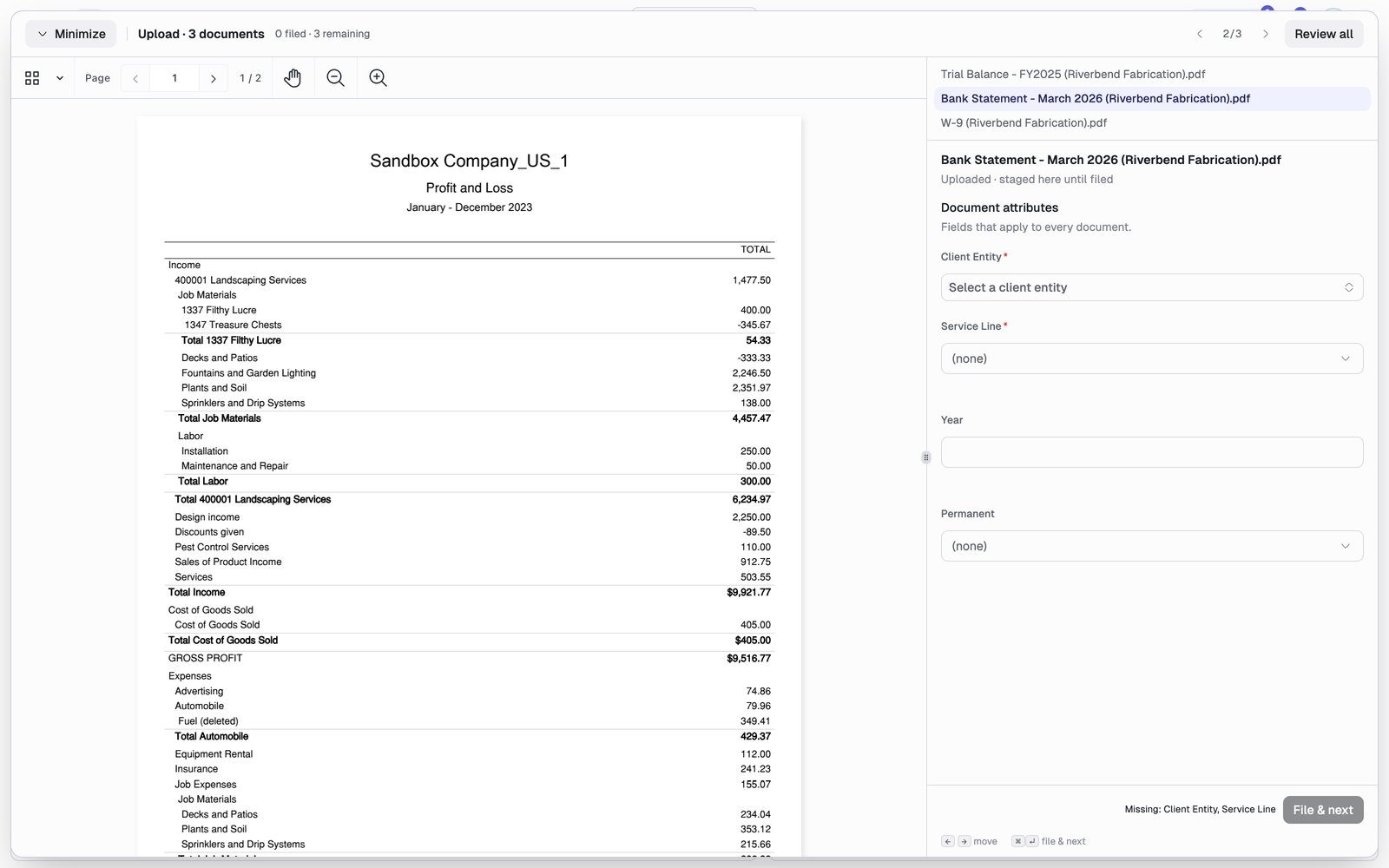 Click **Upload**, or drag files straight onto the list. Dropping onto a
group pre-fills that group's attributes (client, year, service line) on
every file in the drop.
The walker opens on the first file. Required fields are listed next to the
button when they are missing.
Filing makes the document visible in Documents and moves you to the next
file. Use `←` and `→` to move between files and `⌘↵` to file and advance.
You can close the walker at any point. Attributes stay saved, the badge keeps
the count, and **Upload → Continue** picks the batch back up.
## Intake: the firm's triage queue
Documents that arrive from outside land in Intake grouped into **bundles**, one bundle per batch, each stamped with where it came from ("Virtual printer · UltraTax CS", "Client portal", "Email").
Click **Upload**, or drag files straight onto the list. Dropping onto a
group pre-fills that group's attributes (client, year, service line) on
every file in the drop.
The walker opens on the first file. Required fields are listed next to the
button when they are missing.
Filing makes the document visible in Documents and moves you to the next
file. Use `←` and `→` to move between files and `⌘↵` to file and advance.
You can close the walker at any point. Attributes stay saved, the badge keeps
the count, and **Upload → Continue** picks the batch back up.
## Intake: the firm's triage queue
Documents that arrive from outside land in Intake grouped into **bundles**, one bundle per batch, each stamped with where it came from ("Virtual printer · UltraTax CS", "Client portal", "Email").
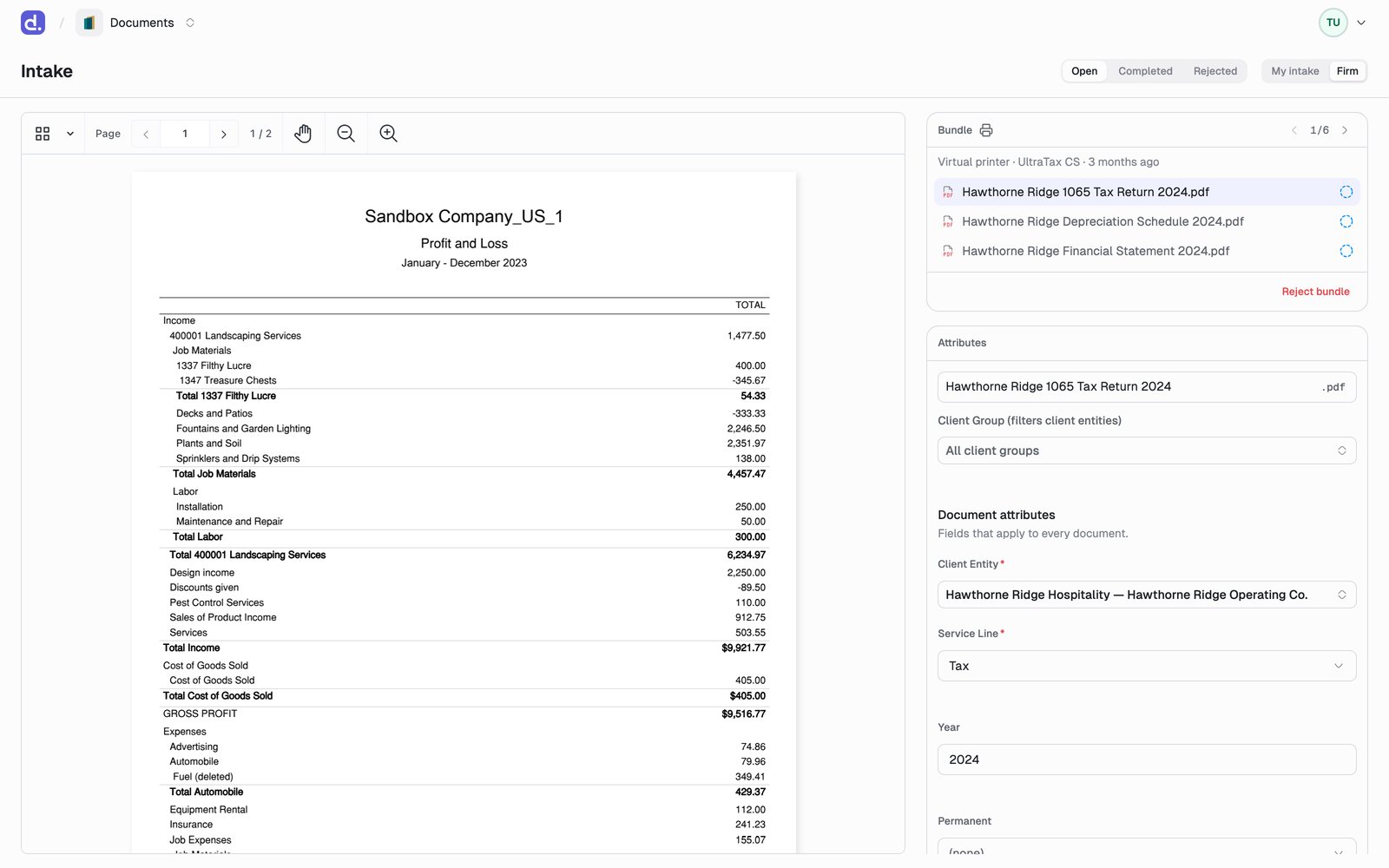 Two tabs split the queue, and for any one person they never overlap:
* **My intake** is every bundle you own, such as what you printed to Denari yourself.
* **Firm** is everything else you can help with: machine-ingested bundles with no personal owner, client portal uploads, and colleagues' bundles.
Three views sit beside them: **Open** (still to triage), **Completed**, and **Rejected**.
For each document you set its attributes, match it to a client entity, then click **File** to send it to the library, or **Ignore** to skip it. **Reject bundle** discards a whole batch, and rejected bundles are kept for reference.
Full walkthrough: [Intake](/documents/intake).
## What they have in common
Neither area is searchable. A document only joins the library, gets indexed for [search](/documents/search), and becomes visible to the firm once it is filed. That is the point: filing is where attributes get set, and consistent attributes are what makes the library work.
This documentation is built and hosted on [Mintlify](https://mintlify.com), a developer documentation platform.
Two tabs split the queue, and for any one person they never overlap:
* **My intake** is every bundle you own, such as what you printed to Denari yourself.
* **Firm** is everything else you can help with: machine-ingested bundles with no personal owner, client portal uploads, and colleagues' bundles.
Three views sit beside them: **Open** (still to triage), **Completed**, and **Rejected**.
For each document you set its attributes, match it to a client entity, then click **File** to send it to the library, or **Ignore** to skip it. **Reject bundle** discards a whole batch, and rejected bundles are kept for reference.
Full walkthrough: [Intake](/documents/intake).
## What they have in common
Neither area is searchable. A document only joins the library, gets indexed for [search](/documents/search), and becomes visible to the firm once it is filed. That is the point: filing is where attributes get set, and consistent attributes are what makes the library work.
This documentation is built and hosted on [Mintlify](https://mintlify.com), a developer documentation platform.