> ## Documentation Index
> Fetch the complete documentation index at: https://docs.denari.com/llms.txt
> Use this file to discover all available pages before exploring further.
# Issuing & sending
> Issuing is the point of no return. The invoice gets its number, freezes, and goes to the client.
**Issuing is the point of no return.** The invoice gets its permanent number, the document is frozen exactly as it looks, and it goes to the client.
## The life of an invoice
```
Draft -> In review -> Approved -> Issued -> Partially paid -> Paid
|
+-> Void (no money applied yet)
+-> Credit noted (fully offset by credit notes)
```
Click **Submit for review**.
The review starts with the billing group's owner. To change it, click the
**Reviewer** button on the invoice (**Assign reviewer** if there is none).
Only that reviewer can **Approve**. **Return to draft** sends it back for
more changes.
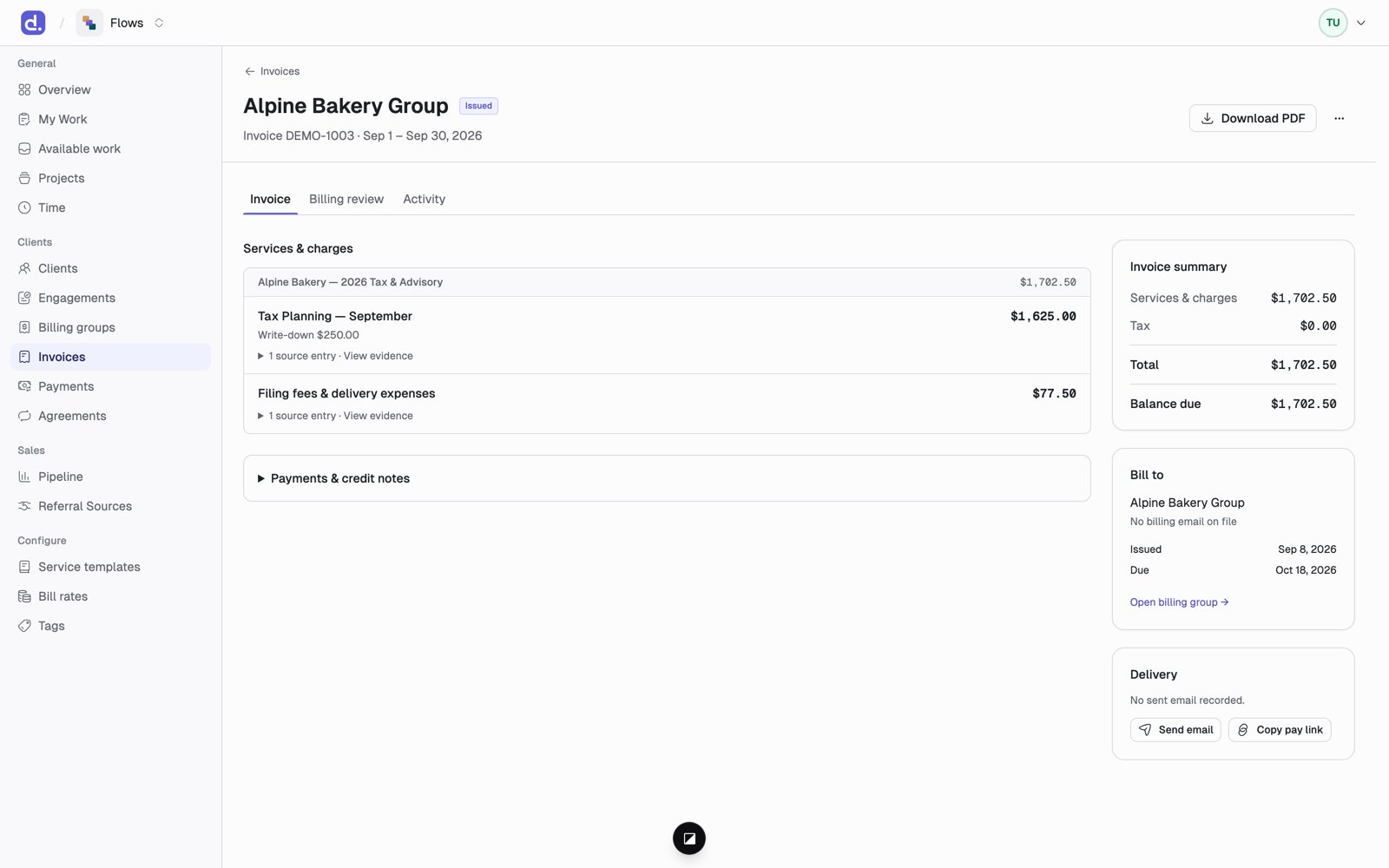
Optionally pick a **Send on** date. Click **Issue invoice**.
The invoice gets its permanent number, such as `DEMO-1003`. Numbers run in
order per billing group, with no gaps and no repeats; drafts have no number.
The document freezes exactly as it looks, and the invoice email goes to the
billing contact with a pay link.
Nobody sets these. They're worked out from the [payments
applied](/flows/payments).
 Void and Credit noted are covered in [Credit notes & voids](/flows/credit-notes).
## The PDF
* **Before issuing:** click **Client preview** to see and style the invoice. Pick a template (Modern, Classic, Compact), rename sections, add a cover note and footer, and choose what detail to show. Click **Save customizations**.
* **After issuing:** **Download PDF** gives the frozen copy.
## Email
The **Delivery** panel shows who the invoice was sent to and when.
* **Send email** / **Resend email** sends it again.
* **Copy pay link** copies the payment link so you can share it yourself.
* The **Activity** tab lists every email attempt.
Drafts are never sent. An invoice is only emailed after it's issued, on the
**Send on** date if one was set.
This documentation is built and hosted on [Mintlify](https://mintlify.com), a developer documentation platform.
Void and Credit noted are covered in [Credit notes & voids](/flows/credit-notes).
## The PDF
* **Before issuing:** click **Client preview** to see and style the invoice. Pick a template (Modern, Classic, Compact), rename sections, add a cover note and footer, and choose what detail to show. Click **Save customizations**.
* **After issuing:** **Download PDF** gives the frozen copy.
## Email
The **Delivery** panel shows who the invoice was sent to and when.
* **Send email** / **Resend email** sends it again.
* **Copy pay link** copies the payment link so you can share it yourself.
* The **Activity** tab lists every email attempt.
Drafts are never sent. An invoice is only emailed after it's issued, on the
**Send on** date if one was set.
This documentation is built and hosted on [Mintlify](https://mintlify.com), a developer documentation platform.