> ## Documentation Index
> Fetch the complete documentation index at: https://docs.denari.com/llms.txt
> Use this file to discover all available pages before exploring further.
# My Work & Available work
> My Work is your list of tasks. Available work is the list of tasks nobody owns yet.
**My Work is your list of tasks. Available work is the list of tasks nobody owns yet.** You work from the first and claim from the second.
## My Work
**My Work** shows tasks assigned to you, soonest due first.
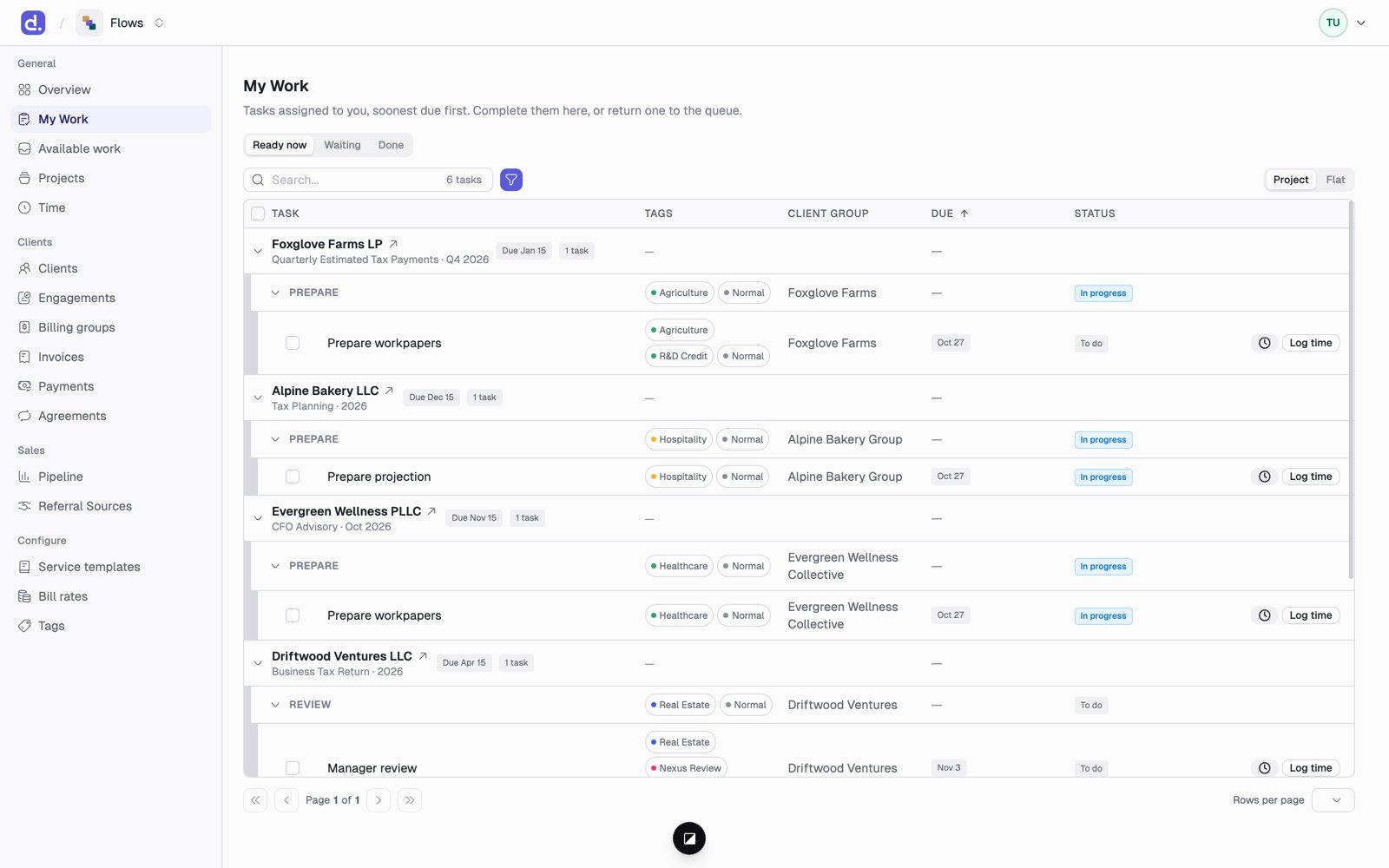 | Tab | What's in it |
| - | - |
| **Ready now** | Tasks you can work on today. |
| **Waiting** | Your tasks that are blocked by earlier work or on hold. See [Task rules](/flows/task-rules). |
| **Done** | Tasks you finished. |
Other things to know:
* Switch between **Project** view (tasks grouped under each project) and **Flat** view (one list). In Flat view you can group by client group, client entity, or due date.
* Each line leads with the client entity. A project line shows the service and period under it, its due date, and how many tasks it has.
* A red due date means overdue. Amber means due within a week. A warning icon means the task is past the project's deadline.
* From each row you can start a timer, log time, or change the status. **The status badge is the completion control** — click it to set To do, In progress, Done, Canceled, or Put on hold.
* Select several tasks to mark them done or return them to the queue at once.
* In Project view, hover a group you hold and click **Return** to give its open tasks back to Available work. **Undo** takes it back. A task someone claimed in the meantime stays with them.
## Available work
**Available work** shows tasks nobody owns yet.
| Tab | What's in it |
| - | - |
| **Ready now** | Tasks you can work on today. |
| **Waiting** | Your tasks that are blocked by earlier work or on hold. See [Task rules](/flows/task-rules). |
| **Done** | Tasks you finished. |
Other things to know:
* Switch between **Project** view (tasks grouped under each project) and **Flat** view (one list). In Flat view you can group by client group, client entity, or due date.
* Each line leads with the client entity. A project line shows the service and period under it, its due date, and how many tasks it has.
* A red due date means overdue. Amber means due within a week. A warning icon means the task is past the project's deadline.
* From each row you can start a timer, log time, or change the status. **The status badge is the completion control** — click it to set To do, In progress, Done, Canceled, or Put on hold.
* Select several tasks to mark them done or return them to the queue at once.
* In Project view, hover a group you hold and click **Return** to give its open tasks back to Available work. **Undo** takes it back. A task someone claimed in the meantime stays with them.
## Available work
**Available work** shows tasks nobody owns yet.
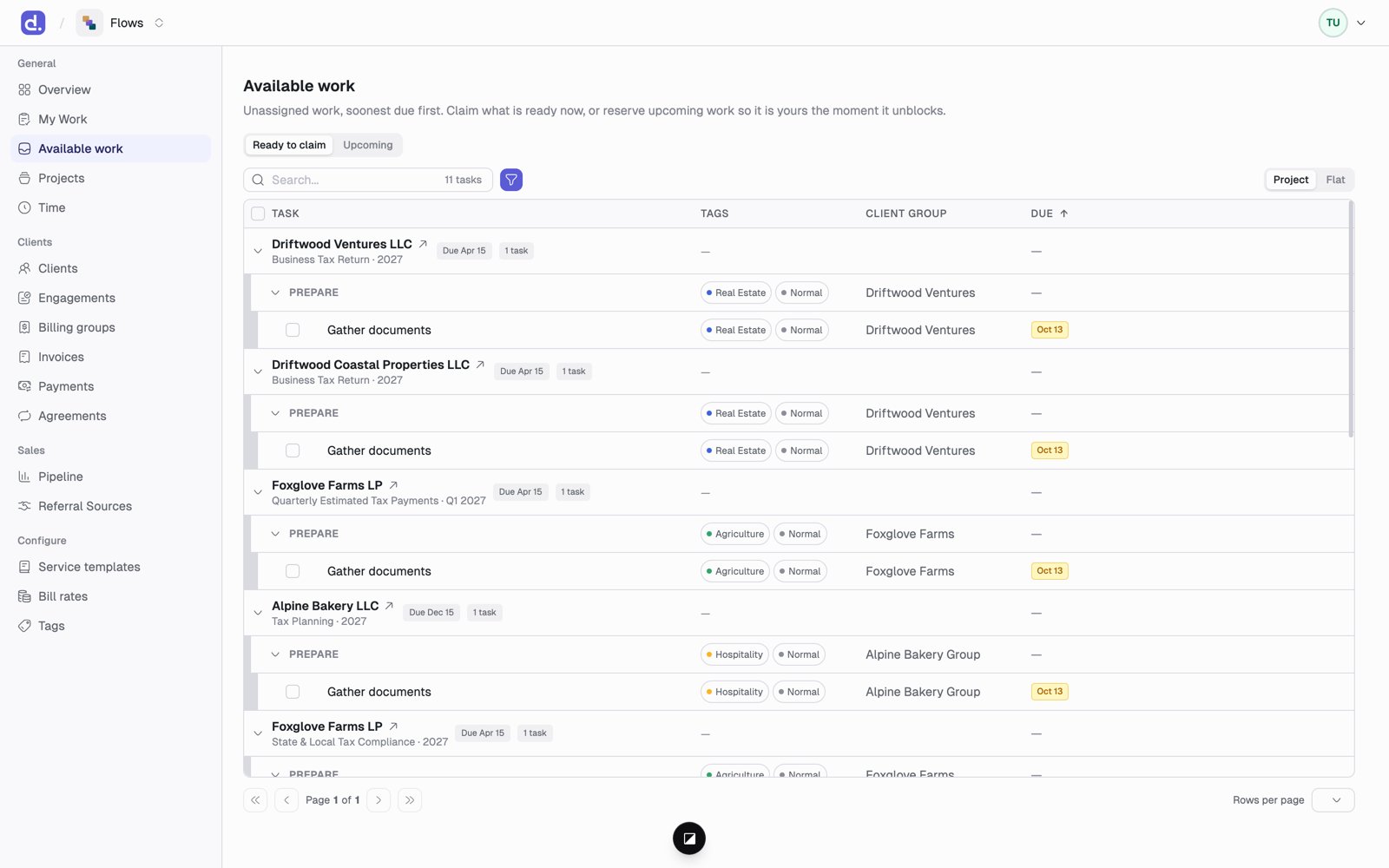 * **Ready to claim:** tasks that can be worked on now. Click **Claim** to make one yours. The first person to claim it gets it.
* **Upcoming:** tasks still waiting on earlier work. Click **Claim ahead** to reserve one, so it lands in your My Work the moment it's ready.
* In Project view, hover a group and click **Claim** (or **Claim ahead** under Upcoming) to take every open task in it that nobody owns. Tasks added to that group later come to you too. **Undo** gives back only what that claim took.
* Click a task and use **Assign to…** to give it to someone else.
Tasks on hold never show up here.
## The task panel
Click any task name to open its side panel. It shows:
* The project, the client, and the due date
* Where the task sits in the project, with the whole task tree
* Its tags
* Its **Owner history**: everyone who has owned it, and who handed it off
From the panel you can log time, change the status, claim the task, or click **Return to queue** to give it back to Available work. Returning a task keeps its logged time.
This documentation is built and hosted on [Mintlify](https://mintlify.com), a developer documentation platform.
* **Ready to claim:** tasks that can be worked on now. Click **Claim** to make one yours. The first person to claim it gets it.
* **Upcoming:** tasks still waiting on earlier work. Click **Claim ahead** to reserve one, so it lands in your My Work the moment it's ready.
* In Project view, hover a group and click **Claim** (or **Claim ahead** under Upcoming) to take every open task in it that nobody owns. Tasks added to that group later come to you too. **Undo** gives back only what that claim took.
* Click a task and use **Assign to…** to give it to someone else.
Tasks on hold never show up here.
## The task panel
Click any task name to open its side panel. It shows:
* The project, the client, and the due date
* Where the task sits in the project, with the whole task tree
* Its tags
* Its **Owner history**: everyone who has owned it, and who handed it off
From the panel you can log time, change the status, claim the task, or click **Return to queue** to give it back to Available work. Returning a task keeps its logged time.
This documentation is built and hosted on [Mintlify](https://mintlify.com), a developer documentation platform.