> ## Documentation Index
> Fetch the complete documentation index at: https://docs.denari.com/llms.txt
> Use this file to discover all available pages before exploring further.
# Projects
> One service, for one entity, for one period. The dated job that tasks and time hang off.
**A project is one service, for one entity, for one [period](/flows/periods).** *Acme's September bookkeeping.* *ABC Co's FY2025 1120S.*
## How projects get made
* Projects are only made for **active** engagements.
* When an engagement is activated, the current period's project for each service is made right away.
* After that, Flows checks every morning and makes any project whose [creation trigger](/flows/service-templates#what-a-template-holds) has arrived.
* Flows looks up to three periods ahead (the current one plus the next two). Future projects show up as their time comes, not all at once.
* Flows never makes the same project twice.
* Admins can click **Generate projects** on an engagement, or **Generate all projects** on the Engagements list, to make everything that's due now.
Each project starts with the task list from its service. See [Service templates](/flows/service-templates#the-task-list).
### One-off projects
For work outside the regular schedule, such as an amended return, open the engagement's **Projects** tab and click **New one-off project**. Give it a name, pick the entity, add a due date if you have one, and choose a template to copy tasks from (or start empty).
## The Projects page
**Projects** in the sidebar lists every project across your active engagements.
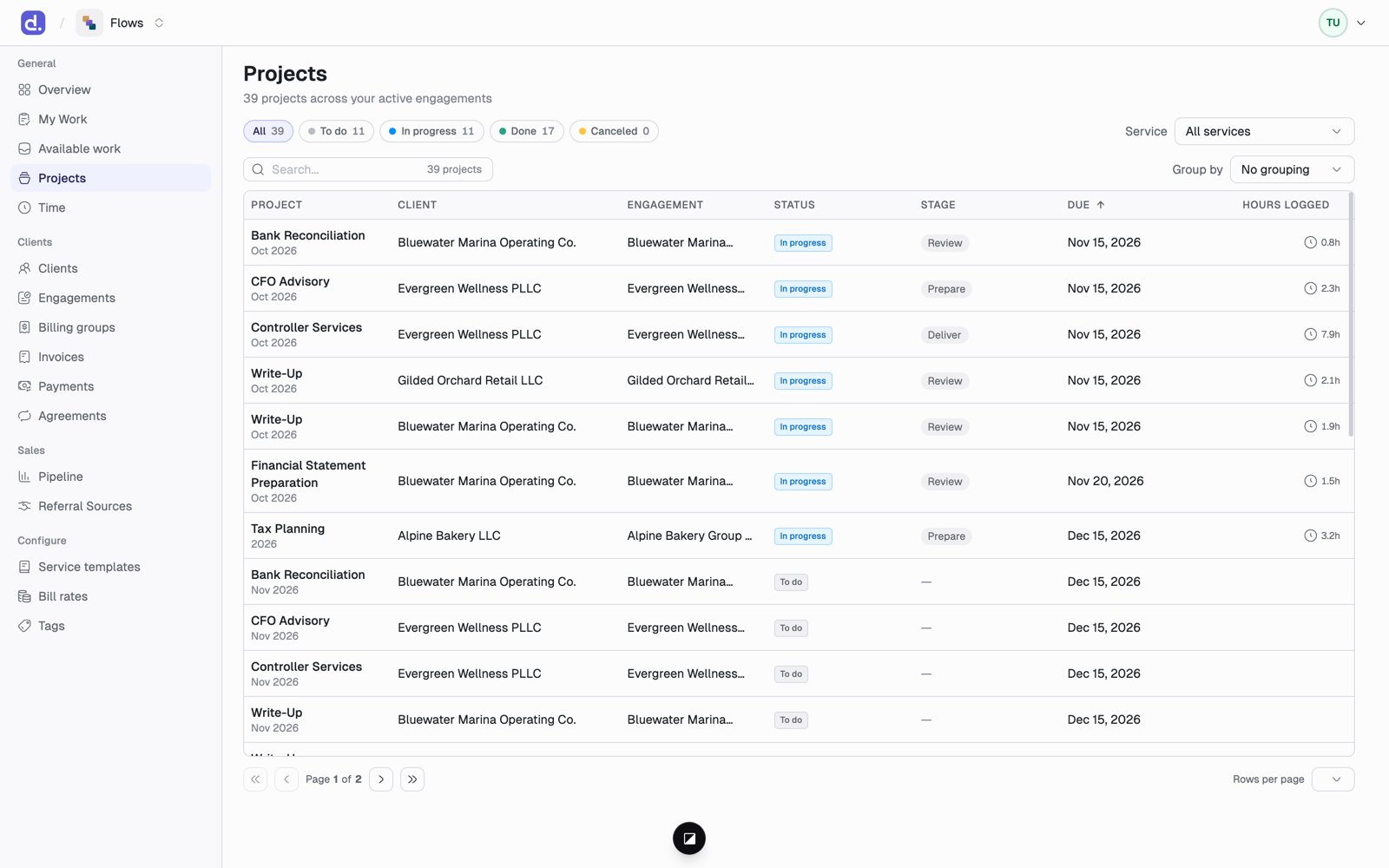 * **Filter by status** with the chips at the top: All, To do, In progress, Done, Canceled.
* **Filter by service**, search, and **Group by** status, client, service, or stage.
* Each row shows the service name with its period underneath (*Sep 2026*, *FY2025*), the client, the engagement, status, stage, due date, and hours logged.
* The list is sorted soonest due first.
**Group by stage** only works when one service is picked in the Service
filter, because each service has its own stages.
## Project status
Status is worked out from the tasks.
| Status | When |
| - | - |
| **To do** | No task has started. |
| **In progress** | At least one task has started. |
| **Done** | Every task is done or canceled. |
| **Canceled** | Someone closed it out by hand. |
You can also click **Mark complete** yourself, or **Cancel project** in the overflow menu, even if some tasks are still open. **Reopen** puts it back, and the status is worked out from the tasks again.
## The project page
* **Filter by status** with the chips at the top: All, To do, In progress, Done, Canceled.
* **Filter by service**, search, and **Group by** status, client, service, or stage.
* Each row shows the service name with its period underneath (*Sep 2026*, *FY2025*), the client, the engagement, status, stage, due date, and hours logged.
* The list is sorted soonest due first.
**Group by stage** only works when one service is picked in the Service
filter, because each service has its own stages.
## Project status
Status is worked out from the tasks.
| Status | When |
| - | - |
| **To do** | No task has started. |
| **In progress** | At least one task has started. |
| **Done** | Every task is done or canceled. |
| **Canceled** | Someone closed it out by hand. |
You can also click **Mark complete** yourself, or **Cancel project** in the overflow menu, even if some tasks are still open. **Reopen** puts it back, and the status is worked out from the tasks again.
## The project page
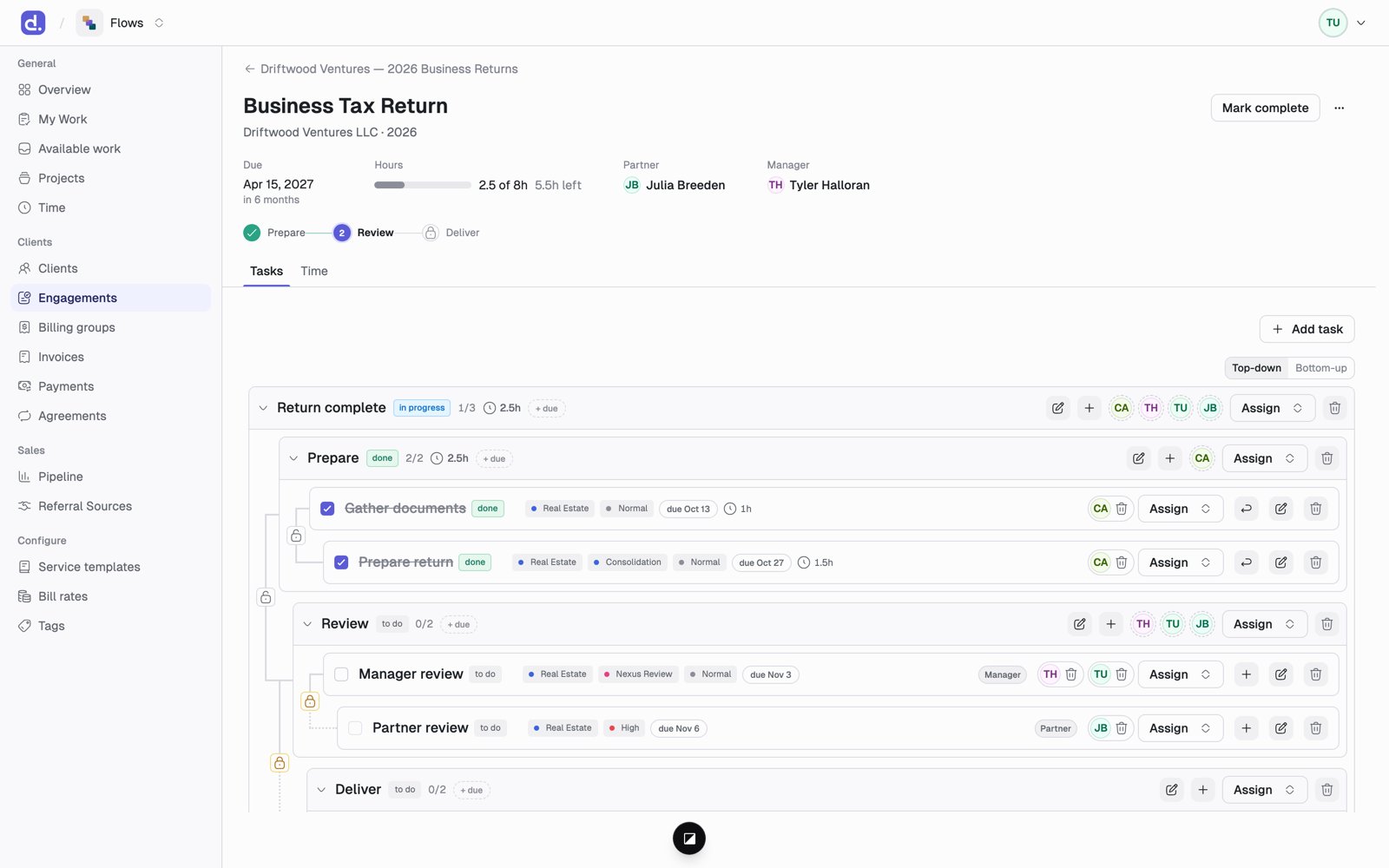 * **Due.** The project's due date and how far off it is, such as *in 2 months*. It turns red once the date has passed.
* **Hours.** Hours logged compared with the budgeted hours. The bar turns amber near the budget and red once it's over.
* **Partner** and **Manager.** Who is responsible for this service. These come from the entity's [relationship roles](/flows/clients-and-entities#relationship-roles-who-plays-which-part). To change them, change the roles on the client page.
* **Stage.** If the service has stages, a row of steps shows which ones are done, which one is current, and which are still locked. The status shows next to the project's name only when no step is current: once the project is done or canceled, or if work is left after its last step.
* **Tabs: Tasks** (the full task list) and **Time** (every time entry on this project).
## Change a project's due date
There are two ways, and they mean different things.
Click the date, then pick a new one under **Correct the date**. Use this
when the date was simply wrong. Only the project's date changes. Tasks don't
move.
To move a date *earlier*, correct it rather than extending it.
Click the date, then **Extend due date**. Use this for a real extension,
such as an IRS extension to September 15.
* Pick a new, later date and type a reason.
* Tasks that aren't done move later by the same number of days. Tasks with
chained due dates work themselves out.
* The change and the reason are saved. Click the date to see every date the
project has had and why, under **History**.
This documentation is built and hosted on [Mintlify](https://mintlify.com), a developer documentation platform.
* **Due.** The project's due date and how far off it is, such as *in 2 months*. It turns red once the date has passed.
* **Hours.** Hours logged compared with the budgeted hours. The bar turns amber near the budget and red once it's over.
* **Partner** and **Manager.** Who is responsible for this service. These come from the entity's [relationship roles](/flows/clients-and-entities#relationship-roles-who-plays-which-part). To change them, change the roles on the client page.
* **Stage.** If the service has stages, a row of steps shows which ones are done, which one is current, and which are still locked. The status shows next to the project's name only when no step is current: once the project is done or canceled, or if work is left after its last step.
* **Tabs: Tasks** (the full task list) and **Time** (every time entry on this project).
## Change a project's due date
There are two ways, and they mean different things.
Click the date, then pick a new one under **Correct the date**. Use this
when the date was simply wrong. Only the project's date changes. Tasks don't
move.
To move a date *earlier*, correct it rather than extending it.
Click the date, then **Extend due date**. Use this for a real extension,
such as an IRS extension to September 15.
* Pick a new, later date and type a reason.
* Tasks that aren't done move later by the same number of days. Tasks with
chained due dates work themselves out.
* The change and the reason are saved. Click the date to see every date the
project has had and why, under **History**.
This documentation is built and hosted on [Mintlify](https://mintlify.com), a developer documentation platform.