> ## Documentation Index
> Fetch the complete documentation index at: https://docs.denari.com/llms.txt
> Use this file to discover all available pages before exploring further.
# Clients & Entities
> Manage your client list and legal entities in Denari.
You can manage your client list in Denari with **clients** and **entities**:
* **Clients** are the distinct organizations or individuals you serve.
* **Entities** are the legal entities that make up a client.
Clients and entities are used to organize work and information throughout all of Denari. We split them up this way to better organize clients that have more than one legal entity.
## Naming
* **Clients** should be named using the common name of the organization or individual.
* **Entities** should be named using the legal name of the entity.
Take a fictional client **Harvest Foods**. Harvest Foods manufactures, distributes, and directly sells organic food and beverages. Imagine that Harvest Foods is made up of three entities: one that manufactures products, one that distributes products to retailers, and one that manages retail locations owned directly by the group.
The structure of this client in Denari would be:
* **Client:** Harvest Foods
* **Entities:**
* Harvest Manufacturing, LLC
* Harvest Distribution Services Inc.
* Harvest Retail Ventures LLC
## Managing clients and entities
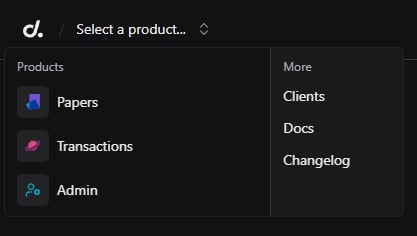
You can manage clients from the **Clients** page by clicking the **Select a product** dropdown in the top left of the navigation bar, then clicking the **Clients** link under the **More** section.
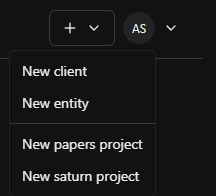
 You can also create new clients from the **+** shortcut in the top right anywhere in the app.
 ### Client list page
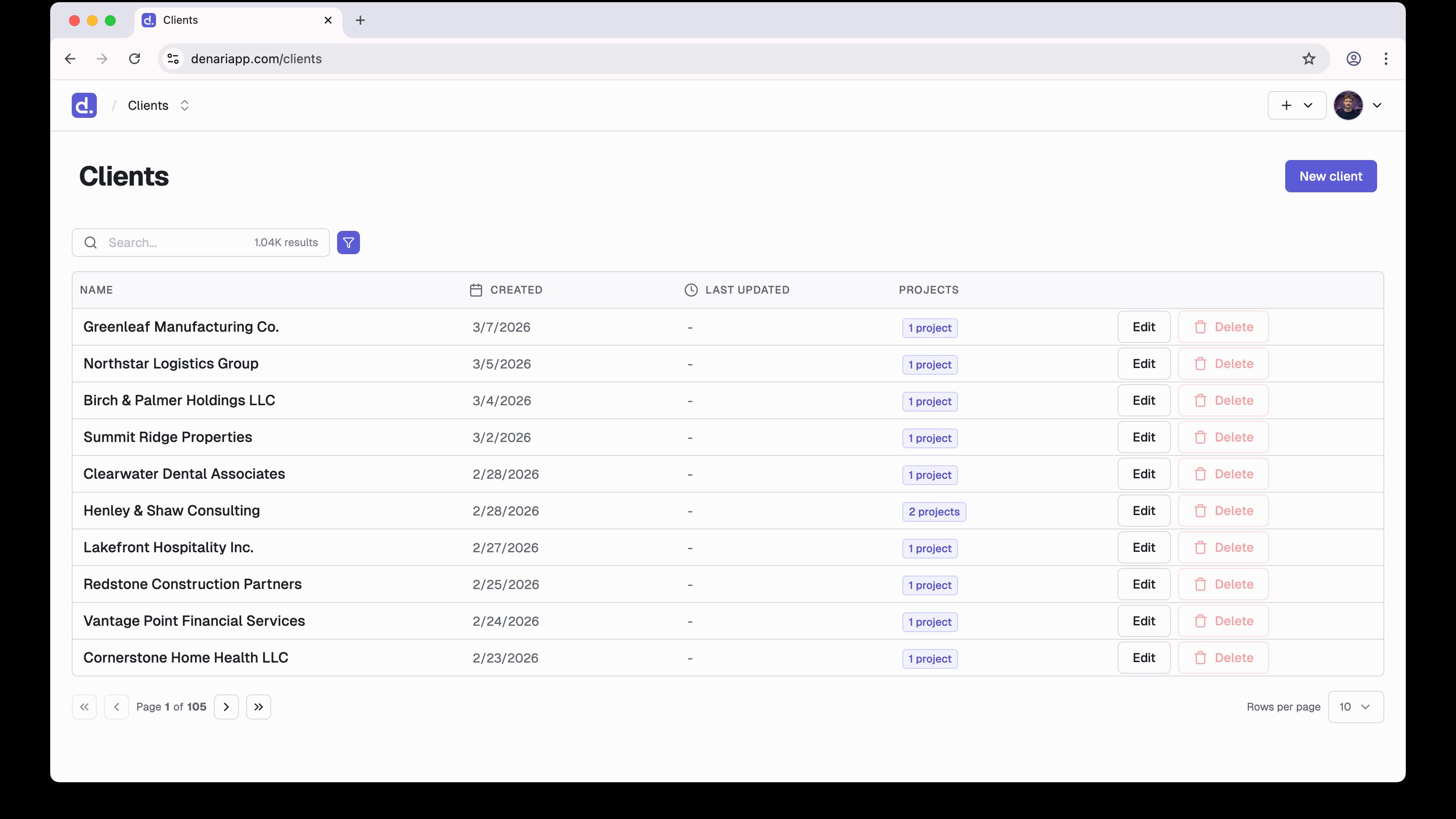
You can view and manage all clients from the client list page. To access it, click the **Clients** link in the navigation sidebar. To view a client, search for it and click the name. If the client doesn't show up, create a new one by clicking the **New client** button in the top right of the page.
### Client list page
You can view and manage all clients from the client list page. To access it, click the **Clients** link in the navigation sidebar. To view a client, search for it and click the name. If the client doesn't show up, create a new one by clicking the **New client** button in the top right of the page.
 ### Client page
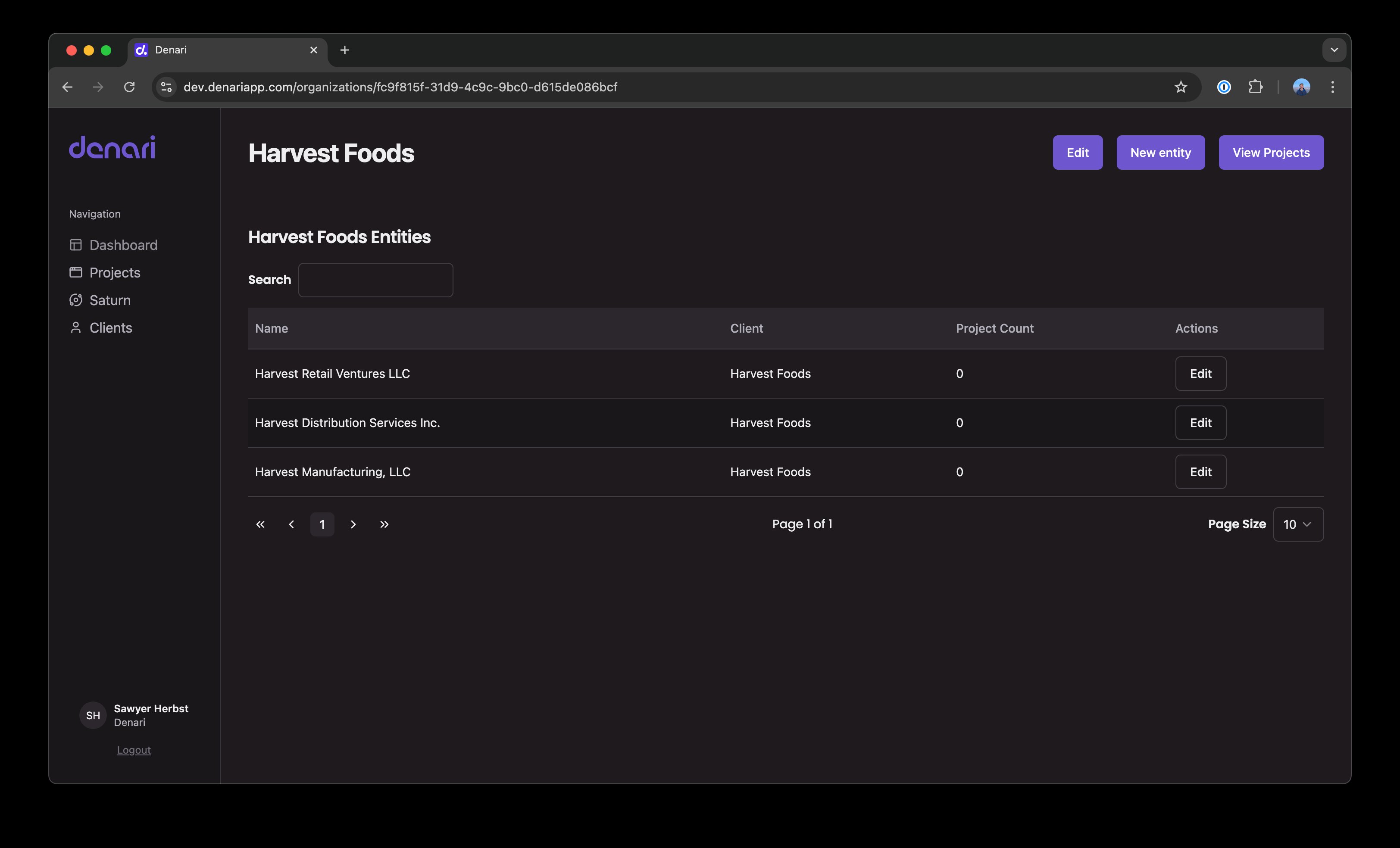 On the client page, you can:
* View and manage the client's associated entities by clicking on the name of an entity
* Edit the name of the client by clicking the **Edit** button
* Create an entity associated with the client by clicking the **New entity** button
* View associated Papers projects by clicking the **View projects** button
### Entity page
On the client page, you can:
* View and manage the client's associated entities by clicking on the name of an entity
* Edit the name of the client by clicking the **Edit** button
* Create an entity associated with the client by clicking the **New entity** button
* View associated Papers projects by clicking the **View projects** button
### Entity page
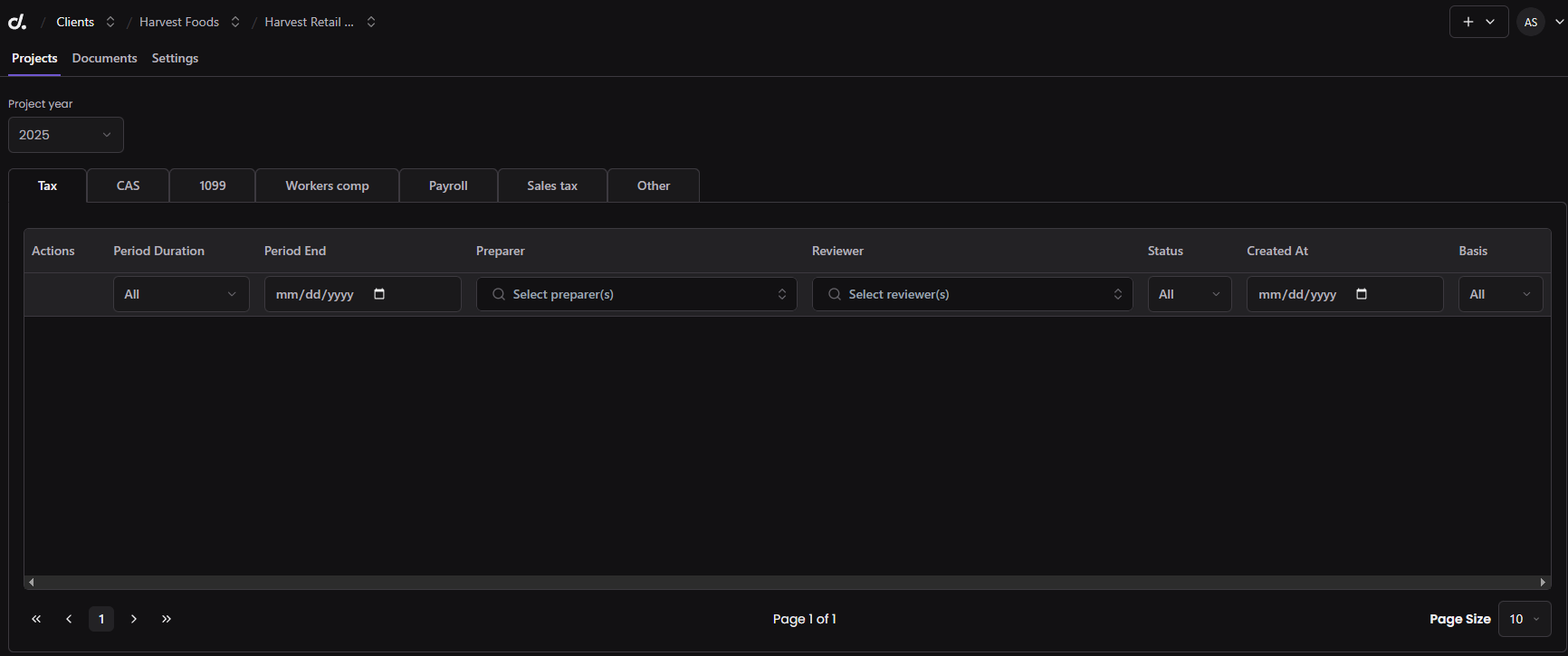 The entity page has four tabs:
* **Projects** — View associated projects for a given project type and year
* **Documents** — Add entity-level documents that any user will be able to access from projects tied to this entity
* **Notes** — Add and view notes related to the entity
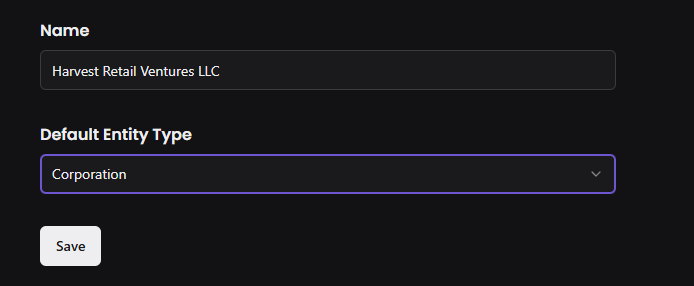
* **Settings** — Change the default entity type, which pre-assigns the entity type on all new projects tied to this entity to save prep time
The entity page has four tabs:
* **Projects** — View associated projects for a given project type and year
* **Documents** — Add entity-level documents that any user will be able to access from projects tied to this entity
* **Notes** — Add and view notes related to the entity
* **Settings** — Change the default entity type, which pre-assigns the entity type on all new projects tied to this entity to save prep time
 ### Creating from the new project form
To create clients and entities when creating a Papers project, see [Create a new project](/papers/create-project).
### Creating from the new project form
To create clients and entities when creating a Papers project, see [Create a new project](/papers/create-project).