> ## Documentation Index
> Fetch the complete documentation index at: https://docs.denari.com/llms.txt
> Use this file to discover all available pages before exploring further.
# Log In
> How to log in to the Denari web application.
## Web app
The Denari web app is at [denariapp.com](https://denariapp.com). When you navigate to the login page, you are redirected to a hosted login screen powered by WorkOS AuthKit.
1. Enter the email address associated with your Denari account
2. Complete authentication through your organization's configured identity provider (e.g., Google, Microsoft)
Once authenticated, you are redirected back into the Denari web app.
If you can authenticate successfully but can't access Denari afterwards, please [contact us](/general/help).
## Desktop app
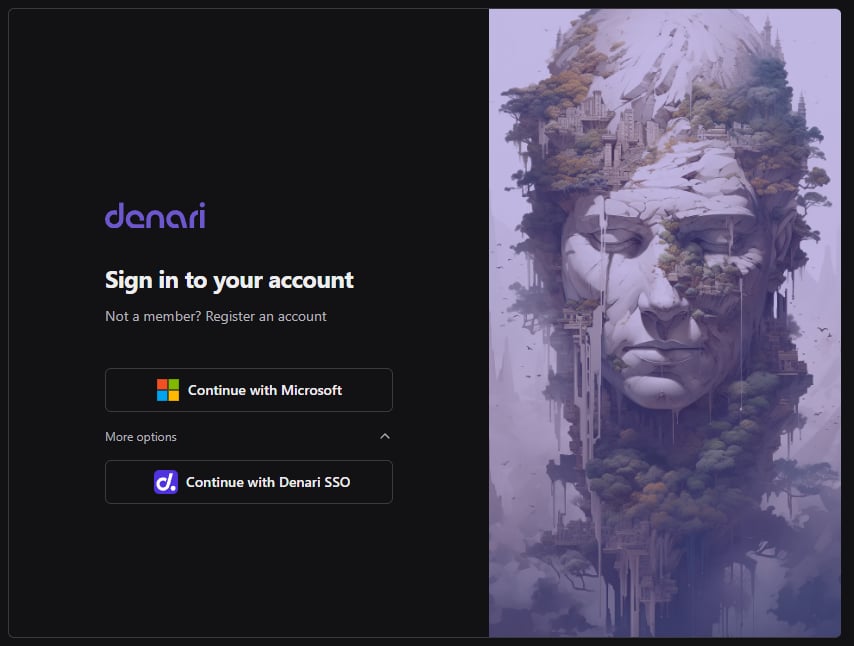 The Denari desktop app uses Microsoft SSO as the primary login method.
1. Click **Continue with Microsoft**
2. Log in to your Microsoft account
### Denari SSO
If your organization does not use Microsoft:
1. Click the **More options** dropdown arrow
2. Click **Continue with Denari SSO**
3. Log in with the email address tied to your Denari account
The Denari desktop app uses Microsoft SSO as the primary login method.
1. Click **Continue with Microsoft**
2. Log in to your Microsoft account
### Denari SSO
If your organization does not use Microsoft:
1. Click the **More options** dropdown arrow
2. Click **Continue with Denari SSO**
3. Log in with the email address tied to your Denari account