> ## Documentation Index
> Fetch the complete documentation index at: https://docs.denari.com/llms.txt
> Use this file to discover all available pages before exploring further.
# What the client sees
> The page your client lands on after signing in, and everything they can do there.
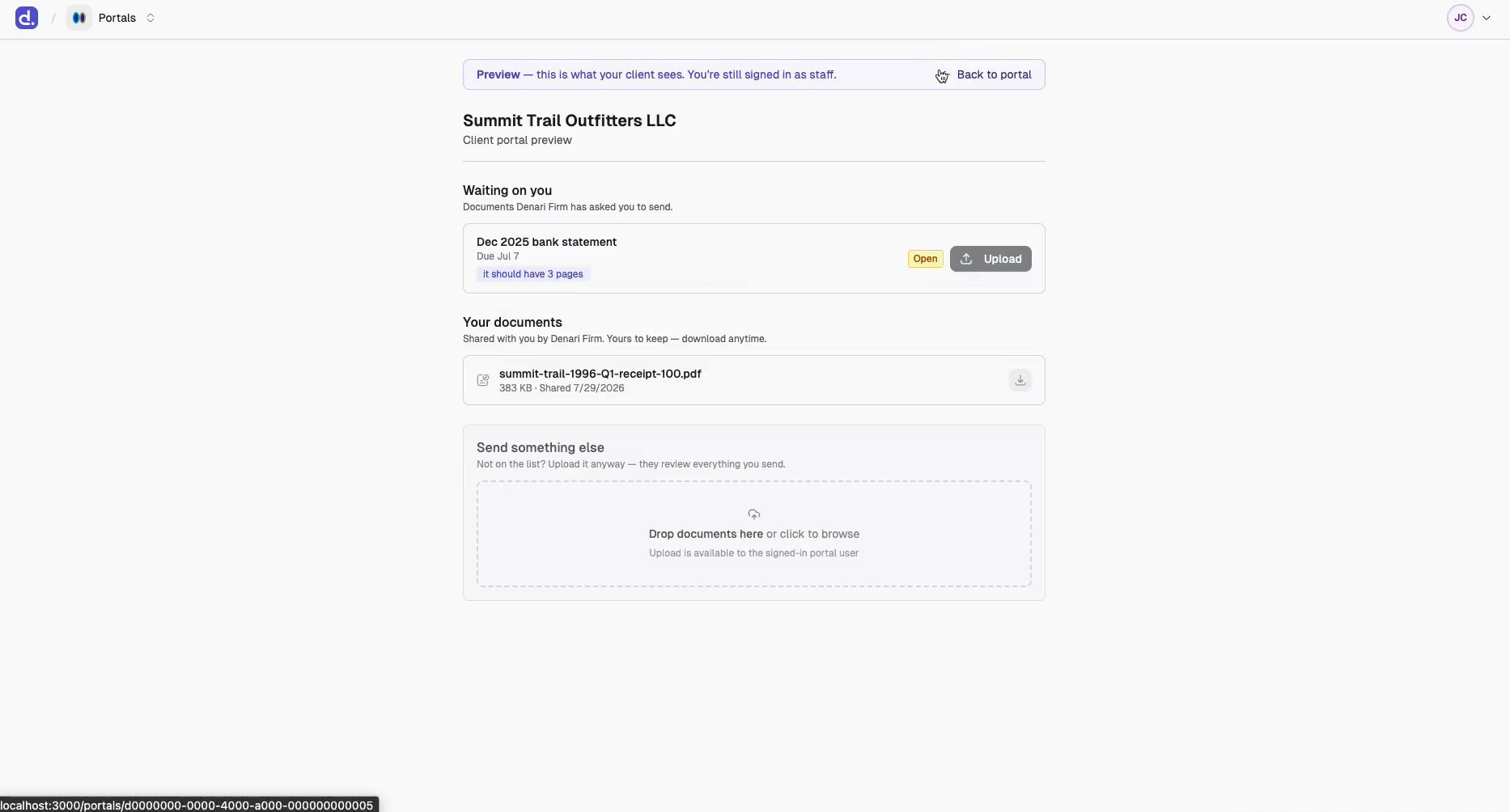
Your client's portal is deliberately small: one page, no menus, no product switcher. It shows what you've shared, what you're waiting on, and a place to send things back.
You can see it exactly as they do without a test login — **See what the client sees**, top right of any portal page. See [The portal view](/portals/portal-view).
## Signing in
There are no passwords. Your [invitation](/portals/invite-clients) creates their account; every visit after that, they enter their email and Denari sends a fresh code to sign in.
That means a client needs inbox access each time — but never a password to reset, and nothing for your firm to manage.
## The page
A branded header names your firm and offers **Sign out**. Below it, up to three sections in this order:
 ### Waiting on you
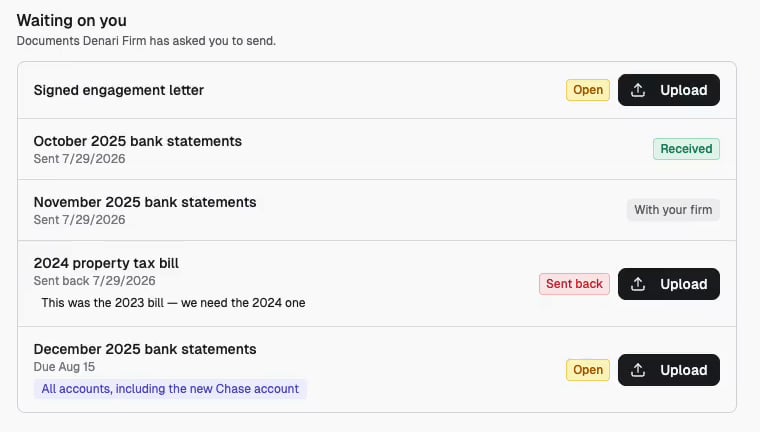
Only appears when your firm has asked for something. Each row is a [document request](/portals/requests): its title, your note, a date line, a status badge in client language, and an **Upload** button on the rows they can still act on.
### Waiting on you
Only appears when your firm has asked for something. Each row is a [document request](/portals/requests): its title, your note, a date line, a status badge in client language, and an **Upload** button on the rows they can still act on.
 A client with no requests sees no checklist at all — not an empty one.
### Your documents
Everything published to them, newest first, with the note you attached when publishing. Clicking a row previews it; the download button saves it.
PDFs and images preview inline. Everything else — spreadsheets, Word documents — is download-only, with **This file type can't be previewed in the portal** and a **Download to view** button. That's deliberate: only formats a browser treats as inert are rendered.
### Send documents to your firm
A drop zone for anything they want to send, whether or not you asked for it. When they have open requests it's headed **Send something else**; otherwise **Send documents to your firm**.
| Limit | Value |
| - | - |
| Maximum file size | 50 MB |
| Accepted types | PDF, PNG, JPEG, WebP, HEIC, Word, Excel, CSV, plain text |
| Files queued at once | 50 |
Anything outside those limits is refused with a message on the file's own row, before anything is sent.
## Clients with several businesses
If one person has been invited from more than one client entity's portal, they sign in once and see everything together, with chips across the top — **All**, then one per entity. Selecting a chip filters both the requests and the documents.
Single-entity clients never see the chips. See [Clients across multiple portals](/portals/multiple-portals).
## Where their uploads go
**Nothing auto-approves.** Every file a client sends — through a request or as a drop-in — lands in your firm's [intake queue](/documents/intake) first, pre-routed to the right client entity. It becomes a library document only once your firm files it.
Uploads against a request also flip that request to **Submitted** so you know it's your turn. See [Document requests](/portals/requests).
Denari never emails a client about a published document or a new request. The
invitation is the only automatic message. If something is urgent, tell them.
This documentation is built and hosted on [Mintlify](https://mintlify.com), a developer documentation platform.
A client with no requests sees no checklist at all — not an empty one.
### Your documents
Everything published to them, newest first, with the note you attached when publishing. Clicking a row previews it; the download button saves it.
PDFs and images preview inline. Everything else — spreadsheets, Word documents — is download-only, with **This file type can't be previewed in the portal** and a **Download to view** button. That's deliberate: only formats a browser treats as inert are rendered.
### Send documents to your firm
A drop zone for anything they want to send, whether or not you asked for it. When they have open requests it's headed **Send something else**; otherwise **Send documents to your firm**.
| Limit | Value |
| - | - |
| Maximum file size | 50 MB |
| Accepted types | PDF, PNG, JPEG, WebP, HEIC, Word, Excel, CSV, plain text |
| Files queued at once | 50 |
Anything outside those limits is refused with a message on the file's own row, before anything is sent.
## Clients with several businesses
If one person has been invited from more than one client entity's portal, they sign in once and see everything together, with chips across the top — **All**, then one per entity. Selecting a chip filters both the requests and the documents.
Single-entity clients never see the chips. See [Clients across multiple portals](/portals/multiple-portals).
## Where their uploads go
**Nothing auto-approves.** Every file a client sends — through a request or as a drop-in — lands in your firm's [intake queue](/documents/intake) first, pre-routed to the right client entity. It becomes a library document only once your firm files it.
Uploads against a request also flip that request to **Submitted** so you know it's your turn. See [Document requests](/portals/requests).
Denari never emails a client about a published document or a new request. The
invitation is the only automatic message. If something is urgent, tell them.
This documentation is built and hosted on [Mintlify](https://mintlify.com), a developer documentation platform.