> ## Documentation Index
> Fetch the complete documentation index at: https://docs.denari.com/llms.txt
> Use this file to discover all available pages before exploring further.
# Getting Started
> Share documents with clients, ask them for what you need, and let them send it back — all in one place.
Denari Portals is the two-way channel between your firm and your clients. Your firm publishes documents, asks for the ones it's waiting on, and reviews what comes back. Your client signs in to a small, branded page, downloads what you've shared, and uploads what you've asked for.
Your firm needs to have the Denari Portals component enabled in order to use
it. If you can't see Portals in the product switcher and have questions,
please contact the Denari or IT admin at your firm.
## The two sides
| | Firm side | Client side |
| - | - | - |
| **Where** | **Portals** in the product switcher | Their browser, after an emailed invite |
| **Sees** | Every portal, its documents, its requests | Only what's been shared with them |
| **Does** | Publish, invite, request, review | Download, upload |
Portals is built on top of [Denari Documents](/documents/getting-started). Your library stays the source of truth; a portal is a curated window onto it, and anything a client uploads arrives in your intake queue for review rather than landing in the library directly.
## The one thing to understand first
**A portal belongs to a client entity, not to a client group.** You never create a portal — it is created for you the first time you publish a document to that entity, and it drops off the list when the last document is unpublished.
Giving a person access is a separate step: you [invite them by email](/portals/invite-clients), which grants that address access to that entity's portal. Publishing a document and inviting a person are two different actions, and you need both before anyone can see anything.
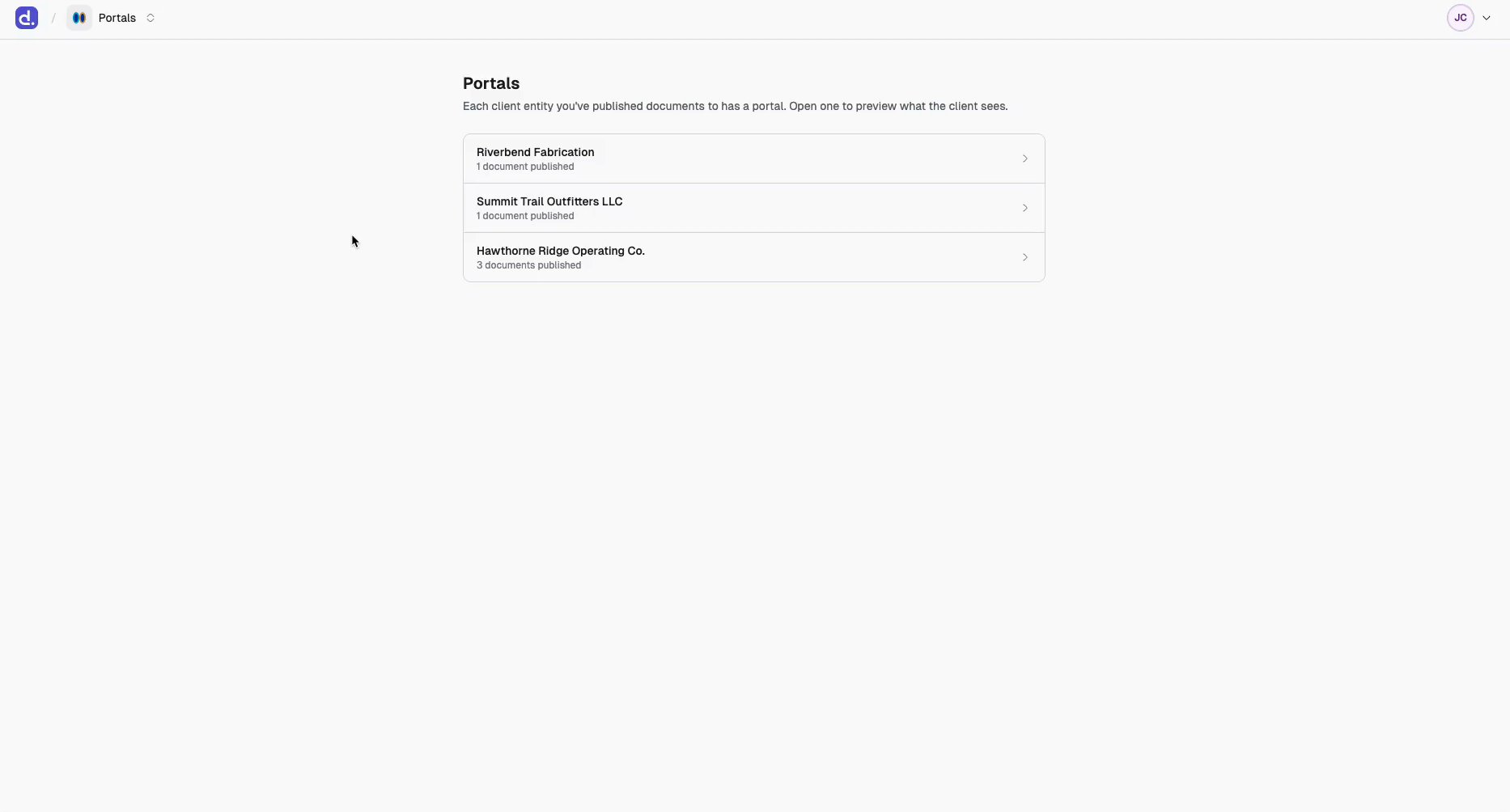
Select **Portals** from the product switcher in the top left to see every portal your firm has published to.
 ## The workflow, end to end
Upload it, or let it arrive through intake. See [Where documents
land](/documents/where-documents-land).
On the **Attributes** tab, set the client entity. This is what decides which
portal the document can reach. See [Edit attributes](/documents/attributes).
Right-click the document and choose **Publish to client**. Confirm the
entity, optionally add a note the client will see, and click **Publish**.
See [Publish a document](/portals/publish).
On the portal page, type their email under **Invite a client by email** and
click **Send invite**. There are no passwords — the invite creates their
account, and every visit after that emails them a fresh sign-in code. See
[Invite a client](/portals/invite-clients).
Click **New request** to add an item to the client's **Waiting on you**
list, or apply a saved checklist. See [Document
requests](/portals/requests).
An upload flips the request to **Submitted** and lands in your intake queue.
Accept it with **Mark received**, or **Send back…** with a reason.
**See what the client sees** on the portal page renders the client's exact
view. See [The portal view](/portals/portal-view).
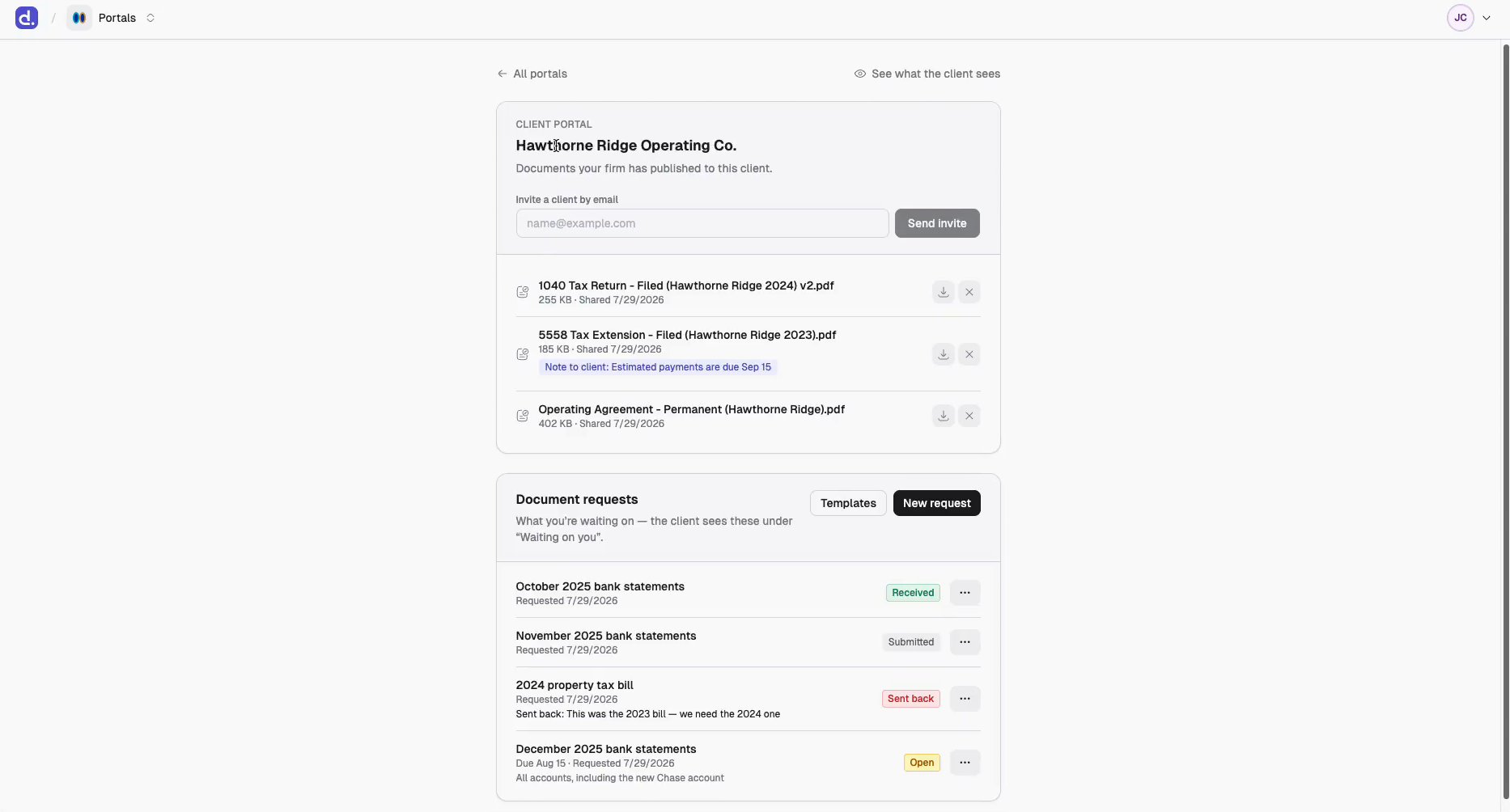
A portal page gathers all of it in one place — the documents you've published, the invite box, and what you're waiting on.
## The workflow, end to end
Upload it, or let it arrive through intake. See [Where documents
land](/documents/where-documents-land).
On the **Attributes** tab, set the client entity. This is what decides which
portal the document can reach. See [Edit attributes](/documents/attributes).
Right-click the document and choose **Publish to client**. Confirm the
entity, optionally add a note the client will see, and click **Publish**.
See [Publish a document](/portals/publish).
On the portal page, type their email under **Invite a client by email** and
click **Send invite**. There are no passwords — the invite creates their
account, and every visit after that emails them a fresh sign-in code. See
[Invite a client](/portals/invite-clients).
Click **New request** to add an item to the client's **Waiting on you**
list, or apply a saved checklist. See [Document
requests](/portals/requests).
An upload flips the request to **Submitted** and lands in your intake queue.
Accept it with **Mark received**, or **Send back…** with a reason.
**See what the client sees** on the portal page renders the client's exact
view. See [The portal view](/portals/portal-view).
A portal page gathers all of it in one place — the documents you've published, the invite box, and what you're waiting on.
 ## Learn it next
Why portals hang off client entities, and what follows from that.
The one step everything else depends on.
Send a file out, with an optional note.
Ask for a document and review what comes back.
Save a checklist once, apply it to every client.
The page they land on, end to end.
Multi-entity clients, and one person across several.
The list, the portal page, and the preview.
Find published documents from the library.
Who can publish, who can see a portal, what's guarded.
Publishing is fast and reversible, but it is still the moment a document
crosses to the client. Check the entity name in the publish dialog before you
confirm — it names exactly whose portal the document is about to enter.
This documentation is built and hosted on [Mintlify](https://mintlify.com), a developer documentation platform.
## Learn it next
Why portals hang off client entities, and what follows from that.
The one step everything else depends on.
Send a file out, with an optional note.
Ask for a document and review what comes back.
Save a checklist once, apply it to every client.
The page they land on, end to end.
Multi-entity clients, and one person across several.
The list, the portal page, and the preview.
Find published documents from the library.
Who can publish, who can see a portal, what's guarded.
Publishing is fast and reversible, but it is still the moment a document
crosses to the client. Check the entity name in the publish dialog before you
confirm — it names exactly whose portal the document is about to enter.
This documentation is built and hosted on [Mintlify](https://mintlify.com), a developer documentation platform.