> ## Documentation Index
> Fetch the complete documentation index at: https://docs.denari.com/llms.txt
> Use this file to discover all available pages before exploring further.
# The portal view
> The portals list, a single portal page, and the client's-eye preview.
Select **Portals** from the product switcher in the top left. There are two firm-side screens, plus a preview of the client's.
## The portals list
Every portal your firm has published to, one row per client entity, showing its name and document count. Click a row to open it.
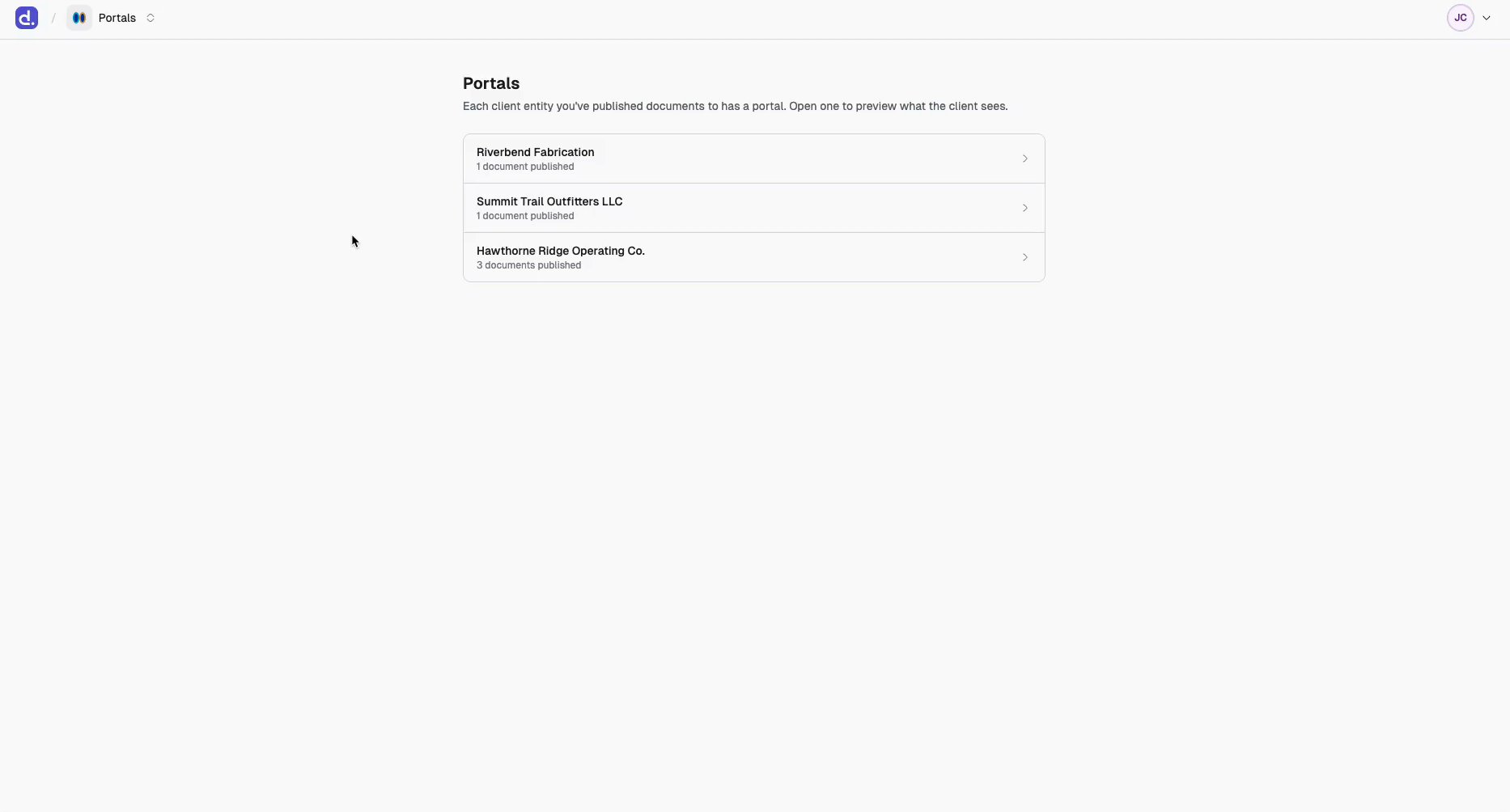 The list is a live picture of what your firm has actually shared: **only portals with at least one published document appear.** An entity you've never published to isn't listed, and a portal whose documents were all unpublished drops back off.
Once your firm has more than ten portals, a **Filter by client entity** box appears above the list, with a count of how many match.
If the list is empty you get a **No portals yet** panel pointing back to Documents.
## A portal page
One page, one client entity. Spend a minute here before you invite anyone.
The list is a live picture of what your firm has actually shared: **only portals with at least one published document appear.** An entity you've never published to isn't listed, and a portal whose documents were all unpublished drops back off.
Once your firm has more than ten portals, a **Filter by client entity** box appears above the list, with a count of how many match.
If the list is empty you get a **No portals yet** panel pointing back to Documents.
## A portal page
One page, one client entity. Spend a minute here before you invite anyone.
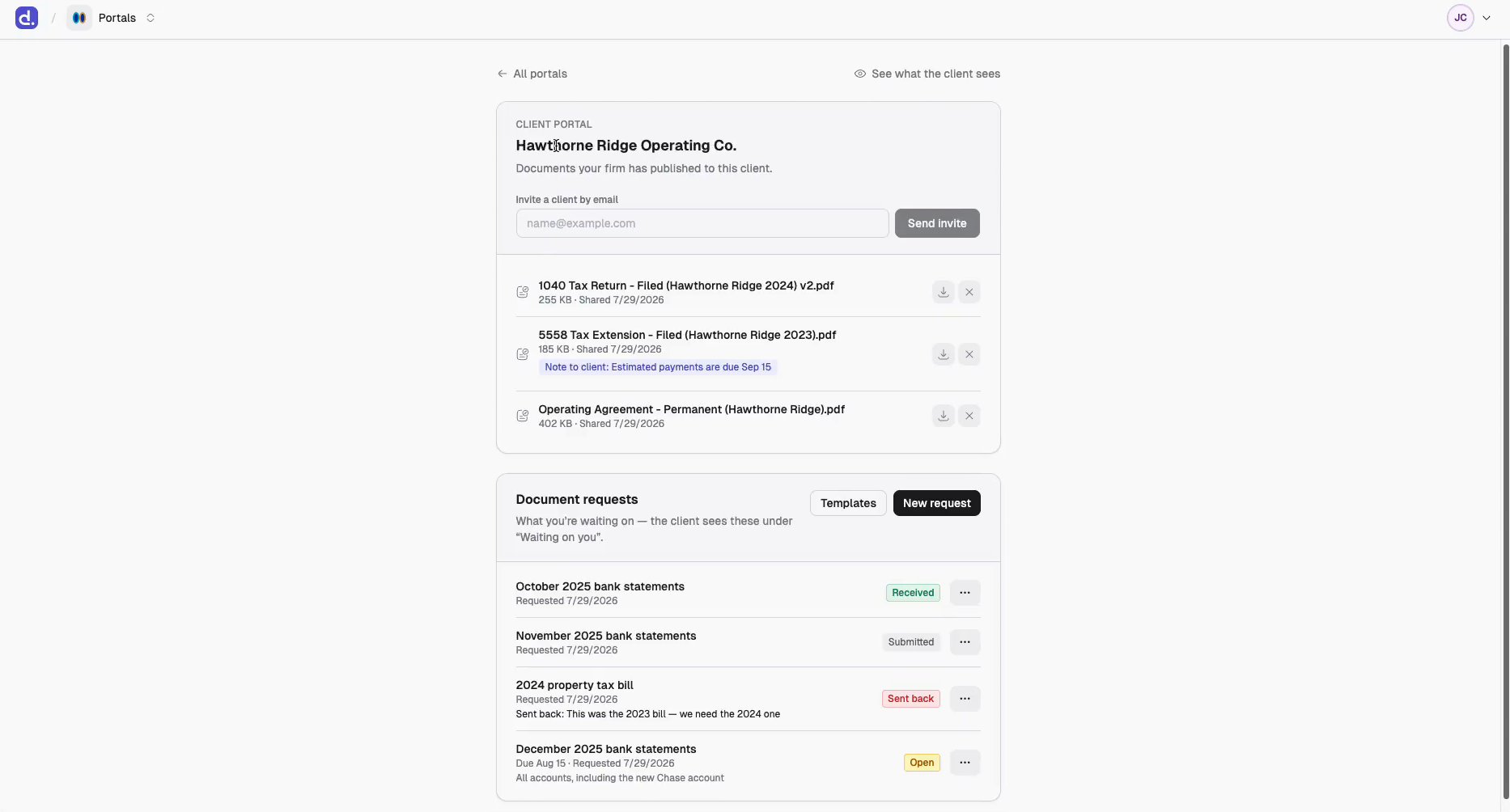 Three things stack down the page:
1. **The invite field**, directly under the client entity's name. The one step everything else depends on — see [Invite a client](/portals/invite-clients).
2. **Published documents**, each with any note the client sees. The **✕** unpublishes; the download button fetches the file.
3. **Document requests**, what you're waiting on. Each row reads **Open**, **Submitted**, **Received**, or **Sent back**. See [Document requests](/portals/requests).
**← All portals** returns to the list.
## See what the client sees
Top right of any portal page. Opens the client's exact view — no test login needed.
Three things stack down the page:
1. **The invite field**, directly under the client entity's name. The one step everything else depends on — see [Invite a client](/portals/invite-clients).
2. **Published documents**, each with any note the client sees. The **✕** unpublishes; the download button fetches the file.
3. **Document requests**, what you're waiting on. Each row reads **Open**, **Submitted**, **Received**, or **Sent back**. See [Document requests](/portals/requests).
**← All portals** returns to the list.
## See what the client sees
Top right of any portal page. Opens the client's exact view — no test login needed.
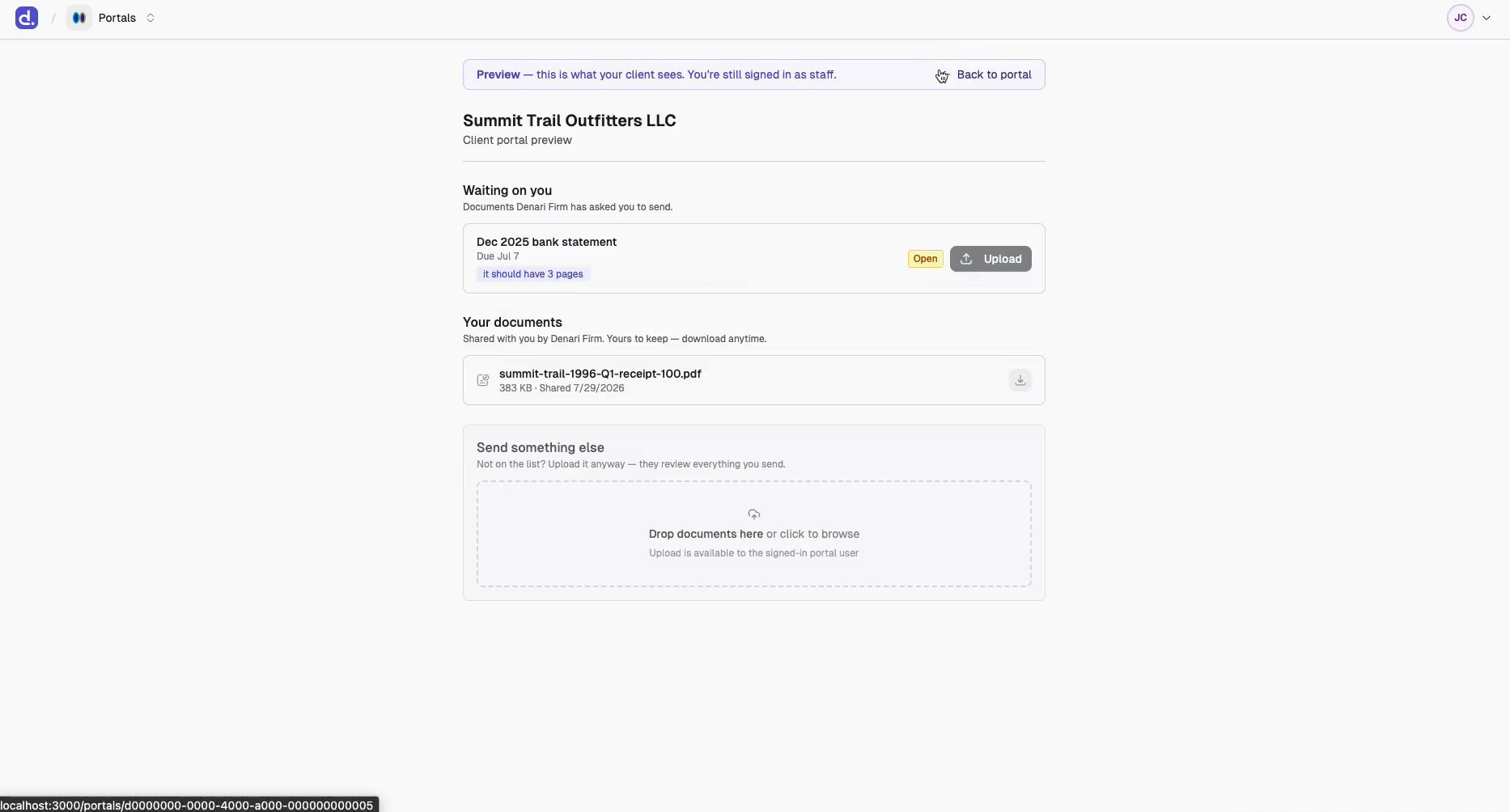 A banner across the top reminds you: *Preview — this is what your client sees. You're still signed in as staff.* Everything renders exactly as they'd see it, including your notes and the upload area, but the upload affordances are inert — staff must not upload on a client's behalf.
Use it to check a note reads the way you meant before the client reads it. **← Back to portal** returns.
The preview shows one client entity. A client invited to several entities sees
all of them together on one page with filter chips — the preview can't
reproduce that. See [What the client sees](/portals/client-experience).
## Everything you can do here
| Action | Where |
| - | - |
| Invite someone by email | Portal page, top card |
| Preview a published document | Click its filename |
| Download a published document | The download button on its row |
| Unpublish a document | The **✕** on its row |
| Ask for a document | **New request** |
| Apply a saved checklist | **Templates** |
| Review a submission | The `⋯` menu on a request row |
| Check the client's view | **See what the client sees** |
There's no upload, rename, or attribute editing inside a portal. Everything that changes a document happens in [Documents](/documents/getting-started); the portal only controls whether the client can see it.
This documentation is built and hosted on [Mintlify](https://mintlify.com), a developer documentation platform.
A banner across the top reminds you: *Preview — this is what your client sees. You're still signed in as staff.* Everything renders exactly as they'd see it, including your notes and the upload area, but the upload affordances are inert — staff must not upload on a client's behalf.
Use it to check a note reads the way you meant before the client reads it. **← Back to portal** returns.
The preview shows one client entity. A client invited to several entities sees
all of them together on one page with filter chips — the preview can't
reproduce that. See [What the client sees](/portals/client-experience).
## Everything you can do here
| Action | Where |
| - | - |
| Invite someone by email | Portal page, top card |
| Preview a published document | Click its filename |
| Download a published document | The download button on its row |
| Unpublish a document | The **✕** on its row |
| Ask for a document | **New request** |
| Apply a saved checklist | **Templates** |
| Review a submission | The `⋯` menu on a request row |
| Check the client's view | **See what the client sees** |
There's no upload, rename, or attribute editing inside a portal. Everything that changes a document happens in [Documents](/documents/getting-started); the portal only controls whether the client can see it.
This documentation is built and hosted on [Mintlify](https://mintlify.com), a developer documentation platform.