> ## Documentation Index
> Fetch the complete documentation index at: https://docs.denari.com/llms.txt
> Use this file to discover all available pages before exploring further.
# Publish a document
> Send a document from the Documents library to a client's portal, and pull it back.
Publishing starts in [Denari Documents](/documents/getting-started). There's no upload button inside a portal — a document has to be in your library, with its client entity set, before it can reach a client.
## Publish
In Documents, press `⌘K` to filter to the client and `F` to narrow further.
See [Search](/documents/search).
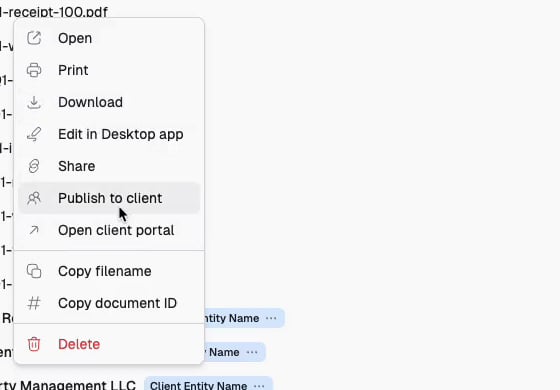
Choose **Publish to client** from the menu. It's also in the `...` actions
menu, just below **Share**.
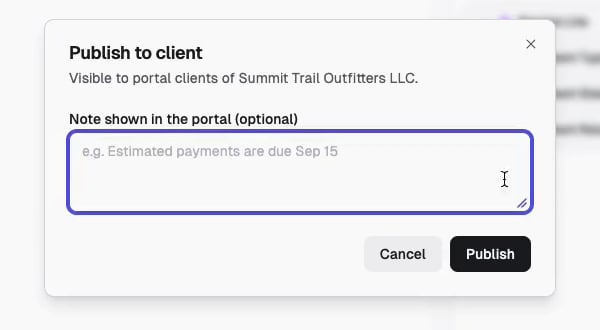
 Most documents are already tagged to exactly one, and it's preselected — the
dialog just reads *Visible to portal clients of …*. See [the three
cases](#the-three-cases) below.
**Note shown in the portal (optional)** appears under the document in the
client's list. Good for the one line that saves an email — *Estimated
payments are due Sep 15*.
A **Published to portal** toast confirms it, and Denari takes you to that
portal so you can see the result.
Most documents are already tagged to exactly one, and it's preselected — the
dialog just reads *Visible to portal clients of …*. See [the three
cases](#the-three-cases) below.
**Note shown in the portal (optional)** appears under the document in the
client's list. Good for the one line that saves an email — *Estimated
payments are due Sep 15*.
A **Published to portal** toast confirms it, and Denari takes you to that
portal so you can see the result.
 **Publish to client** only appears when your firm has Portals enabled. Without
it, the option is absent from the actions menu entirely.
### The three cases
Which version of the dialog you get depends on the document's client entity attribute.
| The document is tagged to | What you see |
| - | - |
| Exactly one client entity | It's preselected. One click to confirm. The normal case. |
| More than one | A picker listing **only that document's entities**. |
| No entity at all | A picker offering your firm's **full entity list**. |
Options read `Entity name · Client group`, so you can tell apart similarly named entities.
If publishing keeps asking which portal to use, fix it upstream: set the
client entity on the document's [attributes](/documents/attributes). Then it's
a one-click confirm for good.
### Nobody sees it until they're invited
Publishing puts the document in the portal. It does **not** give anyone access to that portal, and it does **not** send an email. If you've never shared with this client before, [invite them](/portals/invite-clients) — otherwise you've published into a page no one can open.
### Publishing again is safe
Publishing a document that's already in a portal creates no duplicate. Re-publishing is also how you change the note: type a new one to replace it, or clear the box to remove it.
### The portal follows the current version
A portal always shows the document's **current version**. Upload a replacement in Documents and the portal picks it up — no republishing. See [Versions](/documents/versioning).
Because the portal follows the current version, restoring an older version
also changes what the client sees. If they need to keep seeing the old file,
unpublish before you replace it.
## Check your work
**See what the client sees** in the top right of the portal page opens their exact view — no test login needed. It's the fastest way to confirm a note reads the way you meant it to. See [The portal view](/portals/portal-view).
## Unpublish
Unpublishing happens from the portal, not from the document.
From **Portals**, or via **Open client portal** in the document's actions
menu.
An **Unpublished from portal** toast confirms, the row disappears, and the
published marker drops off the document in your library.
Unpublishing is not a delete. The document keeps every attribute, version, comment, and history entry, and you can publish it again at any time.
Unpublishing removes a document from the portal going forward. It cannot
retract a file the client has already downloaded, so treat publishing as
one-way for anything sensitive.
This documentation is built and hosted on [Mintlify](https://mintlify.com), a developer documentation platform.
**Publish to client** only appears when your firm has Portals enabled. Without
it, the option is absent from the actions menu entirely.
### The three cases
Which version of the dialog you get depends on the document's client entity attribute.
| The document is tagged to | What you see |
| - | - |
| Exactly one client entity | It's preselected. One click to confirm. The normal case. |
| More than one | A picker listing **only that document's entities**. |
| No entity at all | A picker offering your firm's **full entity list**. |
Options read `Entity name · Client group`, so you can tell apart similarly named entities.
If publishing keeps asking which portal to use, fix it upstream: set the
client entity on the document's [attributes](/documents/attributes). Then it's
a one-click confirm for good.
### Nobody sees it until they're invited
Publishing puts the document in the portal. It does **not** give anyone access to that portal, and it does **not** send an email. If you've never shared with this client before, [invite them](/portals/invite-clients) — otherwise you've published into a page no one can open.
### Publishing again is safe
Publishing a document that's already in a portal creates no duplicate. Re-publishing is also how you change the note: type a new one to replace it, or clear the box to remove it.
### The portal follows the current version
A portal always shows the document's **current version**. Upload a replacement in Documents and the portal picks it up — no republishing. See [Versions](/documents/versioning).
Because the portal follows the current version, restoring an older version
also changes what the client sees. If they need to keep seeing the old file,
unpublish before you replace it.
## Check your work
**See what the client sees** in the top right of the portal page opens their exact view — no test login needed. It's the fastest way to confirm a note reads the way you meant it to. See [The portal view](/portals/portal-view).
## Unpublish
Unpublishing happens from the portal, not from the document.
From **Portals**, or via **Open client portal** in the document's actions
menu.
An **Unpublished from portal** toast confirms, the row disappears, and the
published marker drops off the document in your library.
Unpublishing is not a delete. The document keeps every attribute, version, comment, and history entry, and you can publish it again at any time.
Unpublishing removes a document from the portal going forward. It cannot
retract a file the client has already downloaded, so treat publishing as
one-way for anything sensitive.
This documentation is built and hosted on [Mintlify](https://mintlify.com), a developer documentation platform.