

Have the client’s email address in hand before you start. You do not create a
password for them, and they do not create one either.
Invite someone
1
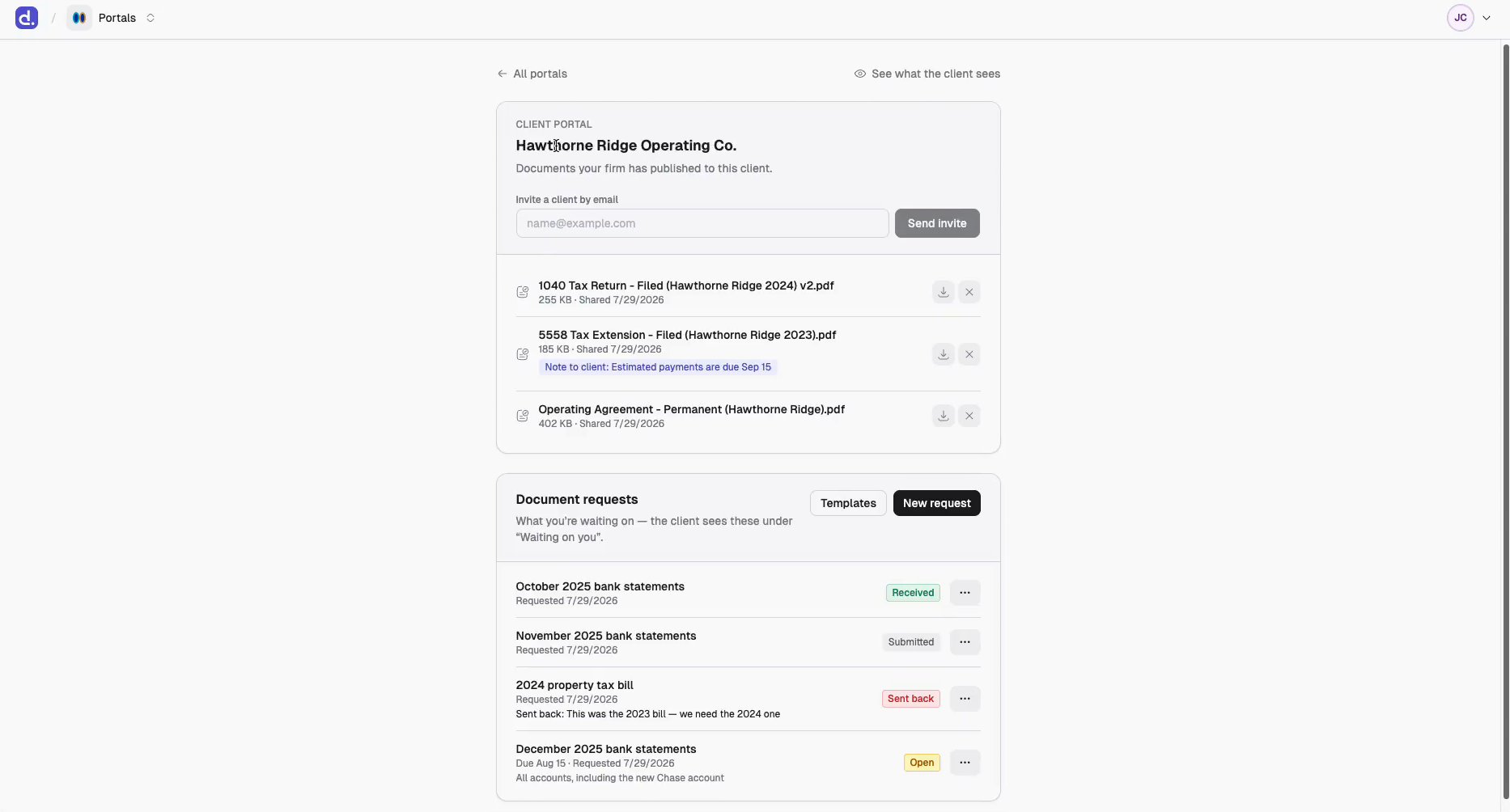
Open that client's portal
Select Portals from the product switcher. The list shows every client
entity that has a portal — click the one you want. If you’re already inside
a different portal, ← All portals takes you back.
2
Find “Invite a client by email”
It sits in the CLIENT PORTAL card at the top of the page, directly under
the client entity’s name.
3
Type the email address
One address at a time. Two people at the same client? Send the first invite,
then repeat for the second.
4
Click Send invite
Denari emails them an invitation that sets up their account. An
Invitation sent toast confirms it.
5
Confirm it landed in Admin › Clients
The Clients tab lists everyone you’ve invited and whether they’ve signed
in yet. See Check who has access below.
How signing in works
There are no passwords, ever.- The invitation is one-time, and its only job is to create the account.
- Every sign-in after that emails a fresh code which the client enters to get in.
What the invite does and doesn’t do
That last row matters: an invite is the only email Denari sends on its own. Publishing a document or creating a request does not notify anyone. If something is urgent, tell the client yourself.
One person, several entities
A single client login can span several businesses. If the person you’re inviting needs more than one entity — say they run two of a client group’s companies — invite them from each entity’s portal in turn, using the same email address each time. Their access accumulates. Admin › Clients then lists all of their entities on one row, and when they sign in they see one page covering everything, with chips at the top to filter to a single business. See Clients across multiple portals.Re-inviting somebody who already has access is safe. They’re granted the new
entity, and Denari does not stack a second invitation on top of a pending one —
you’ll see Client already had access instead of Invitation sent.
Check who has access
Go to Admin › Clients. The tab appears once your firm has Portals enabled, and lists every external person your firm has invited: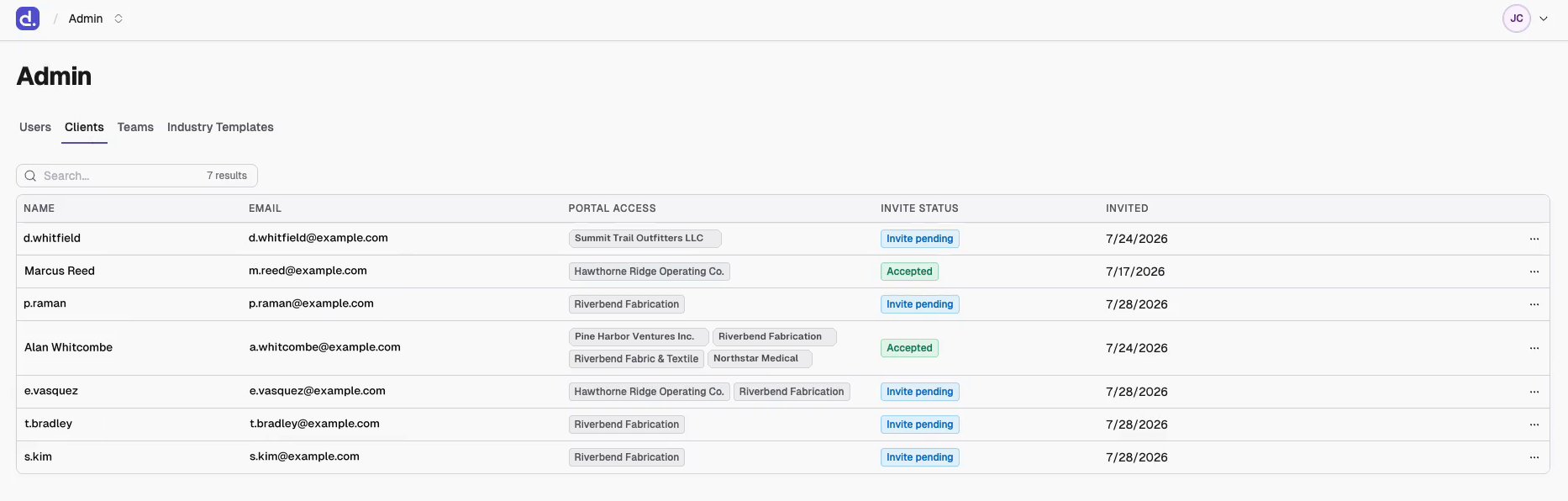
Invite status is the one to read. It stays Invite pending until they sign in for the first time, then flips to Accepted. Invite expired means the invitation lapsed before they used it and needs re-sending.
The row’s
⋯ menu holds two actions:
- Edit name — clients are created with just the front of their email address as a name, so this is worth doing for anyone you’ll be looking up later.
- Resend invitation — only offered when they haven’t accepted yet. Denari won’t stack invitations, so if one is still pending you’ll see An invitation is already pending rather than a second email going out.
Next
Publish a document
Put something in the portal for them to find.
What the client sees
The page they land on after signing in.