

Document requests are behind their own feature flag while the feature
settles. If the Document requests section doesn’t appear on your portal
pages, ask the Denari or IT admin at your firm to enable it.
Where they live
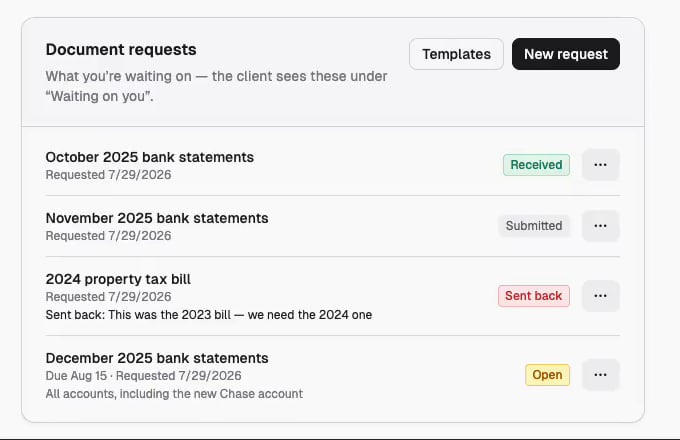
Open a portal from Portals in the product switcher. Below the documents card is a Document requests section — “What you’re waiting on — the client sees these under ‘Waiting on you’.” Two buttons sit in its header:
Before you’ve asked for anything, the section reads Nothing requested from this client yet.
Ask for one document
1
Click New request
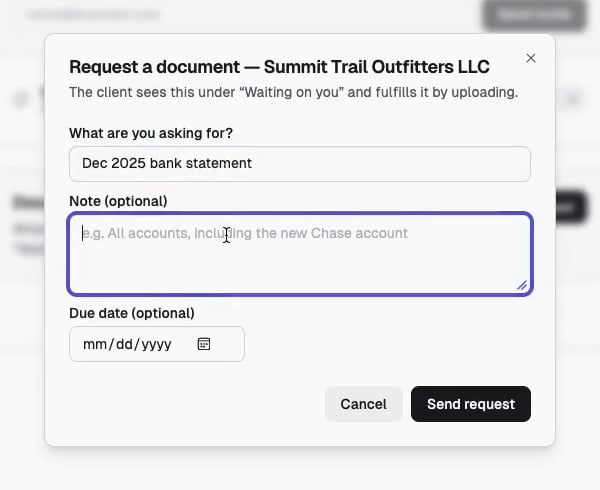
The dialog is titled Request a document — client entity name, so
you can confirm whose portal you’re about to post to.
2
Say what you're asking for
What are you asking for? is the whole identity of the request and the
only required field — free text, up to 255 characters. Write it the way the
client would recognize it: December 2025 bank statements, not BS-DEC25.
3
Add a note, if it needs one
Note (optional) is shown to the client under the request title. Use it
for the qualifier that prevents a wrong upload — all accounts, including
the new one.
4
Set a due date, if it has one
Due date (optional) renders to the client as Due Dec 15. Leave it
empty and the request simply has no date.
5
Send it
Click Send request. A Request sent toast confirms, and the item
appears immediately in the client’s Waiting on you list.
The four statuses
A request moves through four states. The client never sets a status — an upload and your review are what move it.
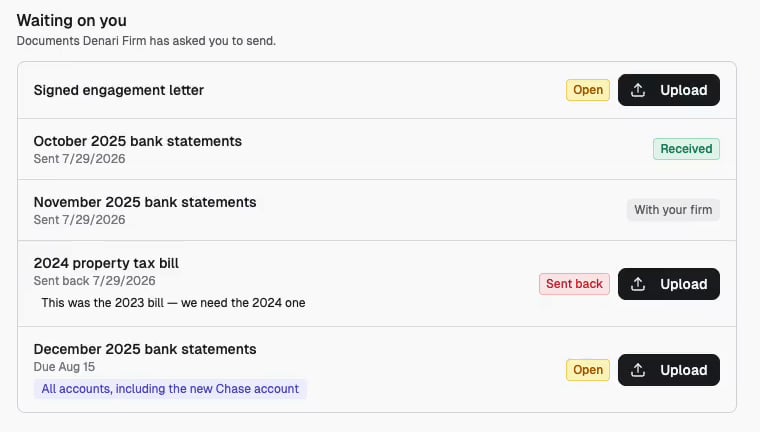
The two vocabularies are deliberate. Submitted describes your review queue; With your firm tells the client the ball is in your court. Same state, same badge color, different words.
The lifecycle
1
You create the request
It starts Open.
2
The client uploads
The file lands in your intake review queue and the request flips to
Submitted on its own. Clients can upload against Open and Sent
back requests only.
3
You review
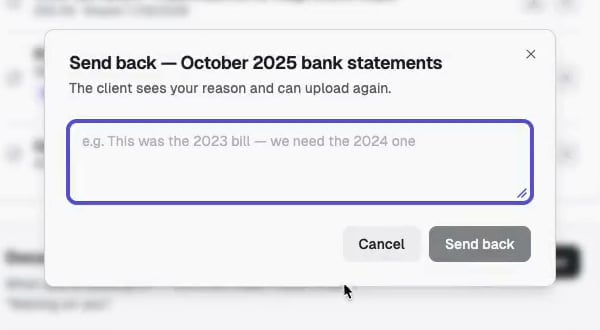
Mark received accepts it. Send back… rejects it with a reason and
returns it to the client, who can upload again.
4
It settles on Received
Or bounces between Sent back and Submitted until it’s right.
A request’s status tracks the ask, not the file. Marking a request
received does not file the uploaded document — that still happens in your
intake queue, where the upload is waiting.
Review what comes back
Each row in the staff list shows the title,Due <date> · Requested <date>, the note, and the status badge. The ⋯ menu on the right holds every action:
Sending one back
Send back… opens a dialog titled Send back — request title, warning you that the client sees your reason and can upload again. The reason is required — you cannot send a request back silently. Write what would let the client get it right on the second try:This was the 2023 bill — we need the 2024 one
Cancelling
Cancel request withdraws the ask entirely. It disappears from both your list and the client’s, at any status. Use it when you asked for something you no longer need; use Mark received when you got it.What the client does
The client sees a Waiting on you section above their documents — “Documents your firm has asked you to send.” Every request is a row with:- The title, and your note in a highlighted pill.
- A date line:
Due Dec 15while open, thenSent,Sent back, orReceivedwith the date of that transition. - The status badge, in client language.
- An Upload button, on Open and Sent back rows only.
Seeing what’s outstanding
Outstanding requests live on each portal, not in a firm-wide list. To see what a client still owes you, open their portal and read the Document requests section — the badges tell you where each one stands at a glance:There is no roll-up of outstanding requests across clients, in the Admin
section or anywhere else. Admin → Clients lists the people your firm has
invited to portals — their email, which client entities they can see, and
whether their invitation was accepted — but it does not report on requests.To review what’s outstanding across a book of clients today, you open each
portal in turn. If a firm-wide view would help your team, raise it with your
Denari contact.
Good to know
- Requests are per client entity. A client group with three entities has three separate request lists.
- Nothing is emailed. Creating a request does not notify the client — it appears the next time they open the portal. If it’s urgent, tell them.
- A client with no requests sees no checklist at all, not an empty one. The section simply isn’t rendered.
- Cancelling is not the same as receiving. Both clear the row; only Mark received records that you got the document.