

Signing in
There are no passwords. Your invitation creates their account; every visit after that, they enter their email and Denari sends a fresh code to sign in. That means a client needs inbox access each time — but never a password to reset, and nothing for your firm to manage.The page
A branded header names your firm and offers Sign out. Below it, up to three sections in this order: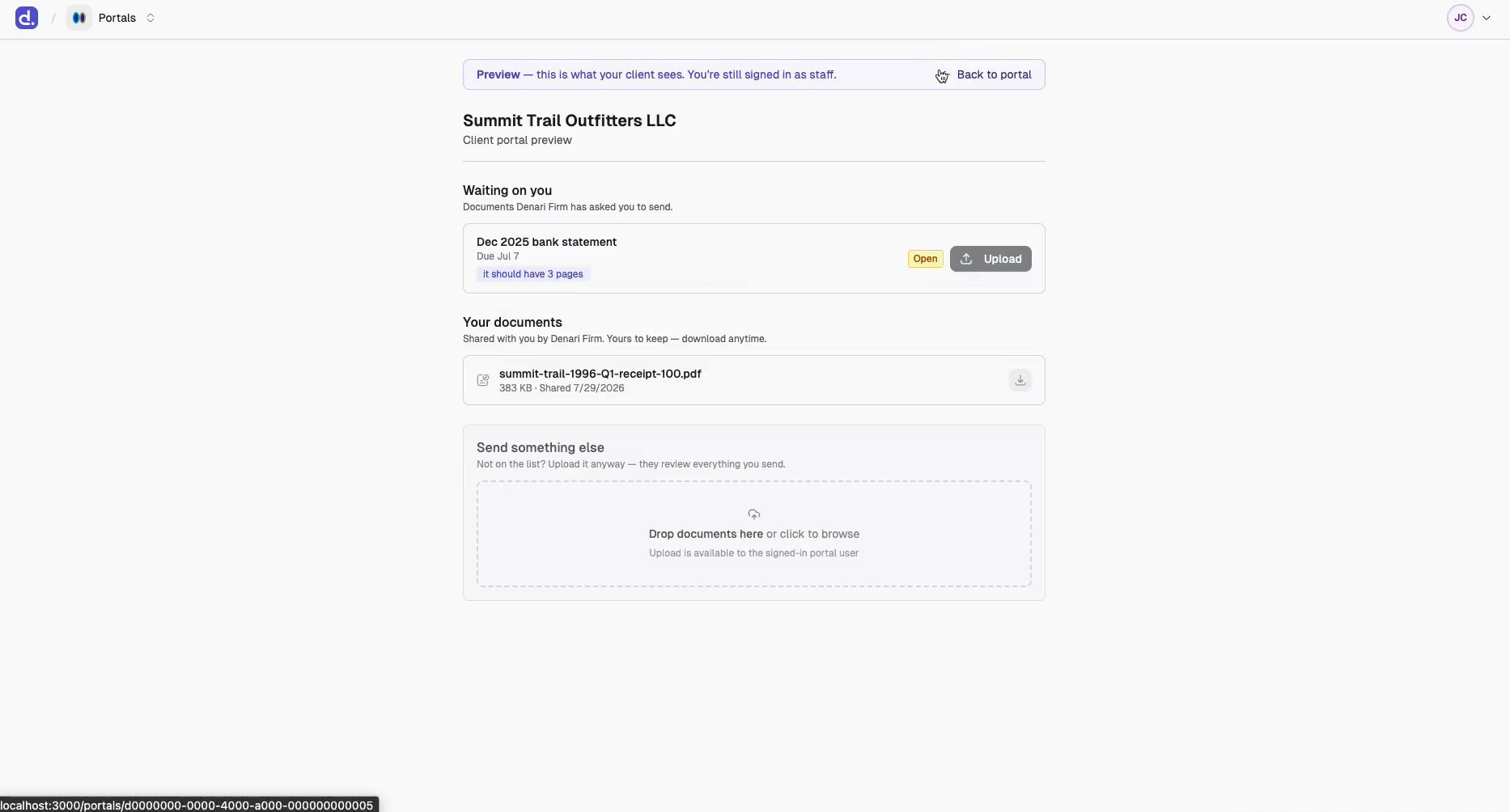
Waiting on you
Only appears when your firm has asked for something. Each row is a document request: its title, your note, a date line, a status badge in client language, and an Upload button on the rows they can still act on.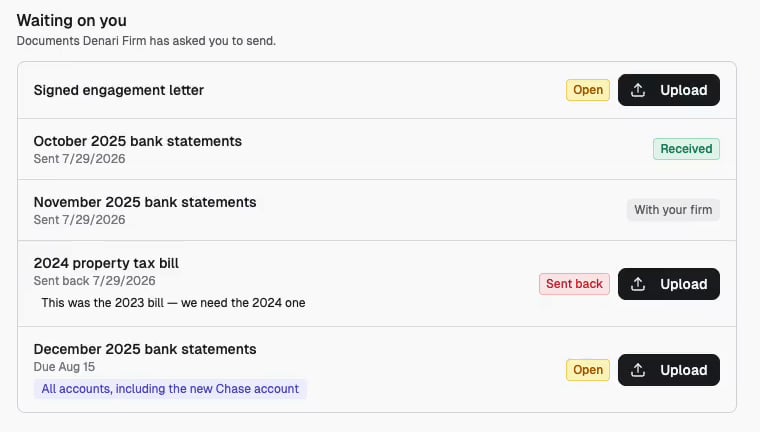
Your documents
Everything published to them, newest first, with the note you attached when publishing. Clicking a row previews it; the download button saves it. PDFs and images preview inline. Everything else — spreadsheets, Word documents — is download-only, with This file type can’t be previewed in the portal and a Download to view button. That’s deliberate: only formats a browser treats as inert are rendered.Send documents to your firm
A drop zone for anything they want to send, whether or not you asked for it. When they have open requests it’s headed Send something else; otherwise Send documents to your firm.
Anything outside those limits is refused with a message on the file’s own row, before anything is sent.
Clients with several businesses
If one person has been invited from more than one client entity’s portal, they sign in once and see everything together, with chips across the top — All, then one per entity. Selecting a chip filters both the requests and the documents. Single-entity clients never see the chips. See Clients across multiple portals.Where their uploads go
Nothing auto-approves. Every file a client sends — through a request or as a drop-in — lands in your firm’s intake queue first, pre-routed to the right client entity. It becomes a library document only once your firm files it. Uploads against a request also flip that request to Submitted so you know it’s your turn. See Document requests.Denari never emails a client about a published document or a new request. The
invitation is the only automatic message. If something is urgent, tell them.