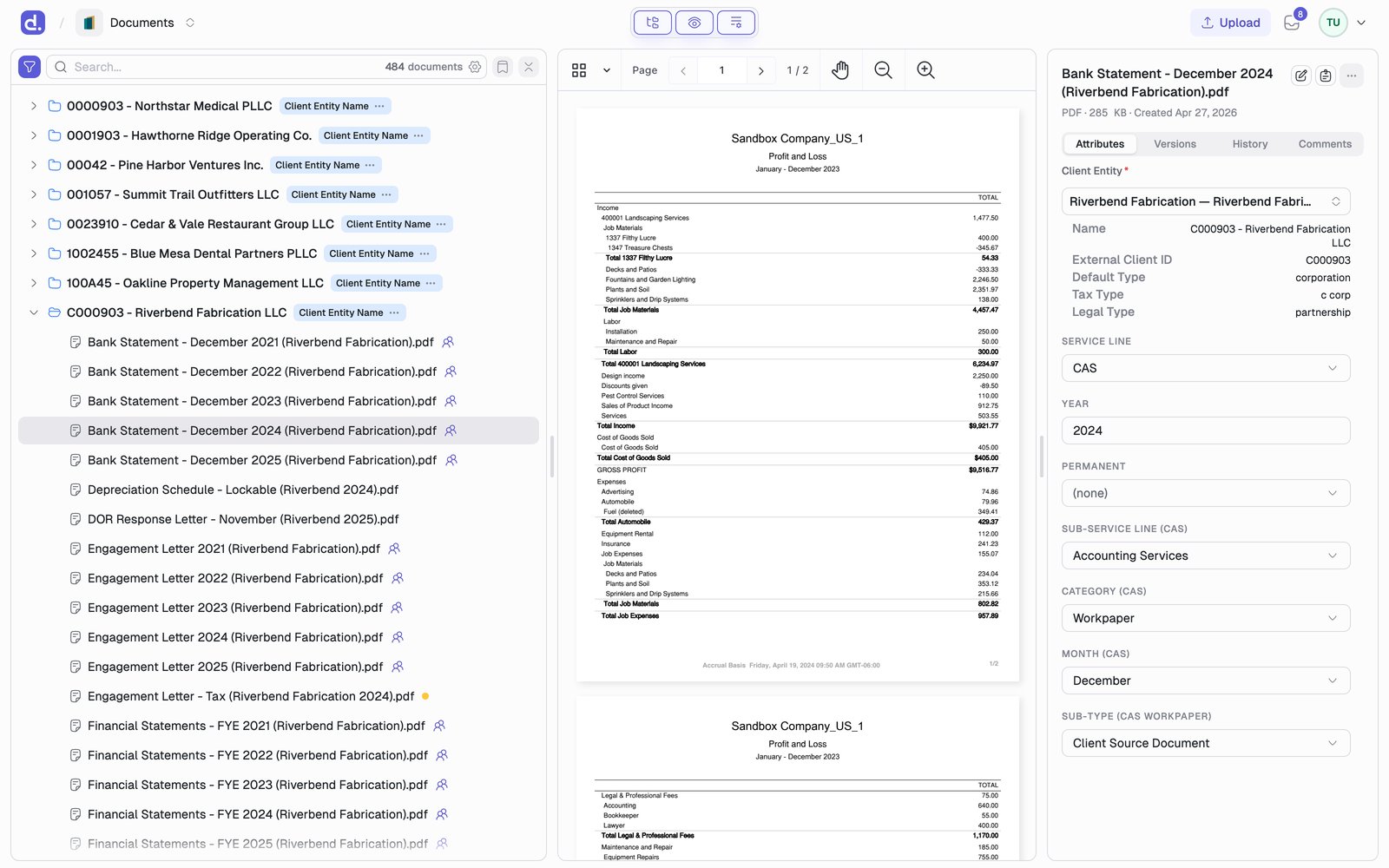
Selecting a document previews it beside the list, so you can scan a client’s file without opening and closing pages.
Open a preview
Single-click a document row to preview it.Double-click it to open the full document page.With the tree focused: ↑ and ↓ move, → and ← expand and collapse a group, Enter previews the highlighted document, Home and End jump to the ends.
Preview supports PDF , TIFF , Excel (.xlsx), and Word (.docx).
Viewer controls Along the top of the preview: a thumbnail and outline menu, page navigation with the page count, a pan tool, and zoom in and out.
Arrange the panes The workspace has three panes: list , preview , and details . Toggle each one from the control in the header.
⌘\ (Ctrl+\) cycles the three common layouts: all panes, list and preview,
list only. Drag the dividers to resize; Denari remembers your split.
What is in the details pane The right pane holds everything about the selected document: Attributes , Versions , History (an audit log of who viewed, edited, locked, or commented, and when), and Comments .