

Giving Answers a file
Three ways in, all landing in the same place:- Drag and drop onto the message box.
+menu → Upload files.- The Files panel’s Thread tab.
Getting files back
When Answers produces a deliverable, a.docx letter, an .xlsx workbook, a cleaned PDF, it writes a real file into the conversation and gives you a link to download it. Not a code block you have to reassemble: an actual file with formulas and formatting intact.
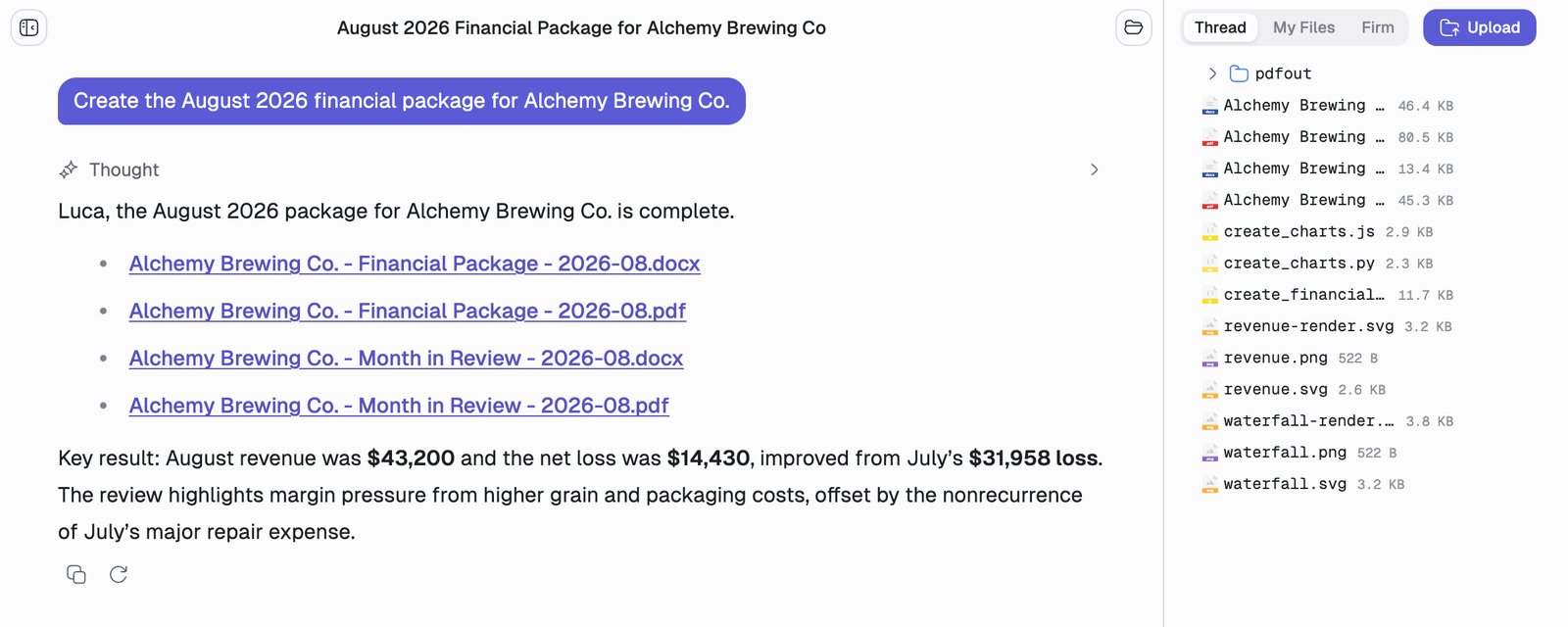
create_charts.py, create_financial…, revenue.svg and waterfall.png: the scripts it wrote and the charts it rendered on the way. The documents were not described into existence, they were built, and the workings are still sitting there for you to inspect.
Charts can be downloaded as PNG images. Tables can be downloaded as CSV, or put on the clipboard with their own Copy as CSV button and pasted straight into Excel or Google Sheets with rows and columns intact. See Charts & Tables.
The three file scopes
The Files panel has three tabs, and the difference between them matters.
Dropping a file onto any tab uploads it to that scope. Asking Answers to “save this to firm files” does the same thing from the conversation.
My Files is the quietly useful one. Put your rate card, your standard engagement scoping worksheet, or last year’s reconciliation template there once, and every future conversation can reach it without you re-uploading.
Sharing a thread
Hover a thread in the sidebar, open its … menu, and choose Share. Then pick a colleague at your firm.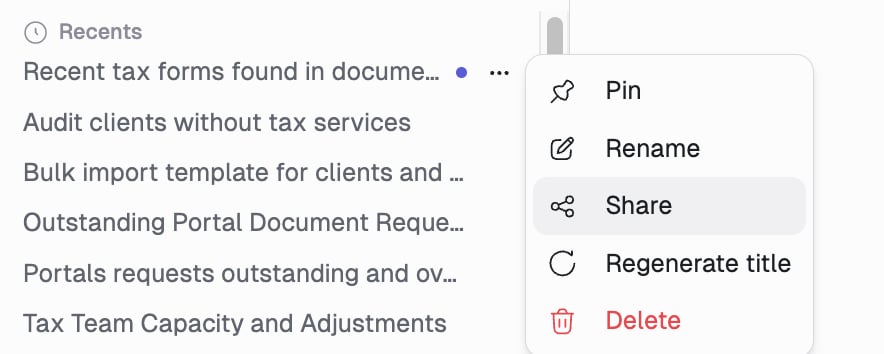
Managing threads
Each conversation is a thread in the sidebar, titled automatically from your first message. Everything except search lives in the … menu shown above.
A status dot on each thread shows what is happening without opening it: working, finished since you last looked, or errored. Unread markers follow you across browsers and devices.
The active thread’s title appears in the chat header and in your browser tab, so a window full of Answers tabs is still navigable.