

- A client entity is a single legal entity. It is what binders, documents, and portals attach to.
- A client group gathers the client entities that belong to one relationship.
These used to be called “clients” and “entities”. The product renamed them to
client groups and client entities so a one-entity relationship and
the entity itself stop reading as the same thing. The navigation still says
Clients, which is the name of the section, not of either object.
Naming
- Name a client group with the common name of the relationship: Harvest Foods.
- Name a client entity with its legal name: Harvest Manufacturing, LLC.
Example
Example
Take a fictional client, Harvest Foods. It manufactures, distributes, and directly sells organic food and beverages through three legal entities.In Denari that is:
- Client group: Harvest Foods
- Client entities:
- Harvest Manufacturing, LLC
- Harvest Distribution Services Inc.
- Harvest Retail Ventures LLC
Finding them
Open the product switcher in the top left of the navigation bar and choose Clients under More.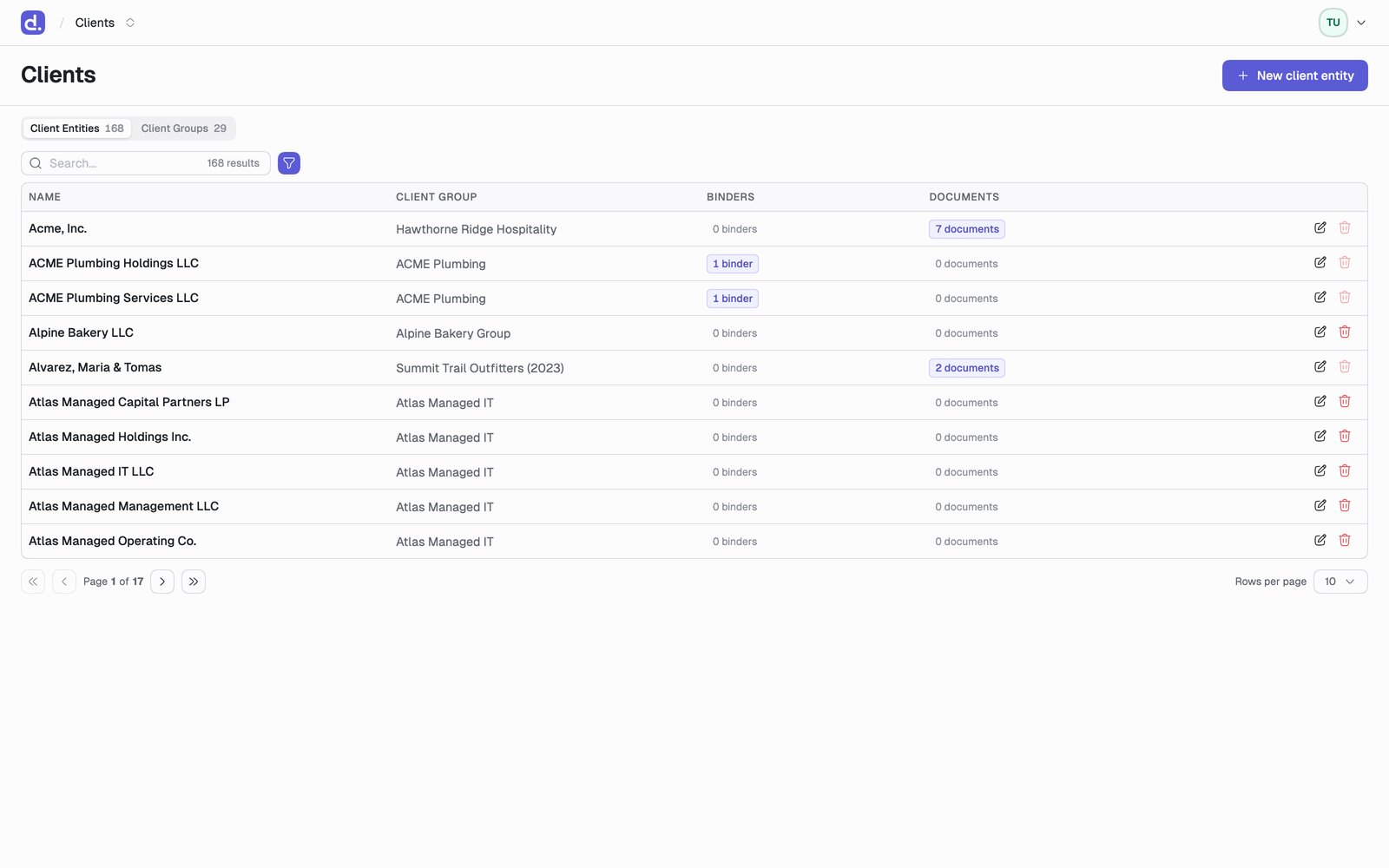
The counts are links. Clicking an entity’s 7 documents takes you to those documents rather than making you find them from the entity page.
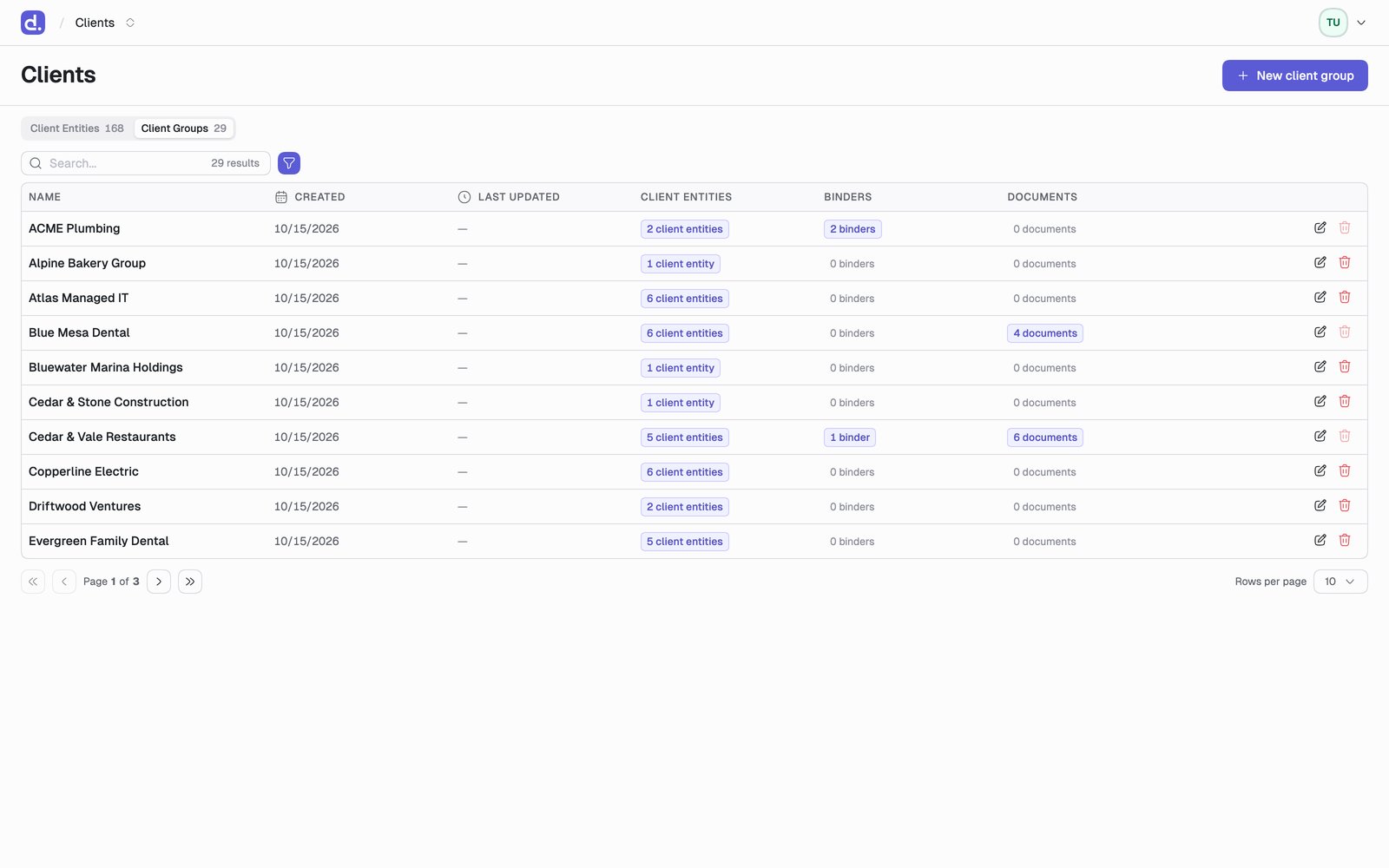
The client group page
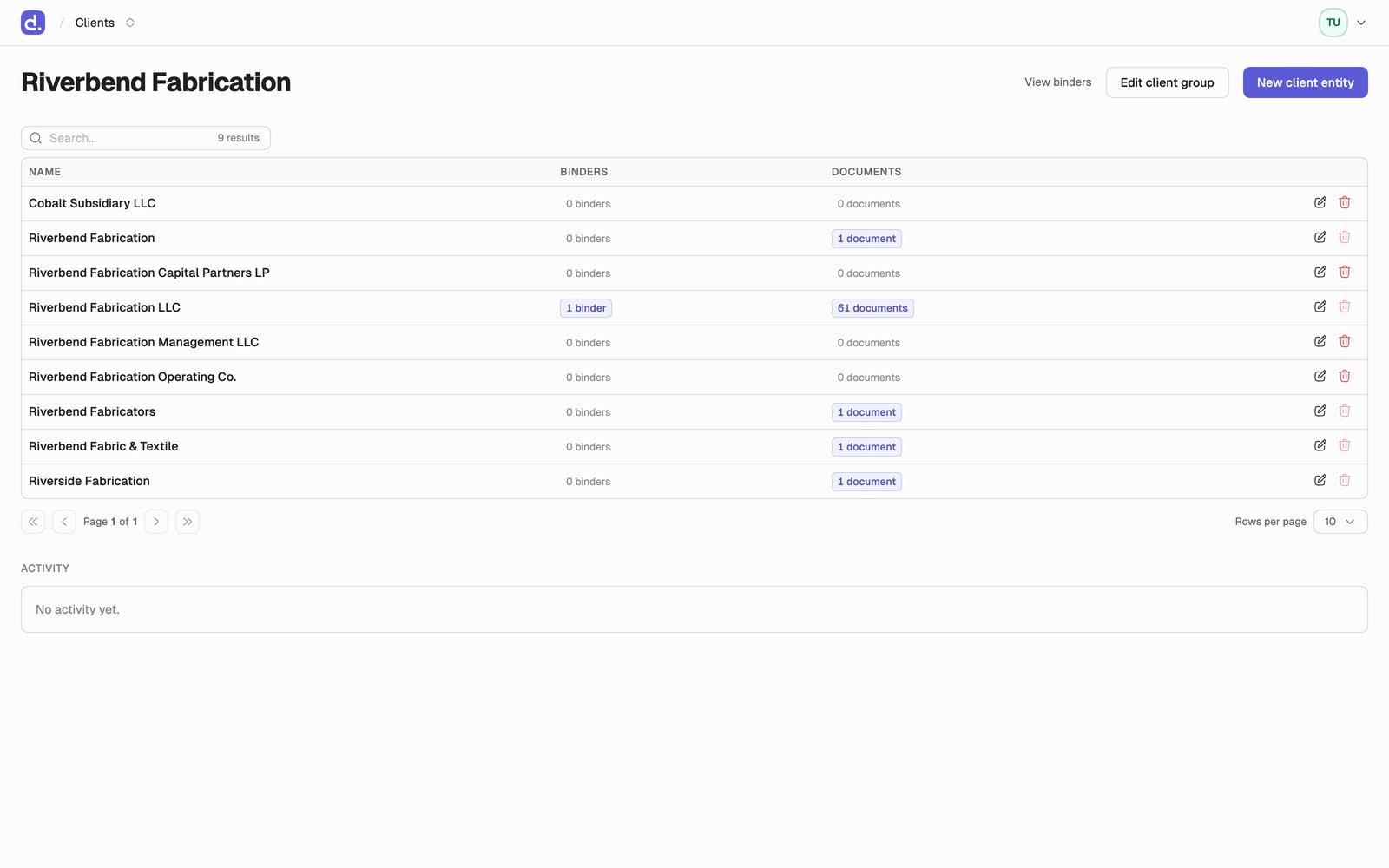
- View binders opens the binders list already filtered to this group
- Edit client group renames it
- New client entity creates one already attached to this group
The client entity page
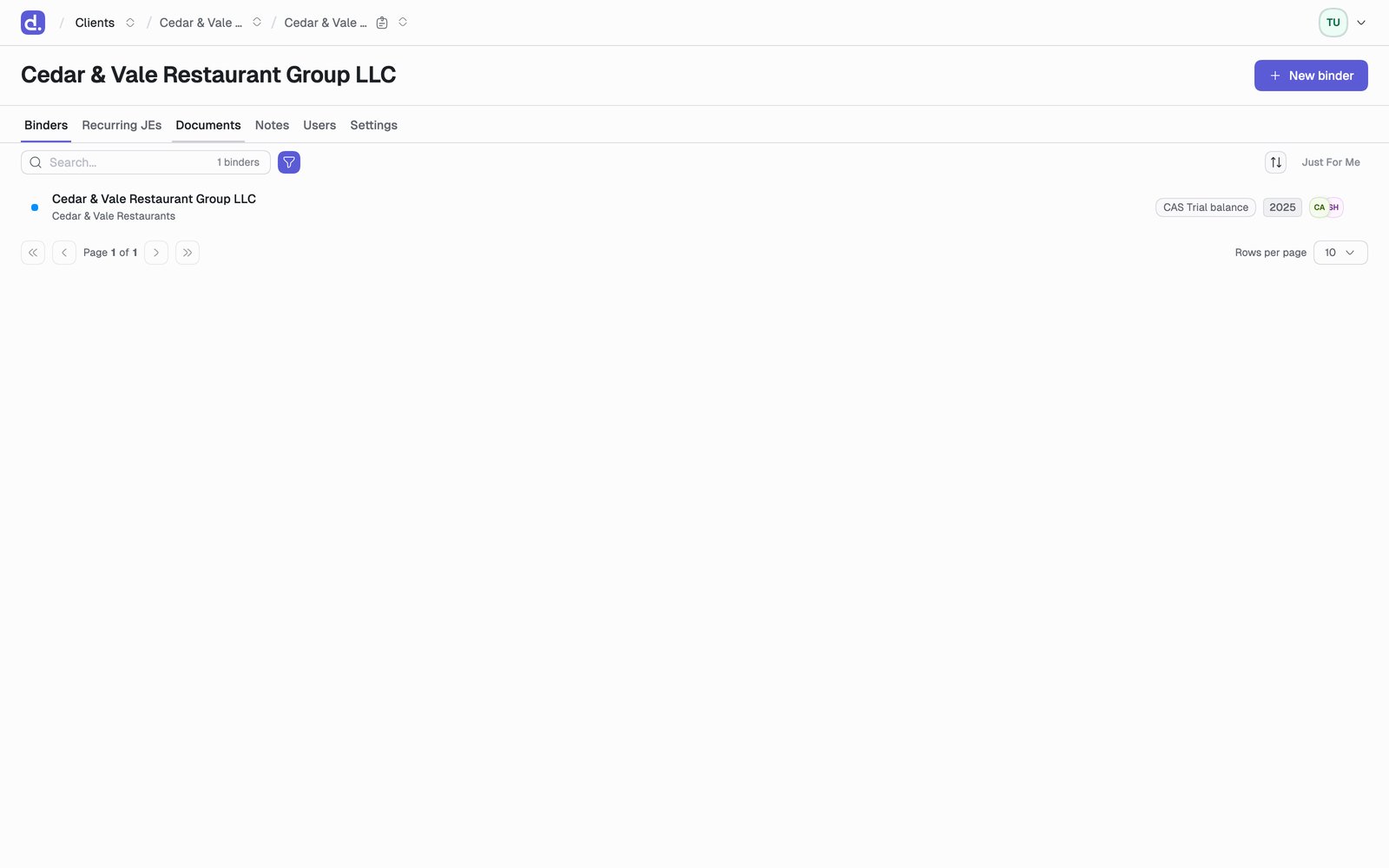
Binders, Recurring JEs, and Documents only appear where your firm has Papers.
Settings
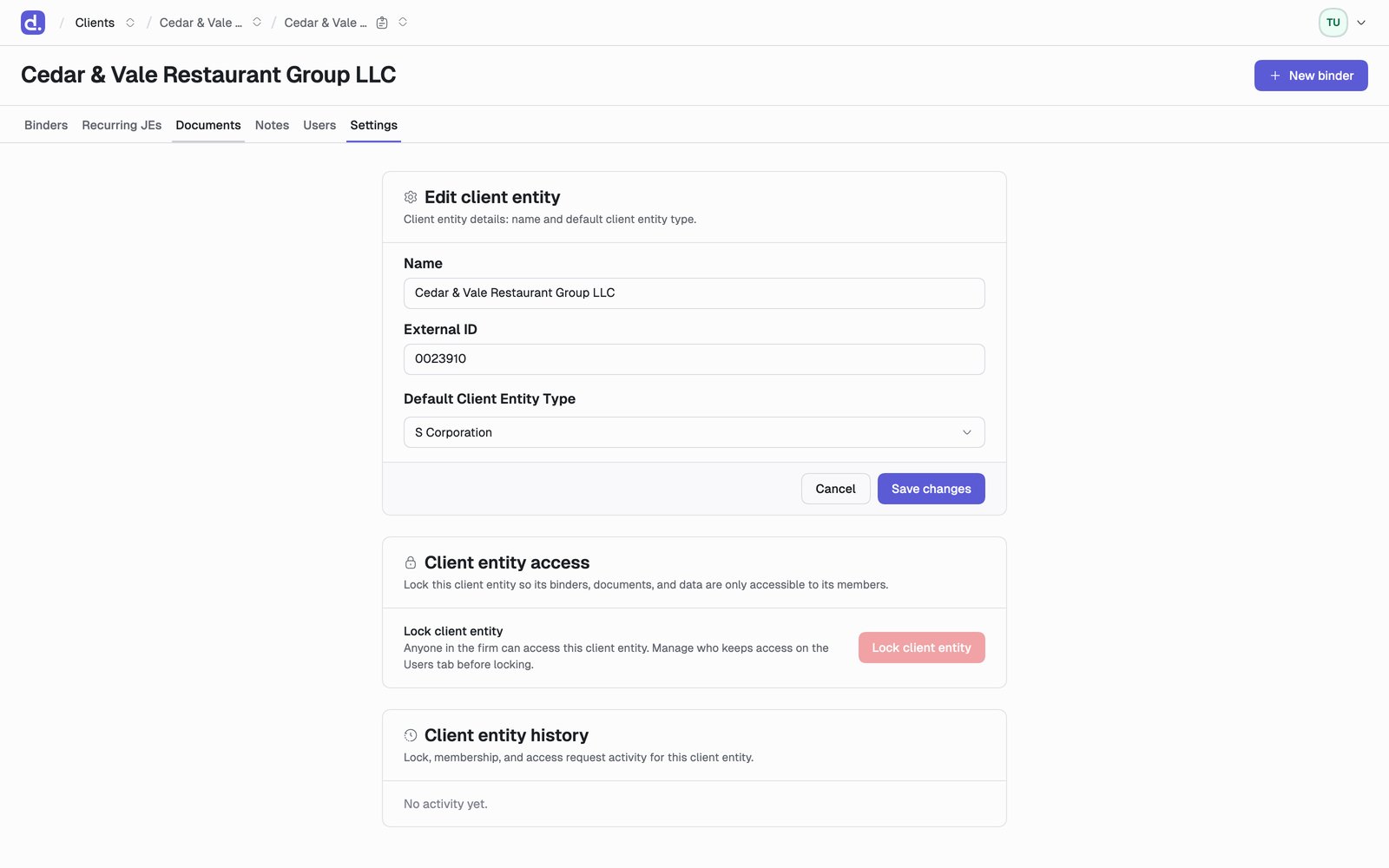
When Practice CS owns the record
If your firm syncs client entities from Practice CS, Denari stops being the place to edit them. Name and External ID carry a lock icon, and New client entity is disabled, with the reason on hover:Managed in Practice CS. Edit it there; the change appears here after the next sync.
New client entities must be created in Practice CS first. They appear here after the next sync.Everything else on the entity stays editable in Denari. Only the fields Practice CS is the source of truth for are frozen.
Restricting access to an entity
By default anyone in the firm can access a client entity. Locking one narrows that to a named list, which is how you handle a partner’s own return, an employee’s personal filing, or anything else that shouldn’t be firm-readable.1
Add the people who should keep access
On the Users tab, add each member. Do this first: locking an entity
with nobody on the list locks it to nobody.
2
Lock it
On Settings, under Client entity access, click Lock client
entity. Only its binders, documents, and data become member-only.
Only a member of an entity can lock or unlock it. If the button is
disabled, add yourself from the Users tab first, or ask someone who is
already a member.