

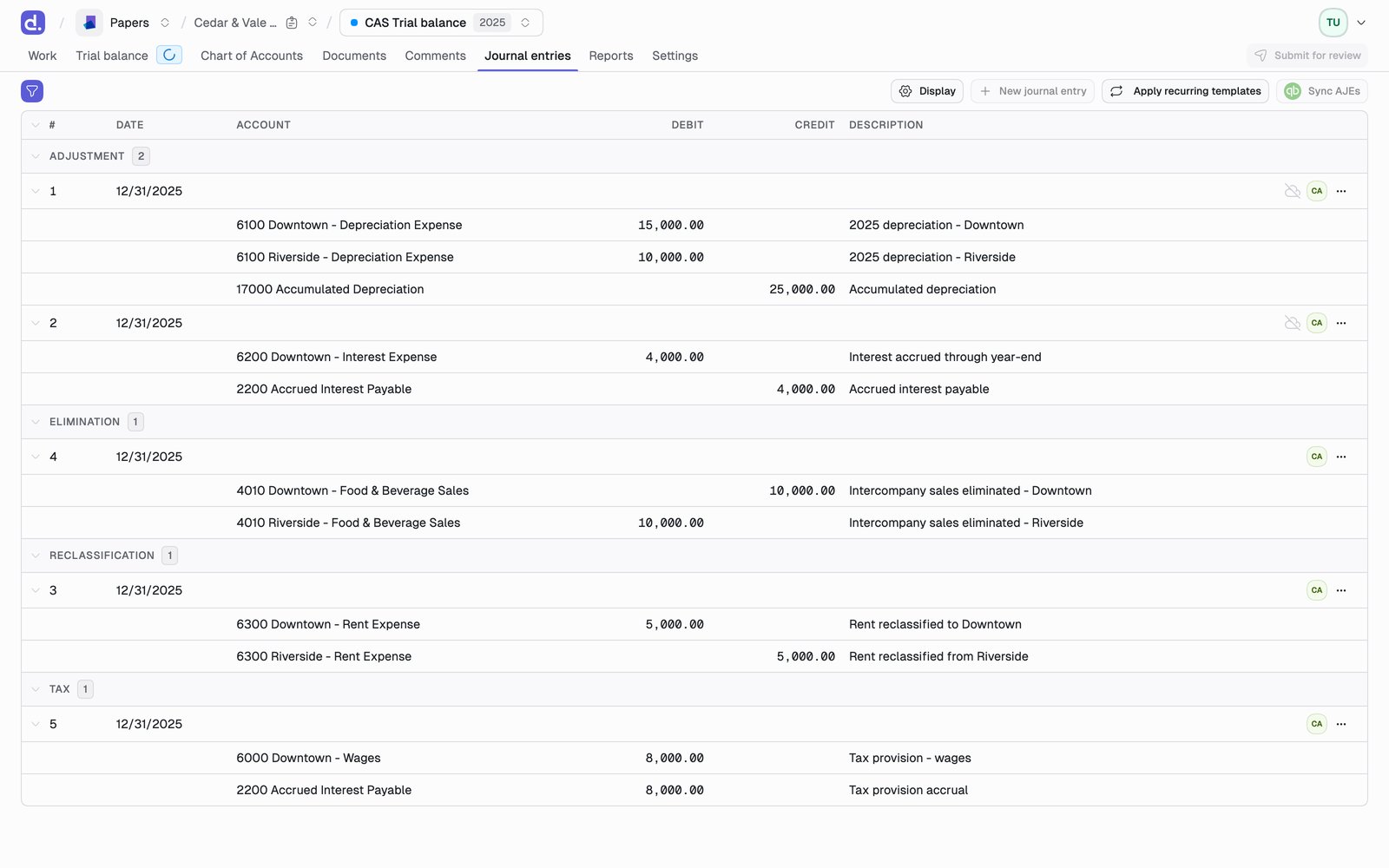
Types
Writing one
An entry carries a Number, a Journal entry type, a Date, a Memo, and its lines. The date defaults to the binder’s period end. Each line takes an Account and an amount, plus a Description. Two more columns appear when the entity has the data for them: Class, and Name for the QuickBooks customer or vendor on an AR or AP line.Debit and credit, or signed amounts
By default you enter amounts in separate Debit and Credit columns. The switch at the bottom of the line table, Use signed amounts instead of debit/credit, collapses them into a single Amount column where a negative is a credit. Pick whichever matches how you think; the entry is the same either way. In two-column mode, a negative typed in the debit column becomes a credit automatically, and vice versa. A running difference on the total row shows any imbalance as you type.Conveniences worth knowing
- Create Account sits at the top of the account picker, so a missing account doesn’t send you to another tab.
- Lines can be dragged into order using the handle on the left.
- The account picker searches by number or by name, and on a tax binder it offers tax mappings as well as accounts.
- In a consolidation, accounts from the other entities in the group are offered too, grouped under their entity name, so a tax entry can cross entities.
It won’t let you post a bad entry
Two rules are enforced before an entry can be created:- At least two accounts.
- Debits equal credits.
Tax entries
On tax binders, select Tax as the type. The tax adjustment account offsets the adjustment, and the entry flows to Net Income to produce the taxable income figure at the bottom of the tax trial balance. Tax entries support M-1, M-2, and M-3 adjustment lines, each broken out into its own section on the tax trial balance. M-3 splits further:- M-3 Temporary, timing differences that reverse
- M-3 Permanent, differences that never reverse
Eliminating entries cannot take a tax mapping as their target. An
elimination removes an intercompany balance rather than creating a book-to-tax
difference, so mapping one onto a return line would double-count it.