

Make a draft
Drafts are made three ways:- On schedule, if scheduled billing runs are on.
- With Prepare draft on a billing period.
- From Invoices → New draft invoice. Pick who to bill and the period, then click Generate draft invoice.
What goes on it
- Work that is ready to bill
- Scheduled charges from payment plans, subscriptions, and retainers
- Charges added by hand (fees and expenses, from the billing group’s Services tab)
- Any account credit the client has, applied as a credit line
The Invoices page
The Invoices page has queues to work through: All invoices, Drafts, Needs review, Ready to issue, Outstanding, Overdue. The cards at the top show what’s outstanding, what’s in draft, and what’s overdue. On Needs review, the Reviewer column shows who has to sign off; the other queues show the billing group’s Owner.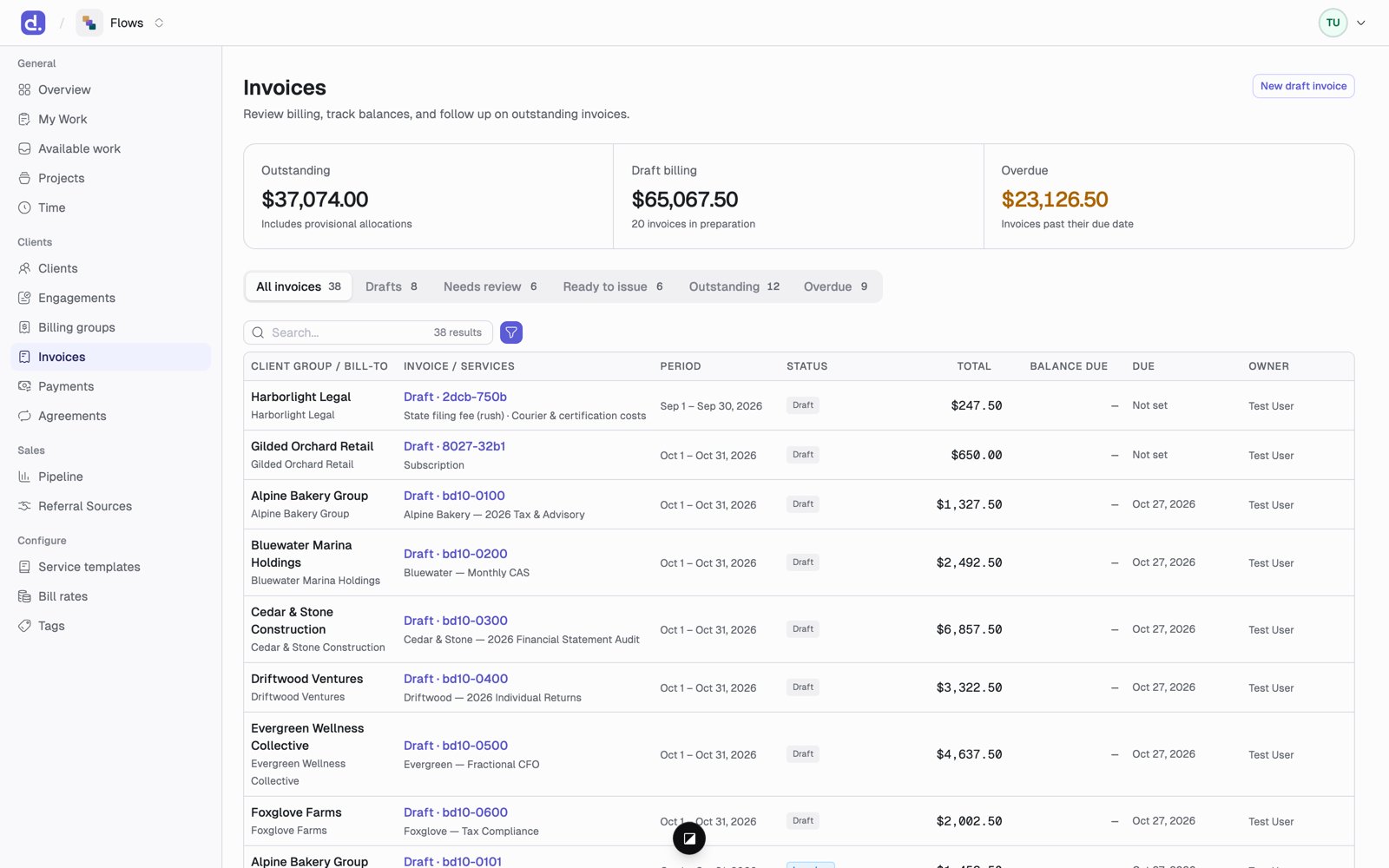
What you can change on a draft
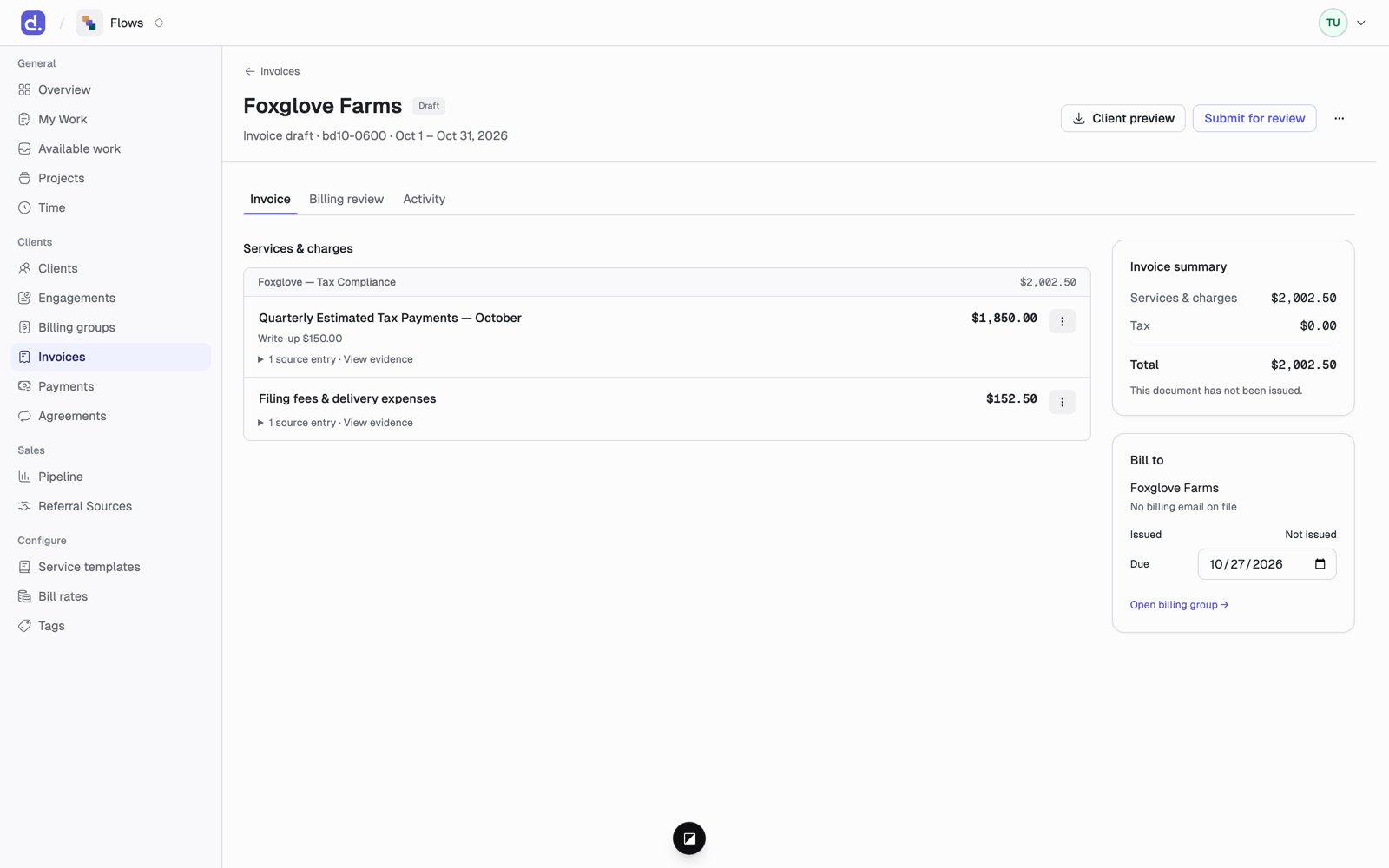
- A line’s wording or amount. Lowering an amount records a write-down; raising it records a write-up.
- View evidence on a line shows the time entries and charges behind it.
- How each section shows on the invoice: Detailed (every line), Subtotal only, Single line (the whole section as one line), or Hidden (not printed, but still counted in the total).
- Mark as memo: a line that prints but doesn’t add to the total, such as Time at standard rates: $6,400 above the actual charge.
- The Due date.
- Hold off invoice: keep an item off this bill, with a reason. Release hold brings it back.
The Billing review tab
This tab is for the firm only, never the client.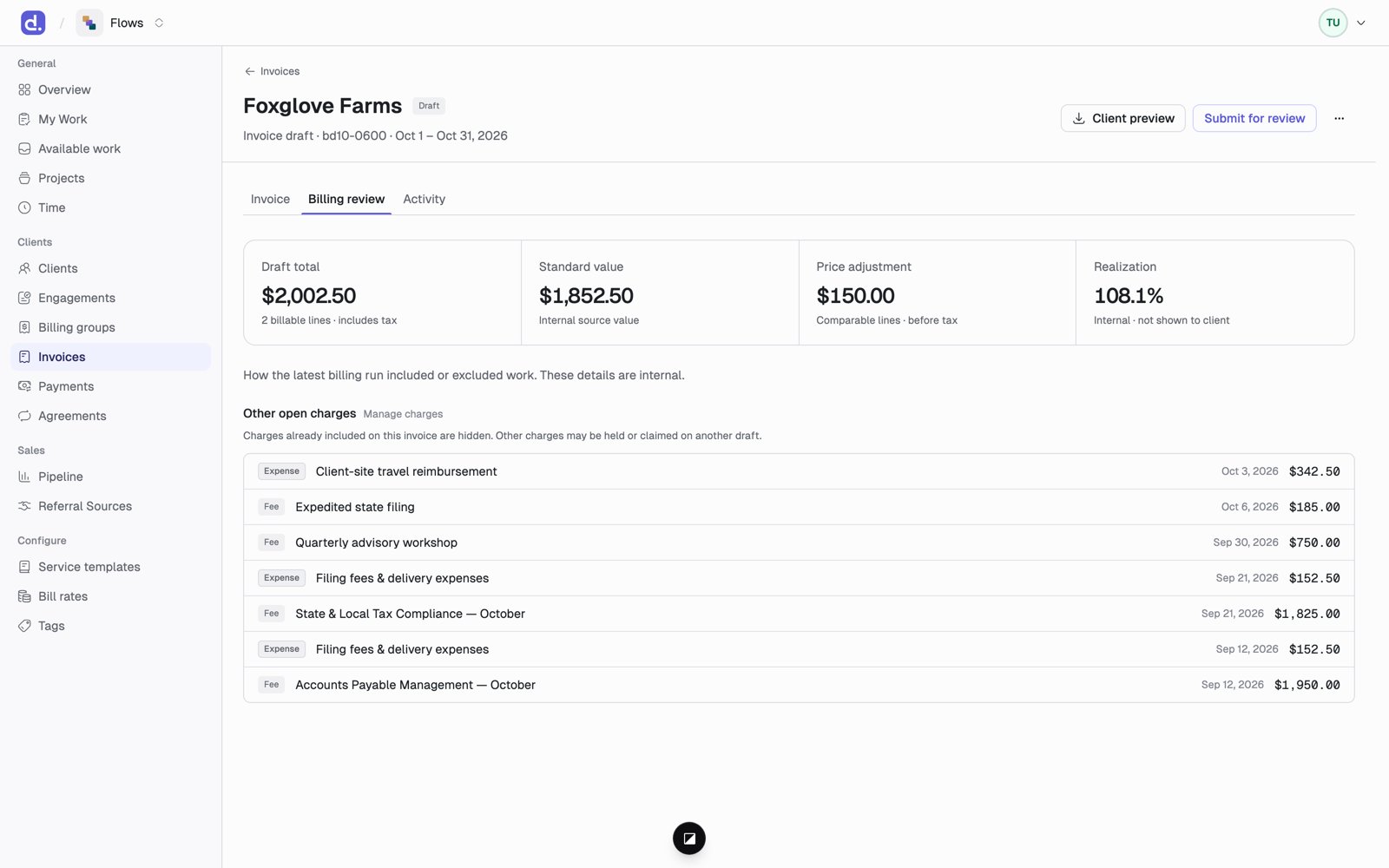
Nothing is ever dropped without a reason you can see here.