

My Work
My Work shows tasks assigned to you, soonest due first.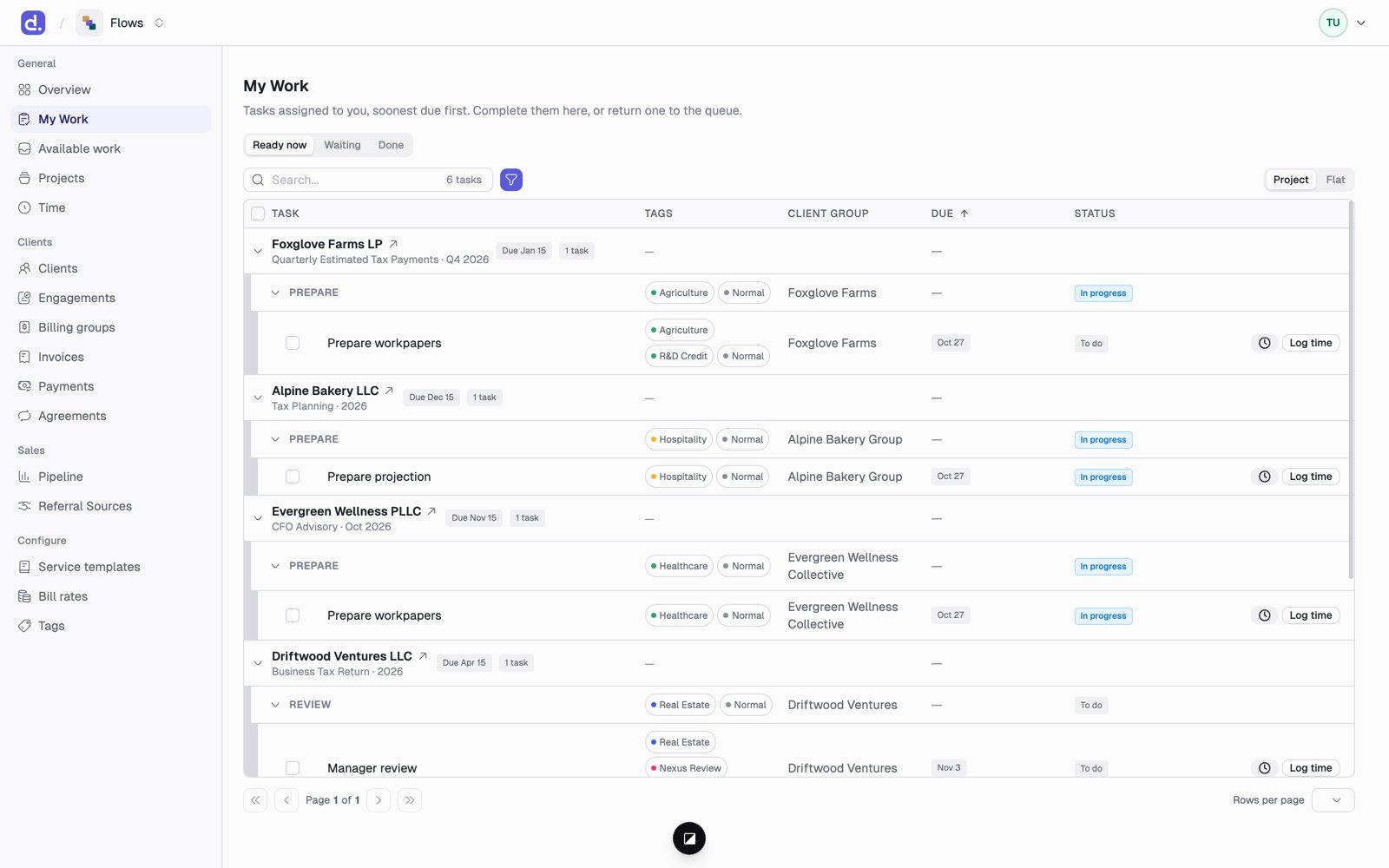
Other things to know:
- Switch between Project view (tasks grouped under each project) and Flat view (one list). In Flat view you can group by client group, client entity, or due date.
- Each line leads with the client entity. A project line shows the service and period under it, its due date, and how many tasks it has.
- A red due date means overdue. Amber means due within a week. A warning icon means the task is past the project’s deadline.
- From each row you can start a timer, log time, or change the status. The status badge is the completion control — click it to set To do, In progress, Done, Canceled, or Put on hold.
- Select several tasks to mark them done or return them to the queue at once.
- In Project view, hover a group you hold and click Return to give its open tasks back to Available work. Undo takes it back. A task someone claimed in the meantime stays with them.
Available work
Available work shows tasks nobody owns yet.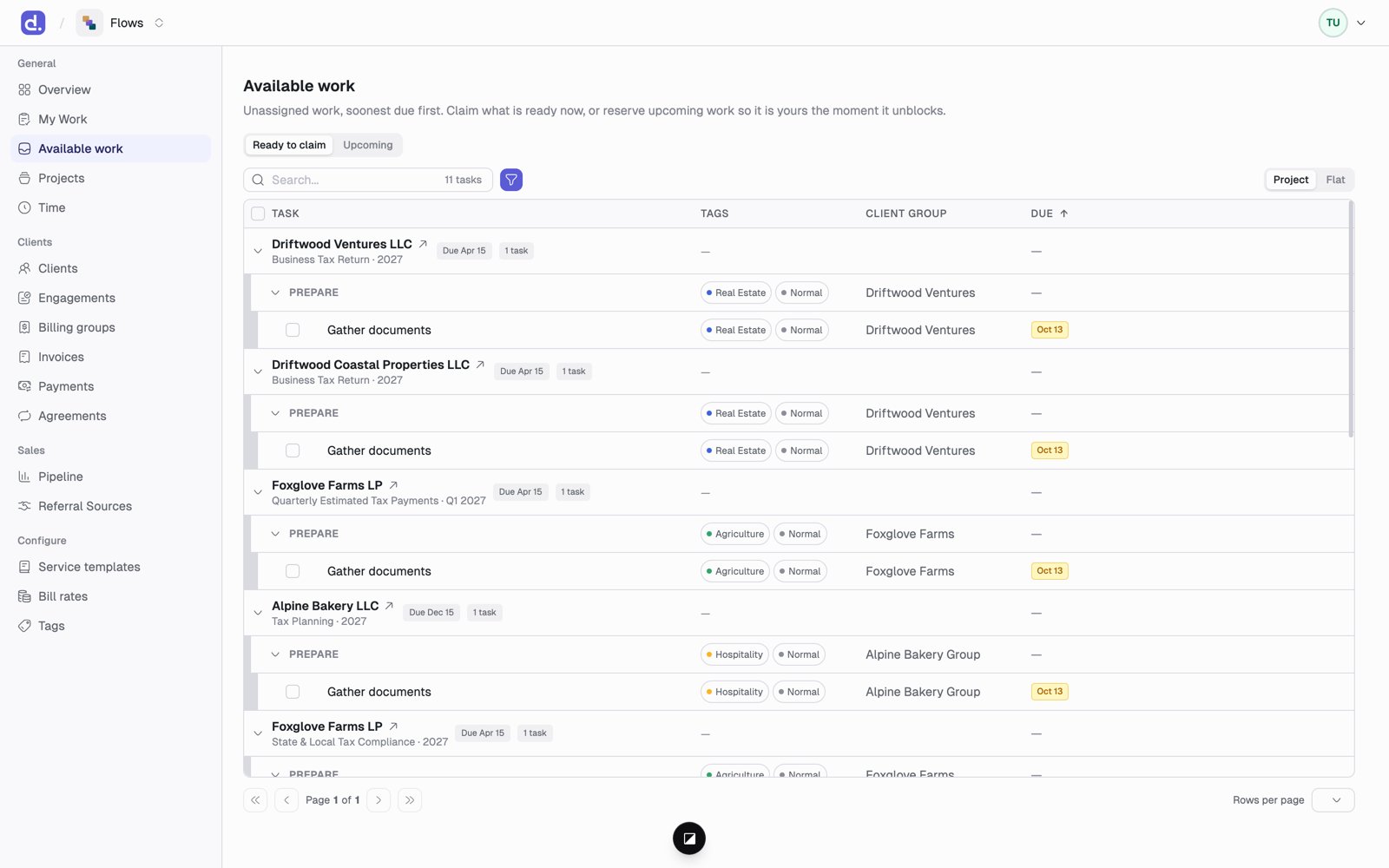
- Ready to claim: tasks that can be worked on now. Click Claim to make one yours. The first person to claim it gets it.
- Upcoming: tasks still waiting on earlier work. Click Claim ahead to reserve one, so it lands in your My Work the moment it’s ready.
- In Project view, hover a group and click Claim (or Claim ahead under Upcoming) to take every open task in it that nobody owns. Tasks added to that group later come to you too. Undo gives back only what that claim took.
- Click a task and use Assign to… to give it to someone else.
Tasks on hold never show up here.
The task panel
Click any task name to open its side panel. It shows:- The project, the client, and the due date
- Where the task sits in the project, with the whole task tree
- Its tags
- Its Owner history: everyone who has owned it, and who handed it off