

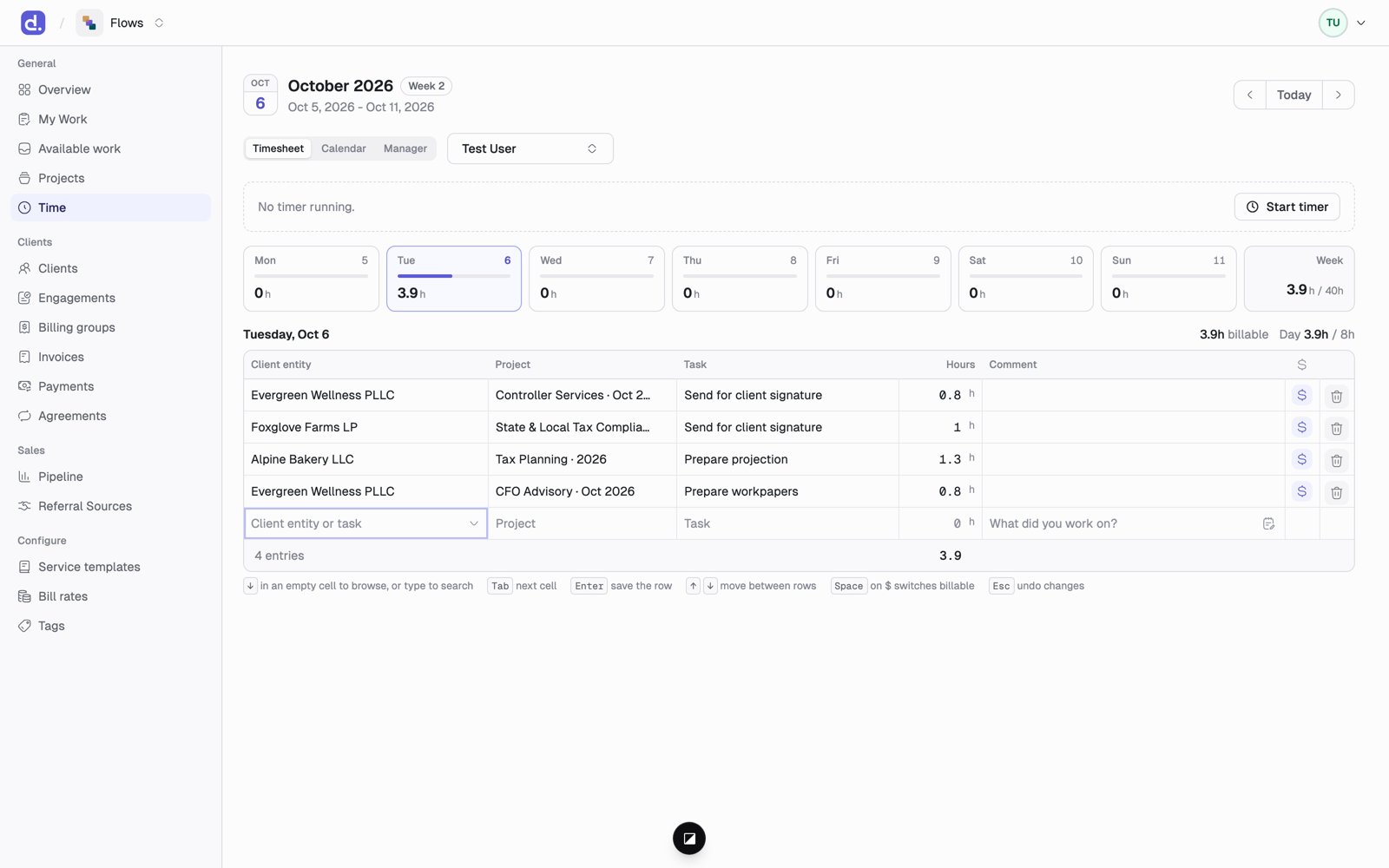
Click a day card, or use the
← and → arrow keys, to switch days. The arrows beside the week move a week at a time, and Today jumps back. Your target is 40 hours a week unless your firm set another. The Team member picker lets you look at a colleague’s time, read-only.
Log time
The timesheet grid is one row per entry. Type into the last, empty row to add one.
Keyboard shortcuts run along the bottom of the grid:
↓ in an empty cell to browse Recent, Your tasks, Admin time, and All client entities, Tab for the next cell, Enter to save the row, ↑ ↓ to move between rows, Space on the $ to switch billable, and Esc to undo. The trash icon deletes an entry, and only asks first if it’s the only time on a done task.
Clicking an entry opens the full Log time dialog, which adds a Date field and Add internal note: a note for the firm only, never on the bill. Use it for things like possible scope creep. Press Cmd+Enter (Ctrl+Enter on Windows) to save.
You can also log time straight to a project with no task: pick only the project, on the timesheet or from the project’s Time tab.
The calendar
- Week and Day views are a clock: each entry sits at its time of day, from 7 AM to 7 PM. Click Show 12 AM – 7 AM or Show 7 PM – 12 AM for earlier or later hours. A red line marks the time now.
- Click an empty slot to log 30 minutes there, or drag to cover a longer stretch. Either opens Log time with From and To filled in.
- Entries with hours but no times sit in a No time set row at the top of each day.
- A running timer shows as a live block. A stopped timer lands at the times it actually ran.
- In Month view, click a day to log time there, without times.
The timer
Click Start timer above the timesheet, or the clock icon on a task in My Work. You can have one timer running at a time.- While it runs, a small clock next to your avatar at the top shows its time on every page, and Time in the sidebar shows it too. Hover the clock to see what the timer is for and when it started. Click it for Edit, Stop timer, and Open timesheet.
- Stop turns the timer into a normal time entry, at the times it actually ran.
- Edit changes what the timer is for. Discard, inside Edit, throws it away with no entry.
- If you stop a timer on a task that’s already done, Flows asks first, so you don’t log the same time twice.
Rounding
Your firm sets a rounding rule, such as round up to 6 minutes. Hours snap to it when you save. Time never rounds down to zero; the smallest entry is one step. If your firm has no rule, exact times are kept. If you set From and To, the hours are rounded but the times stay as you set them.How time moves tasks
- Logging time on a task that’s To do moves it to In progress.
- Logging time takes a task off hold.
- Deleting or editing time never moves a task backward. A done task stays done. If you delete a task’s only time, it stays done and shows untracked.