

Your firm needs to have the Denari Flows component enabled in order to use it.
If you can’t see Flows in the product switcher and have questions, please
contact the Denari or IT admin at your firm.
The one idea
An engagement is the standing agreement with a client, and almost everything else is made from it. You describe a client’s work once: which of their entities you serve, which services you provide, how each one is scheduled, and how it is priced. You turn the engagement on. From then on, Flows makes the dated jobs, fills them with tasks, tracks the time people spend, and gathers the finished work into bills.The life of the work
1
Set up the client
Add the client and its entities, and say who the partner and managers are.
See Clients & entities.
2
Set up the engagement
Pick the entities, add the services, and choose how each one is billed. See
Engagements.
3
Turn it on
An admin clicks Activate. Nothing happens until this step.
4
Flows makes the projects
Each service makes one dated project per period, such as Monthly
bookkeeping, Sep 2026 or 1120S, FY2025. See Projects.
5
6
Billing turns work into invoices
Each billing group gets one invoice per billing period. You review the
draft, issue it, send it, and record the payment. See
Billing.
Rules worth knowing up front
- Nothing runs until the engagement is active. No projects, no tasks, no bills.
- The engagement is the plan. Projects are copies of it at a point in time. Changing a service later changes future projects. It does not quietly rewrite projects that already exist.
- Adding a service later is not a special case. It is just another service on the engagement, and it starts making its own projects on its own schedule.
- One invoice per billing group per billing period. Everything that group owes for that stretch of time lands on one invoice, split into sections.
- Issued invoices never change. To fix one, you use a credit note or a void. Nothing about money is deleted; corrections are added as new entries you can see.
Getting around
Select Flows from the product switcher in the top left. The sidebar has four sections.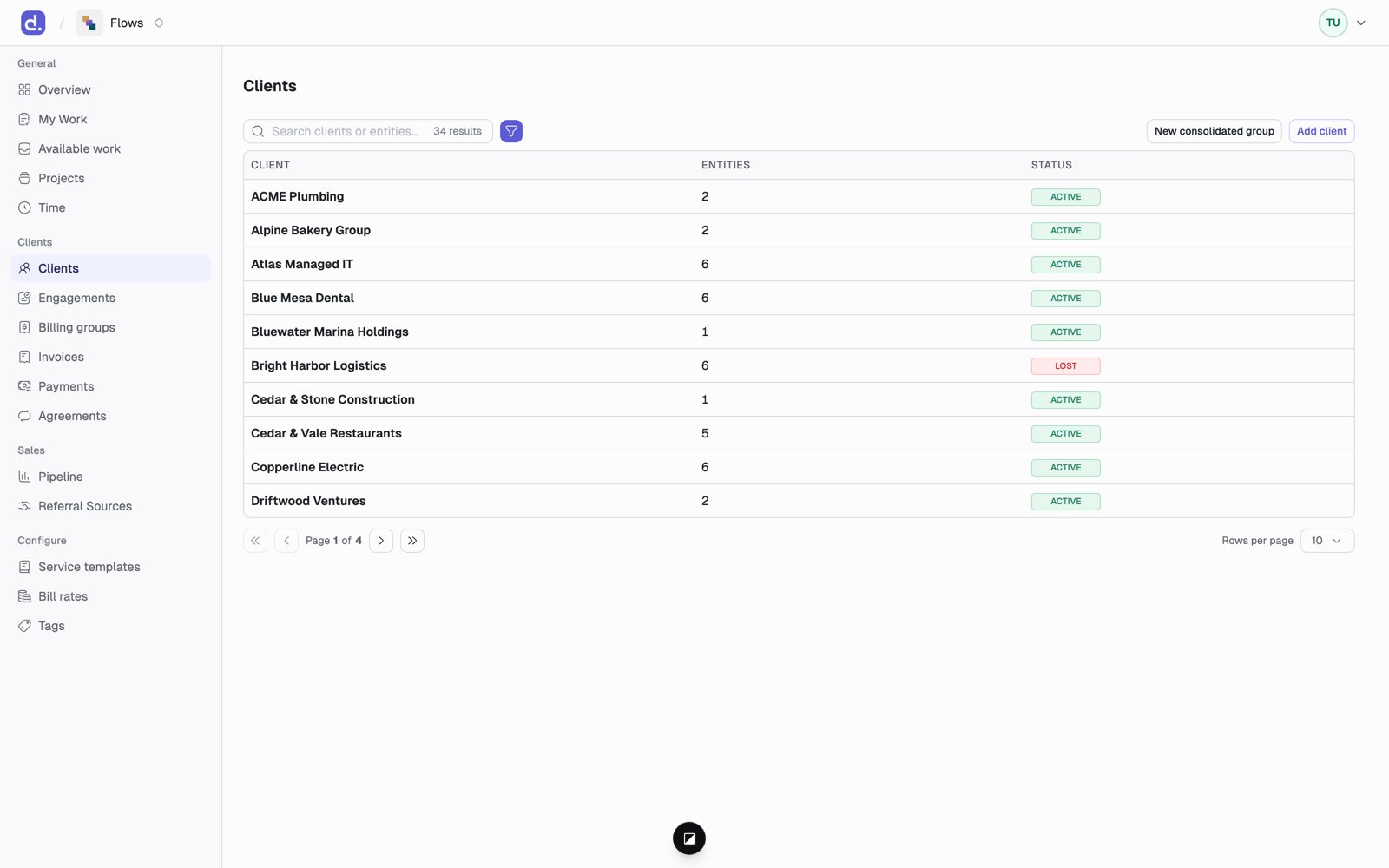
When a timer is running, a small clock next to your avatar at the top of the page shows its time, on every page. Click it to stop the timer. See Time.
Overview
Overview is your daily briefing.- Mine is your own work. Projects lists the projects you’re on, with buttons for Ready, Overdue, Due this week, and Over budget; each row shows the next step and when it’s due. Time shows your hours this week against your weekly target, how much is billable, and any days with no time logged.
- My clients covers the clients where you hold the Partner seat, or the Manager seat for a service. Admins see All clients instead. Narrow it with All services and All teams. Its Projects adds Waiting (someone owns the next step), Unassigned (nobody does), and Bill review (an invoice waiting on someone’s review). Time shows each person’s hours and missing days, and People shows each person’s waiting, overdue, due-this-week, and over-budget projects.
Counts are projects, not tasks. Due this week means the next 7 days.
Who can do what
Some actions are for firm admins only:- Creating, activating, deactivating, and archiving engagements
- Generating projects by hand
- Editing service templates, bill rates, and tags
- Every billing action: making drafts, issuing invoices, recording payments, and changing billing settings
Where to start, by role
Clients & entities
Who you work for, and who plays which part.
Engagements
The standing agreement everything is made from.
Projects
The dated jobs, and how due dates work.
My Work
Find, claim, and work your tasks.
Time
Log time, run a timer, and read the timesheet.
Billing
From work done to invoice paid.
Glossary
Every word you’ll see, in plain terms.
That looks wrong
The likely reason, by topic.