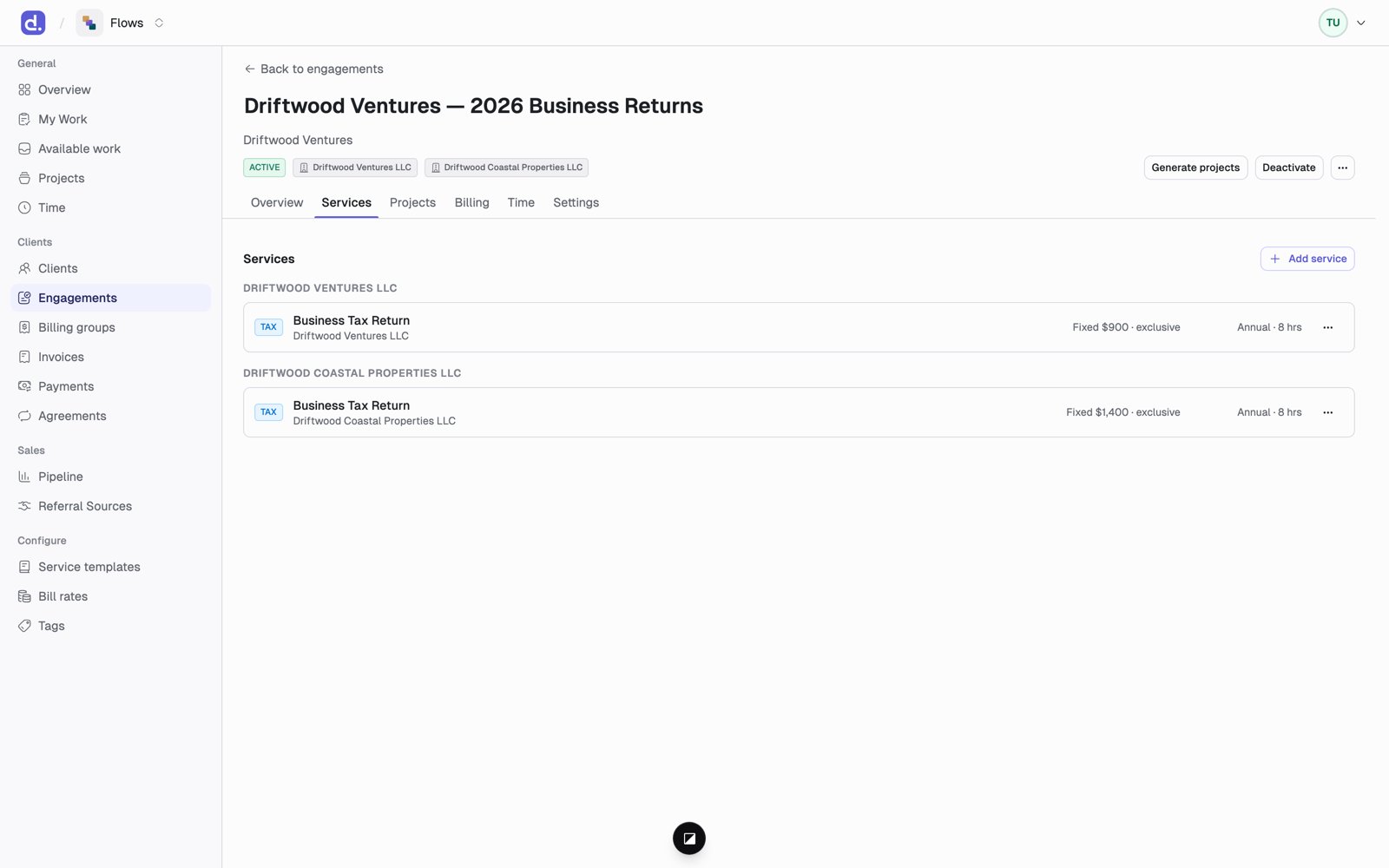
What an engagement holds
- The client and the entities in scope.
- Services. One per service per entity, such as monthly bookkeeping for Smith Holdings or the 1040 for John Smith. Each starts from a service template and has its own schedule and its own price.
- Who is responsible. A partner, and a manager for each kind of service it covers. These are kept on the client, so every engagement for that client shows the same people.
- A term. Evergreen (keeps going until cancelled), Annual (a year at a time, the default), or One-time (a single piece of work that doesn’t renew).
- Billing arrangements. How each service gets billed. See Pricing.
Create an engagement
Only admins can do this. Go to Engagements and click Add engagement. The page has four steps, and one is open at a time. A finished step folds into a one-line summary; click Change to open it again.1
Client
Each card is one entity, with its client’s name under it. Search by client
or entity. Clicking a client’s only entity finishes the step. For a client
with more entities, click each one you want, then Continue. Clicking
another client’s entity switches clients and clears the services and billing
you’ve set up.
2
Engagement details
Name, year, term, partner, and notes. The name fills in from the client and
year until you type your own.The partner starts as the one the entities already have. Whoever you pick
becomes the partner on each entity, so tasks set to go to the partner reach
them. Unassigned leaves the entities’ partner as it is.
3
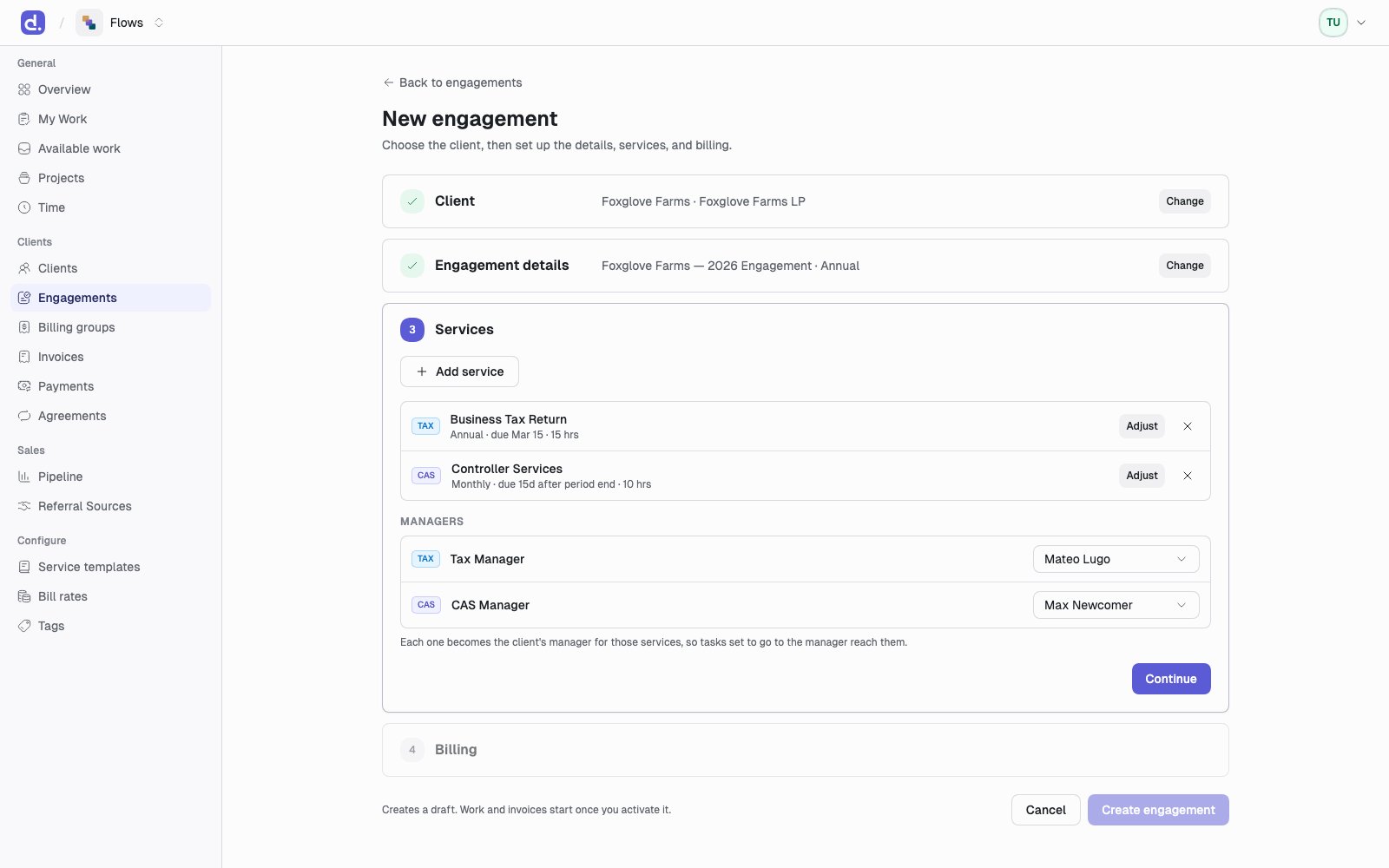
Services
Click Add service and pick a service template. It’s added right away to
each entity under Apply to: that doesn’t have it yet. Custom service,
at the bottom of the list, adds a service with no template. Click Adjust
on a service to change its schedule, due dates, or budgeted hours.Under Managers, pick one manager for each kind of service the engagement
has, such as a Tax Manager and a CAS Manager. Each starts as the
client’s current manager, and whoever you pick becomes the client’s manager
for those services. Unassigned leaves it as it is.A one-time service starts on the day you add it (January 1 for an engagement
in a later year), and its fee bills in the month its work ends: that day, or
the end date you set under Adjust.
4
Billing
Every service needs a price. See The billing step.
The billing step
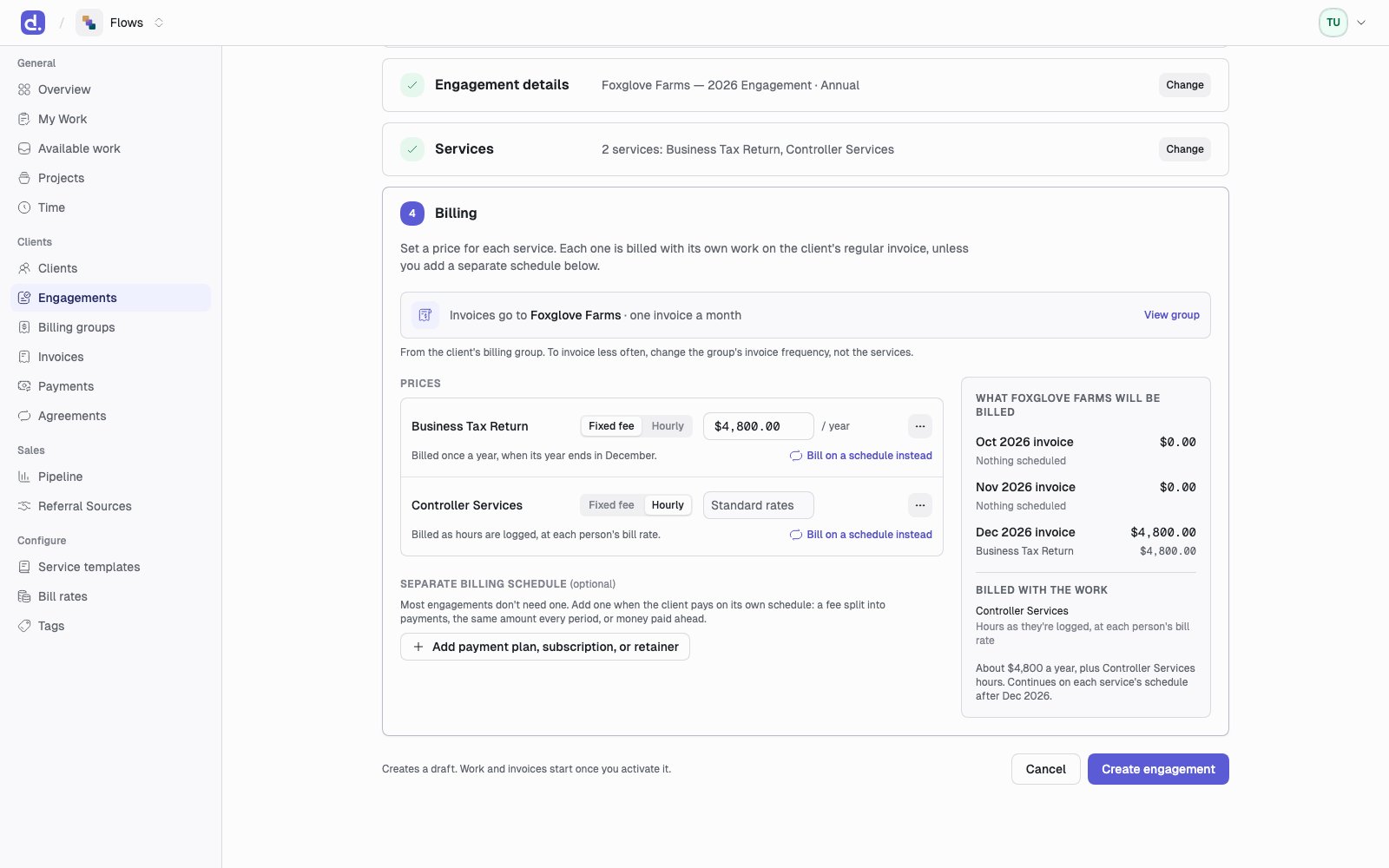
Price each service
For each service, choose Fixed fee or Hourly and type the fee on its row. It starts at the template’s price, or blank when the template has none. Hourly work bills at each person’s bill rate. The … button on a row opens billing options: a cap, billing ahead of the work, and a different budget.Bill on a schedule instead
Each service is billed with its own work. To bill one on its own schedule, click Bill on a schedule instead on its row, or Add payment plan, subscription, or retainer below the services. A service paid this way keeps its price, and its work is still tracked at it. A payment plan splits the fee of a yearly or one-time service, and a subscription on the same cycle charges the fee, so changing the fee changes the payments too. For a service billed more often, or hourly, you set the plan’s total yourself; it starts from a year of the fee, or from the hourly estimate.What the client will be billed
The panel beside the services previews three months of invoices and about what a year comes to. It starts with the current month, or the engagement’s start if that’s later: billing doesn’t go back to months already over. A fixed fee lands on the invoice for the month its period ends, so a calendar-year fee bills in December.Turn it on
A draft does nothing. When it’s ready, an admin clicks Activate. Flows checks three things first:- At least one entity is in scope.
- There is at least one service.
- Every service has a billing arrangement.
- Its billing arrangements go live.
- The current period’s work is created right away for each service. See Projects.
- If it came from a deal, the deal is marked Won.
- If the client was a prospect, the client becomes Active.
Engagement letters aren’t built in Flows yet. An admin turns an engagement
on by clicking Activate, not a client signature. Letters are tracked by
hand on the Pipeline stage checklists. See What’s not in
Flows yet.
Engagement statuses
The engagement page