

The life of an invoice
1
Draft
Click Submit for review.
2
In review
The review starts with the billing group’s owner. To change it, click the
Reviewer button on the invoice (Assign reviewer if there is none).
Only that reviewer can Approve. Return to draft sends it back for
more changes.
3
Approved
Optionally pick a Send on date. Click Issue invoice.
4
Issued
The invoice gets its permanent number, such as
DEMO-1003. Numbers run in
order per billing group, with no gaps and no repeats; drafts have no number.
The document freezes exactly as it looks, and the invoice email goes to the
billing contact with a pay link.5
Partially paid / Paid
Nobody sets these. They’re worked out from the payments
applied.
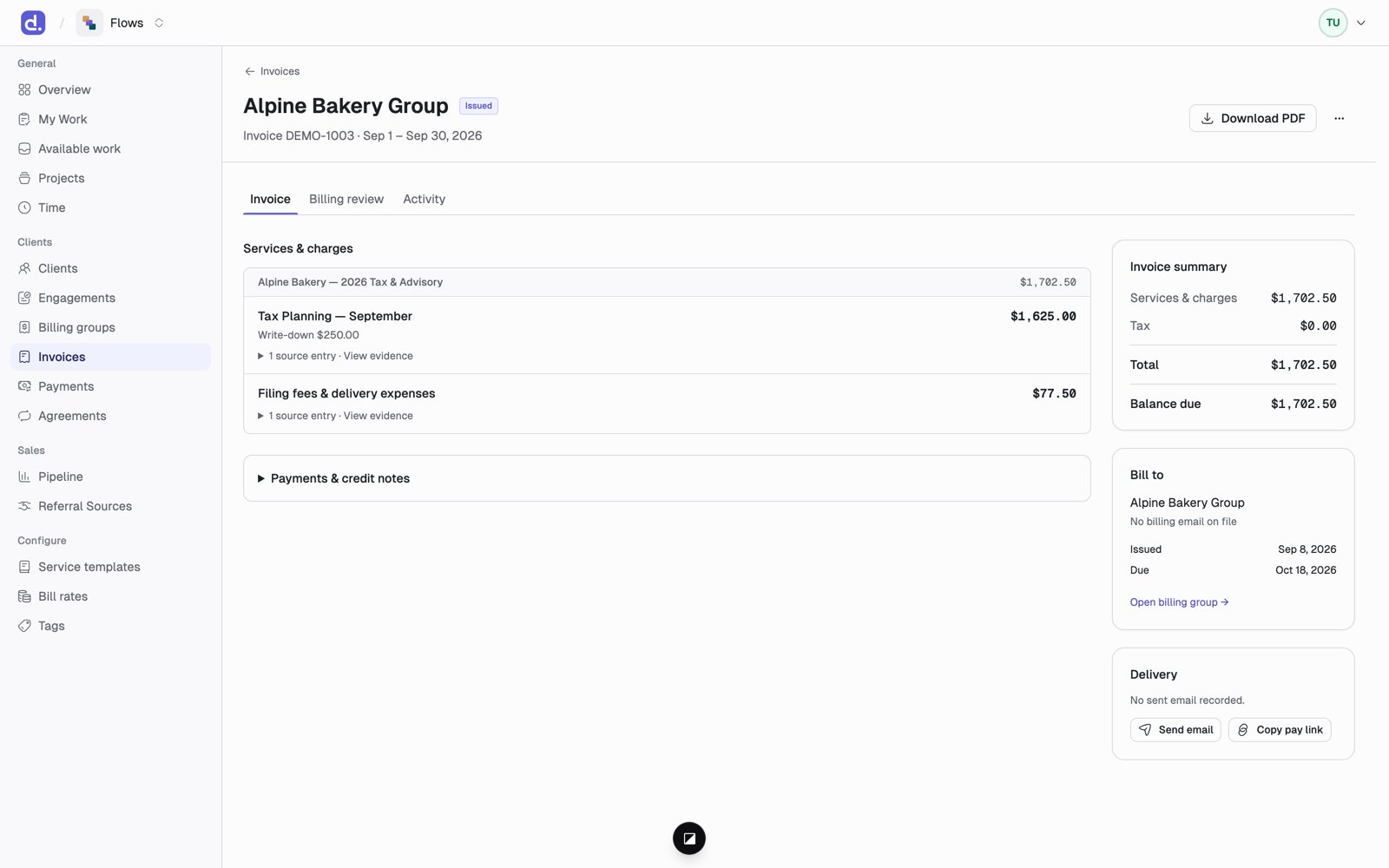
The PDF
- Before issuing: click Client preview to see and style the invoice. Pick a template (Modern, Classic, Compact), rename sections, add a cover note and footer, and choose what detail to show. Click Save customizations.
- After issuing: Download PDF gives the frozen copy.
- Send email / Resend email sends it again.
- Copy pay link copies the payment link so you can share it yourself.
- The Activity tab lists every email attempt.
Drafts are never sent. An invoice is only emailed after it’s issued, on the
Send on date if one was set.