

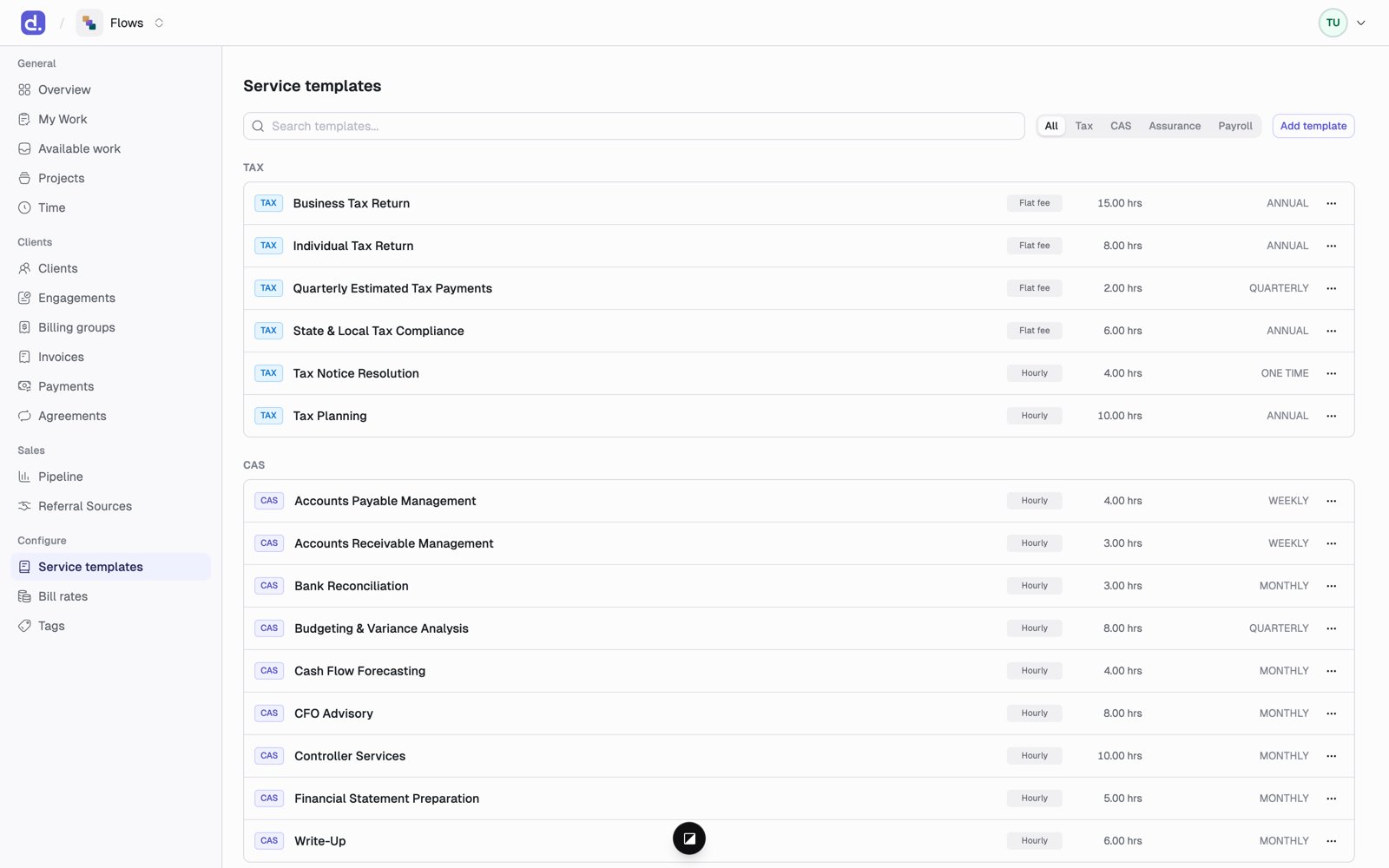
What a template holds
Basics. Name, description, category, and whether it is Active. Archived templates can’t be added to new engagements. Cadence: how often it repeats. Annual, Twice a year, Quarterly, Monthly, Twice a month, Weekly, or One time. You also choose a Period base: calendar year or fiscal year. Due date: when each occurrence is due. Two choices:- Period end + days. For example, 25 days after the month ends.
- Fixed calendar date. For example, April 15. Flows uses the April 15 closest to the end of the period, so an FY2025 return is due April 15, 2026.
Pricing defaults. A starting price (flat fee or hourly) and default budgeted hours. The real price is set on each client’s engagement. See Pricing.
The task list
The Task template tab holds the tasks every occurrence of this service starts with. Click Edit tasks to change it.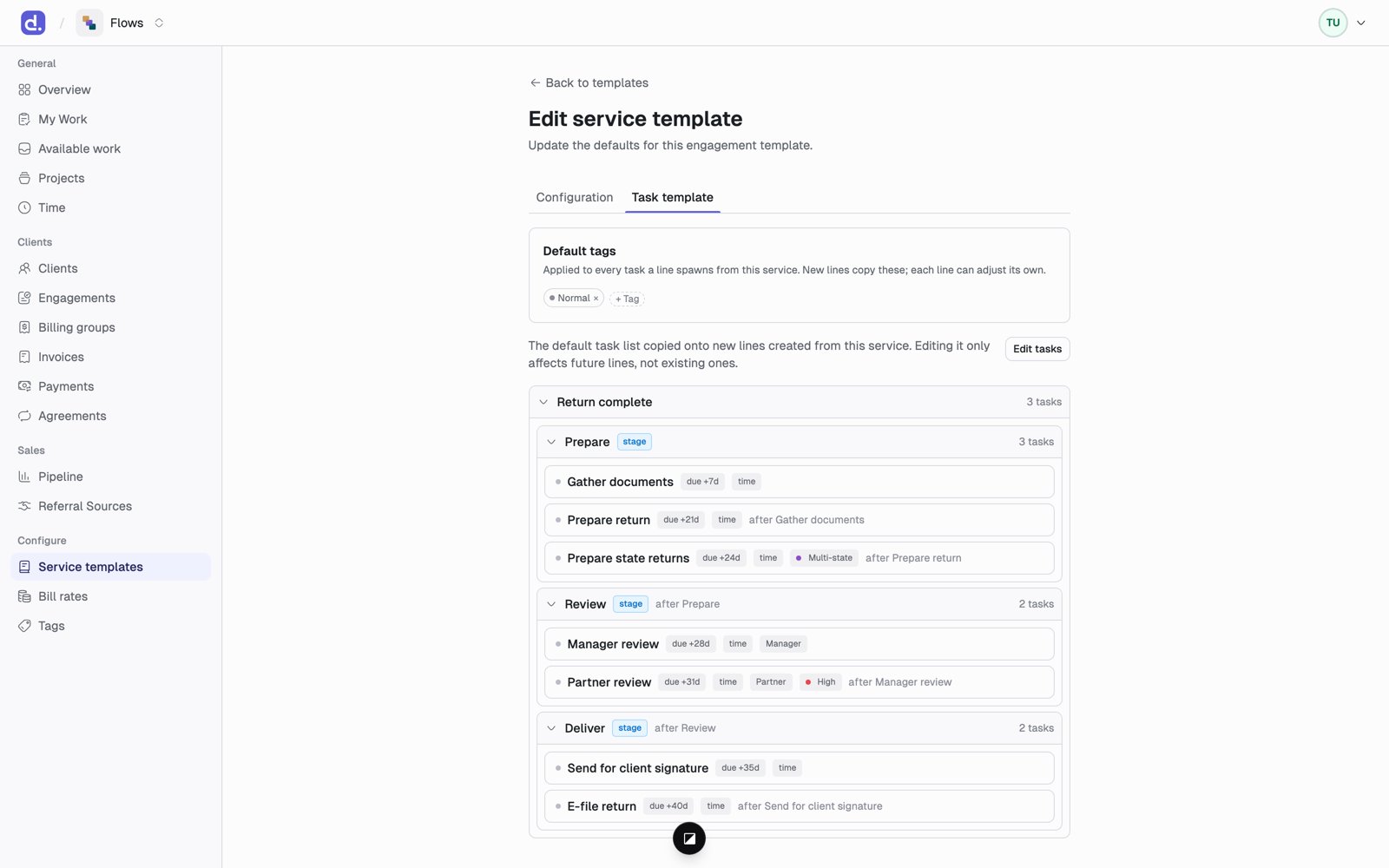
- Tasks and groups. A task is one piece of work. A group holds related tasks, such as Review holding Manager review and Partner review. Every template has one top-level group that holds everything.
- Order. Use Blocked by to say a task waits for another task. Use Runs after to say a group waits for another group. A waiting task can’t be started or finished until the work before it is done.
- Due dates. Each task can be due a number of days after the start, or a number of days after the task before it finishes. The second kind is a chained due date: it stays blank until the task before it is done, then fills in on its own.
- Assign to. Who gets the task:
- Same as group: the task goes to whoever its group goes to. This is the default, and the editor shows what it works out to, such as Same as group (Manager). If no group above it has a choice, the task goes to Available work.
- Unassigned (Available work): the task goes to Available work for anyone to claim.
- Partner: the entity’s Partner.
- Manager: the entity’s manager for this service’s category.
- Specific person: a named person. This choice only shows up on a client’s copy of the service, not on the firm template.
- Groups have their own Assign to, except the top-level group. A task’s own choice beats its group’s.
- Time-tracked. If checked, someone must log time to the task before they can mark it done.
- Include. Some tasks only belong for some entities. A task can be included always, only when the entity files in any state, only when it files in two or more states, or only for specific states. This is how a multi-state client gets a Prepare state returns task and a single-state client does not.
- Tags. Labels you can filter by later. Admins set up tag groups under Configure → Tags.
- Stages. Check Stage on a group to make it a workflow stage, such as Information receipt, Preparation, Review, Delivery. Stages run in order, and each one unlocks when the one before it is done.