

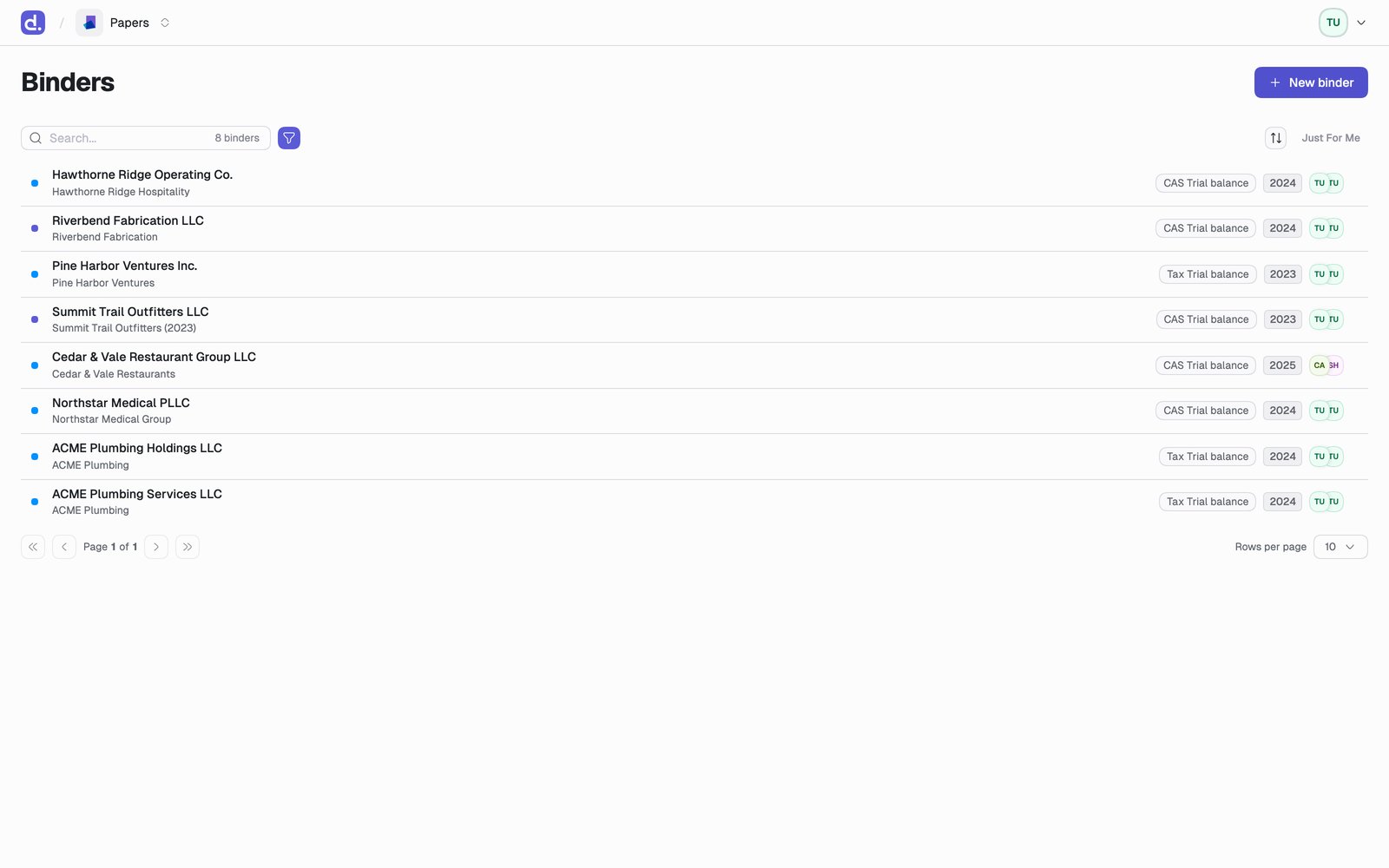
Just For Me
The fastest cut, and the one to reach for first. Toggle Just For Me and the list drops to binders waiting on you, in priority order:- Binders where you’re the preparer and the status is In Progress. Your queue.
- Binders where you’re the reviewer and the status is Ready for Review. What’s waiting on your sign-off.
Filters
When you need something more specific, filter by any of:
Filters combine, so Workflow: CAS plus Period End: 11/30 plus Status: In Progress is one month’s close work across the firm.
Keep the view
Your filters live in the page URL, so the view you built is a link. Bookmark it and you get it back in one click. The views worth bookmarking are the ones you’d otherwise rebuild weekly:- Reviewer = you, Status = Ready for Review: your review queue.
- Preparer = you, Status = In Progress: your prep queue.
- Workflow = CAS, Period End = this month: the whole close.